X Marketing
X Marketing lets you review people who responded to your posts, identify who needs a reply, and manage prospects. It can also track your own posts for a selected period and show changes in impressions and engagement.
The main reactions currently collected automatically are:
- Likes on your posts
- Mentions and replies addressed to your account
When Post Analytics is enabled, Torai also saves your posts from the selected period and the metrics that the X API makes available.
The data is saved in your Google Sheet. Torai never automatically likes, follows, or replies to users.
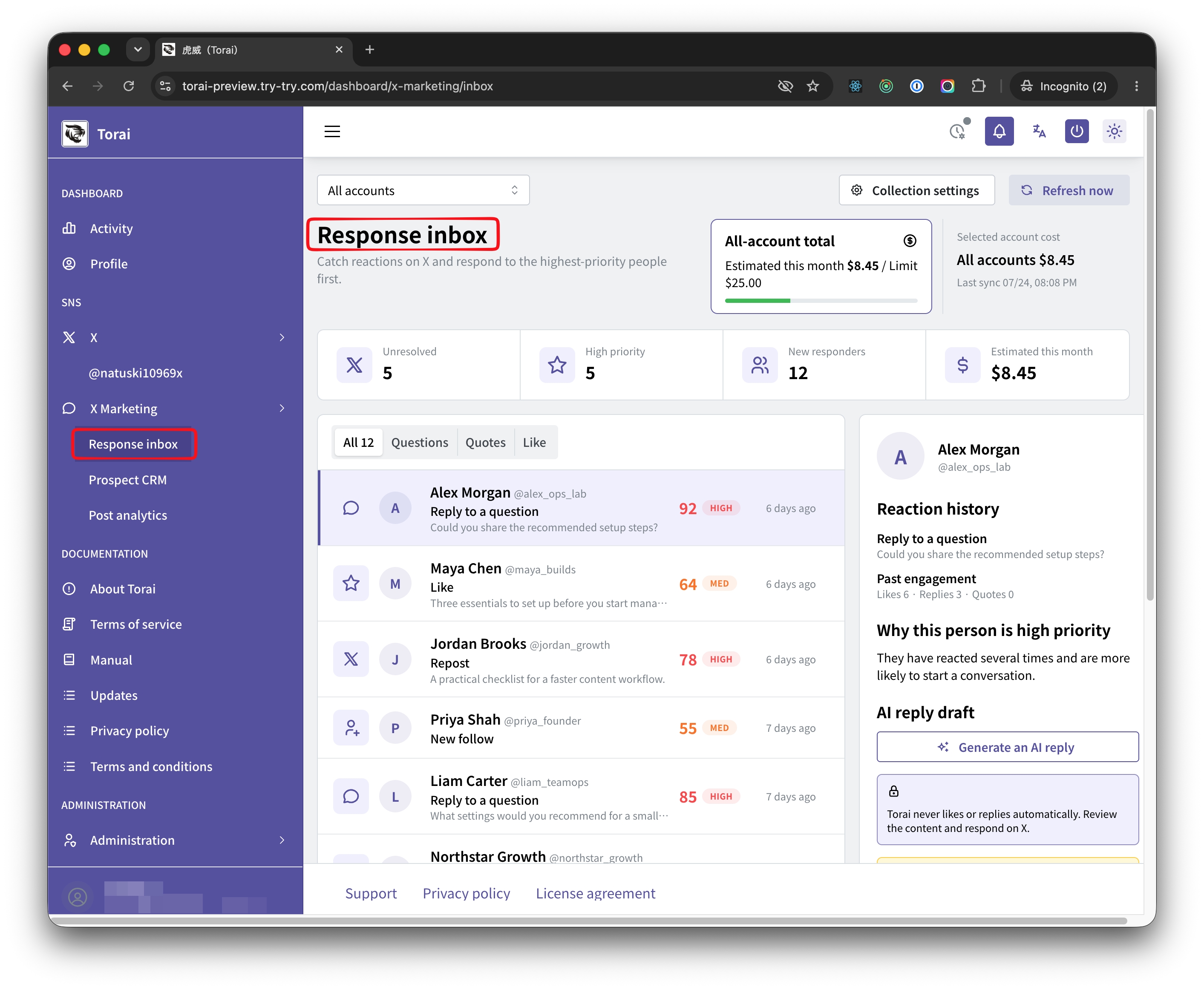
The screenshots on this page show the real Torai interface populated with sample data for documentation. Your accounts, posts, responders, counts, and costs will differ.
By default, X Marketing collects data once a day while tracking your posts for seven days. You can change the tracking period to 1, 7, 14, or 30 days.
It collects two different types of data:
- Responders
- Post analytics
The two features retrieve different data and make different API calls. Enabling either feature may incur X API read charges.
The amount shown in Torai is an estimated charge for data reads only. It does not include the cost of publishing posts.
Before you start
Confirm that:
- The latest Apps Script code is in your Google Sheet
- The Apps Script web app has been updated or redeployed
- Your X account and four API credentials are registered in Torai
- The X Developer Console has available credit
- Your account can perform X API reads
If a registered account does not appear, see Manage X Accounts first.
1. Open X Marketing
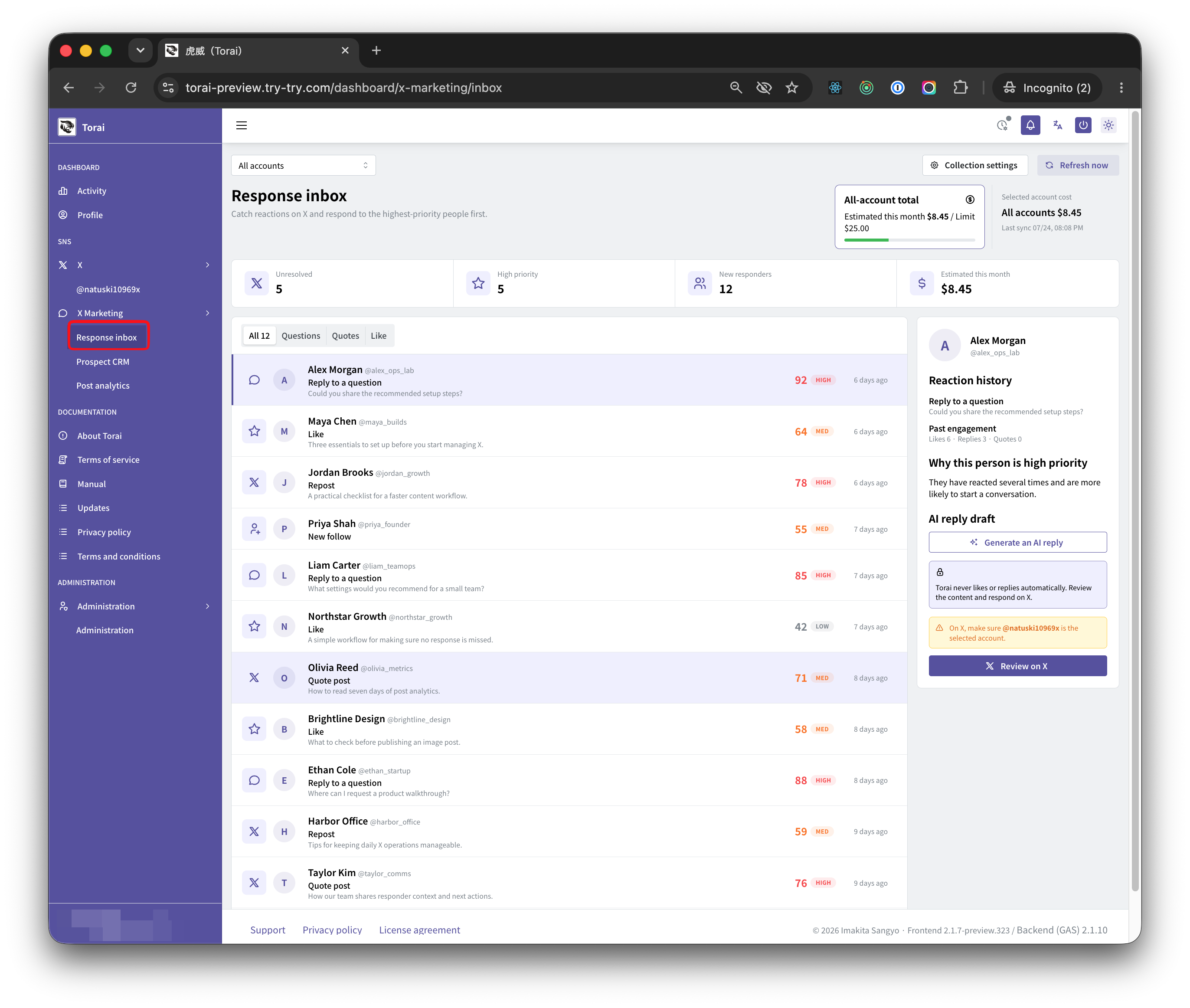
Open X Marketing from Torai's left menu.
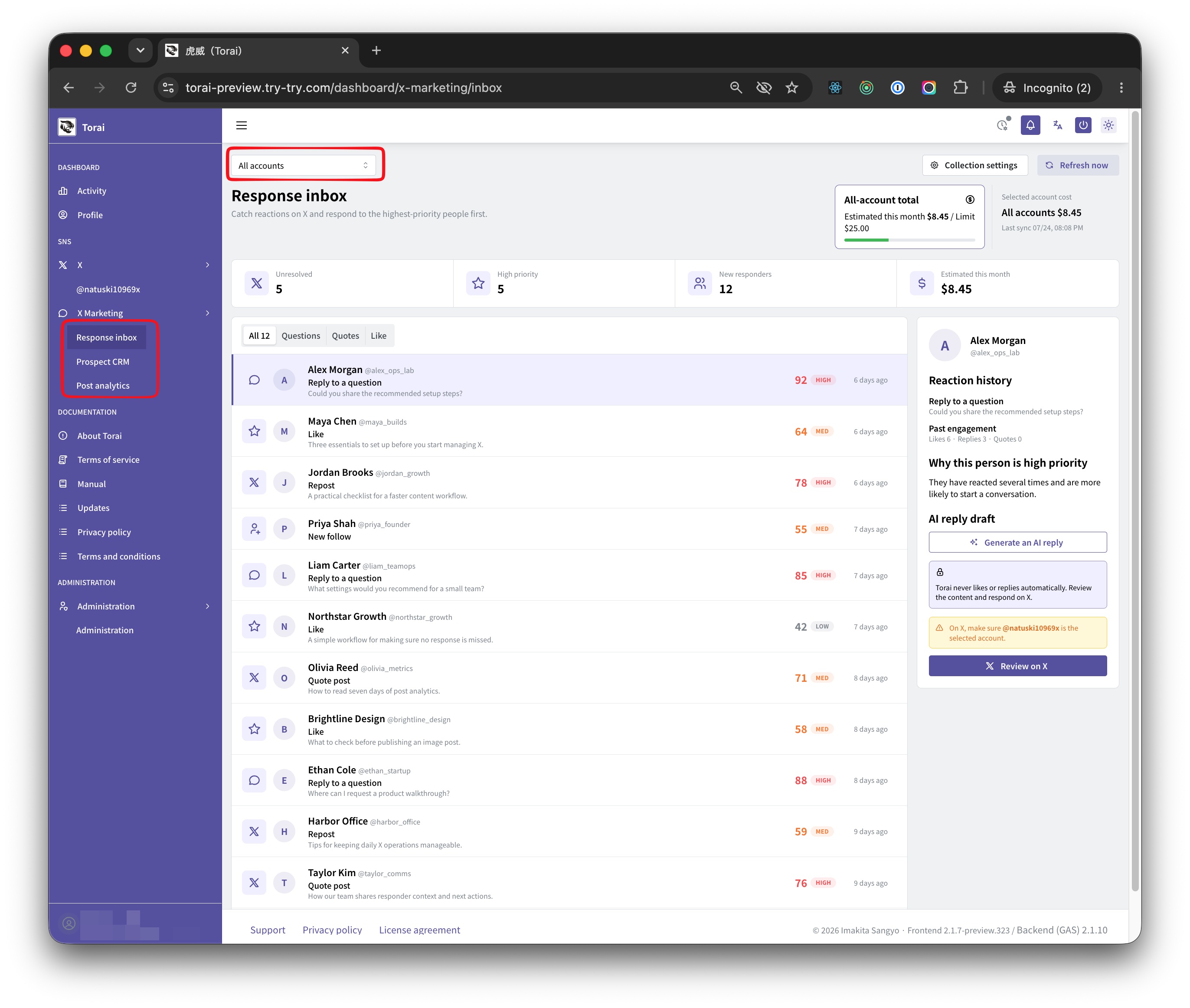
You can switch between three pages:
- Response Inbox: Review reactions and decide who to respond to first.
- Responder CRM: Manage each responder's stage, tags, and memo.
- Post Analytics: Review impressions, engagement, and daily trends for your own posts.
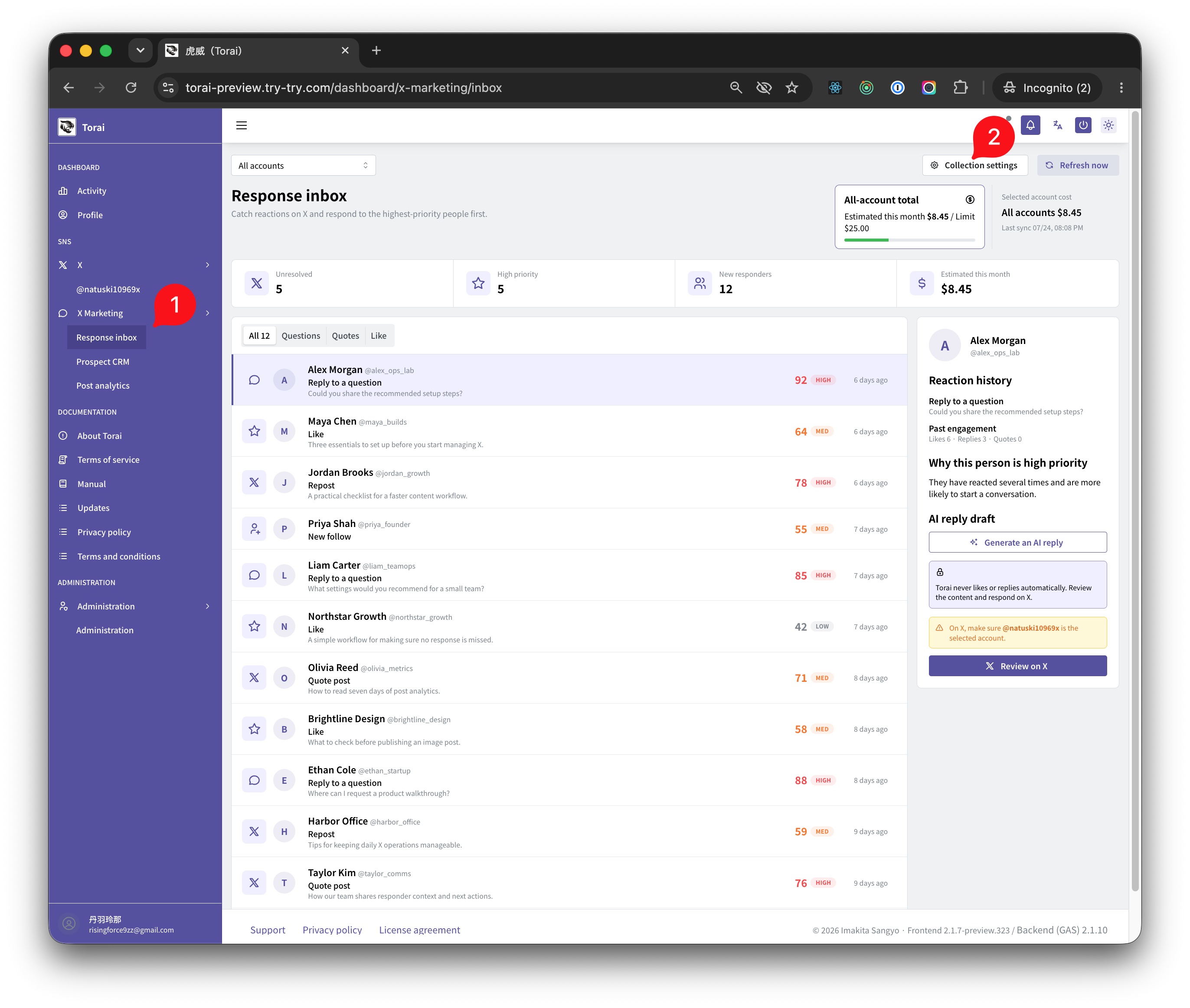
At the top of the page, choose All accounts or a specific X account. Switching accounts immediately filters data that has already been collected.
2. Configure data collection
Click Collection Settings in the upper-right corner.
| Setting | Description |
|---|---|
| Enable responder collection | Once per day, collect likes on your posts and mentions or replies addressed to your account. |
| Enable post analytics | Collect your own post metrics and save the latest value for each post plus a daily snapshot. |
| Tracking period | Choose 1, 7, 14, or 30 days. |
| Posts per account | Number of your own posts checked in one collection run. Set from 1 to 100. |
| Responders per post | Number of responders collected from one post. Set from 1 to 100. |
| Monthly budget limit for all accounts (USD) | Monthly total limit for X Marketing analytics across all accounts. Set from $1 to $1,000. |
Click Save Settings after entering the values.
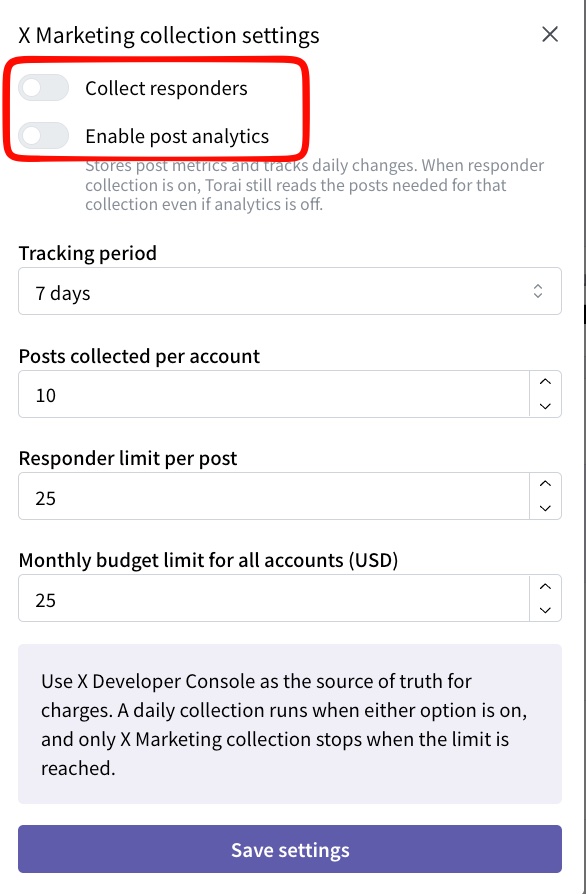
Responder collection and Post Analytics can be turned on or off independently.
| Goal | Responder collection | Post Analytics |
|---|---|---|
| Use only Response Inbox and Responder CRM | ON | OFF |
| Use only Post Analytics | OFF | ON |
| Use both | ON | ON |
| Stop scheduled X Marketing collection | OFF | OFF |
When either feature is on, Torai creates one daily X Marketing trigger. When both are off, it removes that trigger. This does not affect the trigger used for automated posting.
Turning off Post Analytics does not delete saved analytics data. The Post Analytics page displays a stopped message and the last saved data.
The budget limit is a guideline used by Torai to stop analytics collection. It does not set an X Developer Console billing or credit limit.
If the limit is reached during a collection run, Torai's estimate may exceed it slightly. Always use the X Developer Console as the authoritative source for actual usage and charges.
Even when Post Analytics is off, responder collection reads your own posts to determine which posts should be checked. To stop all scheduled X API reads by X Marketing, turn both switches off.
Collect the latest data manually
To check data immediately after setup, click Refresh Now in the upper-right corner.

Refresh Now processes every registered X account. It may take time when you have many accounts or posts. Do not click the button repeatedly while it is running; wait for the completion notification.
3. Check the cost display
The top of Response Inbox, Responder CRM, and Post Analytics shows:

- This month's estimated cost across all accounts
- Your configured monthly budget limit
- Estimated cost for the selected account
- Last synchronization date and time
When the progress bar approaches the limit, shorten the tracking period, reduce the number of posts or responders collected, or turn off collection you do not need.
Torai estimates costs from the number of resources collected. X may change prices or counting methods, so the estimate may not match your bill.
4. Use the Response Inbox
The Response Inbox lists collected reactions.
Review the summary
For the selected account, the top of the page shows:
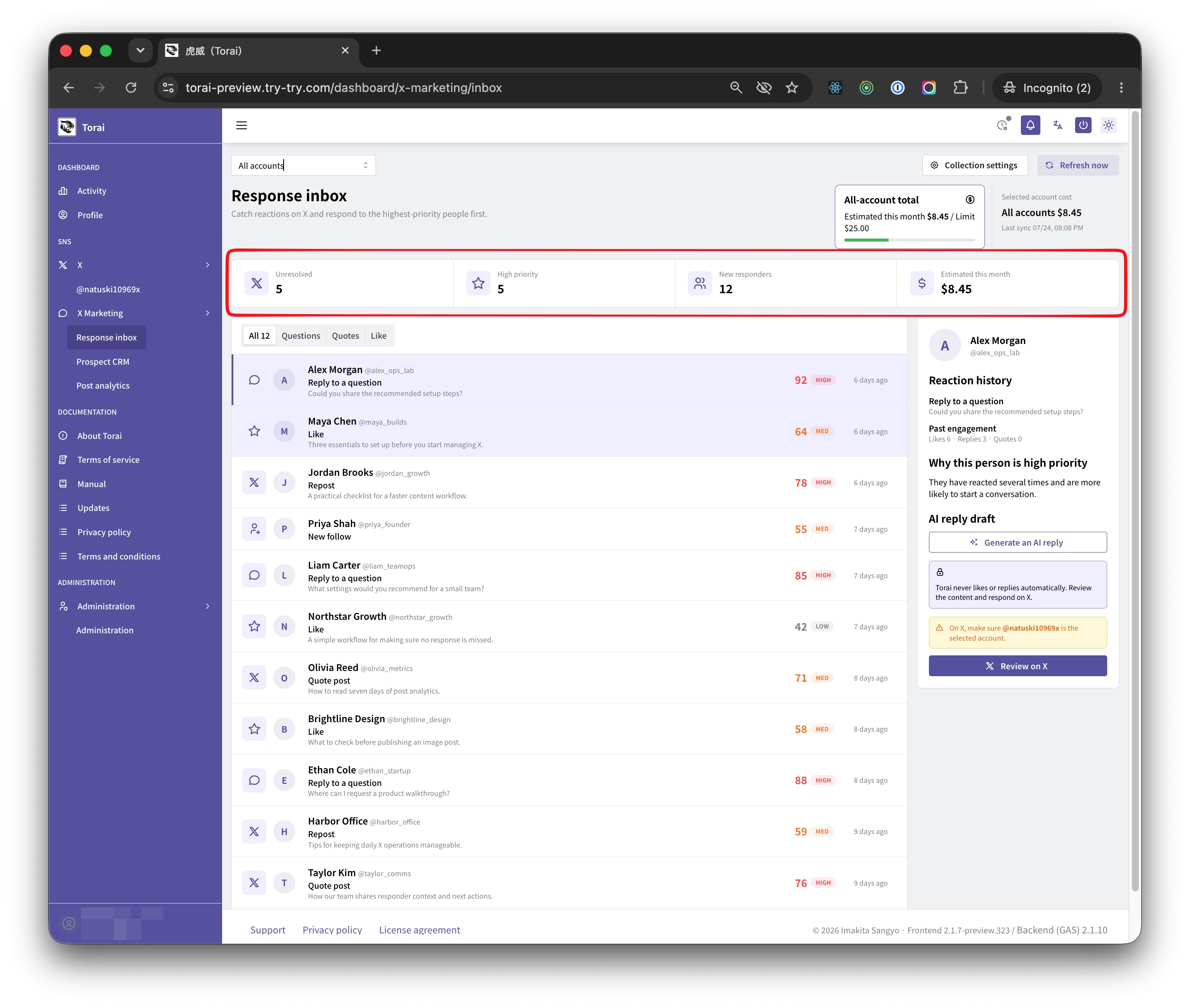
- Unhandled
- High priority
- New responders
- Estimated cost this month
Use the tabs above the list to filter by All, Questions, Quotes, Likes, and other types. The available types depend on what is currently collected and saved.
Review priority
Each responder has a lead score and a High, Medium, or Low label:
- 75 or higher: High
- 50–74: Medium
- 49 or lower: Low
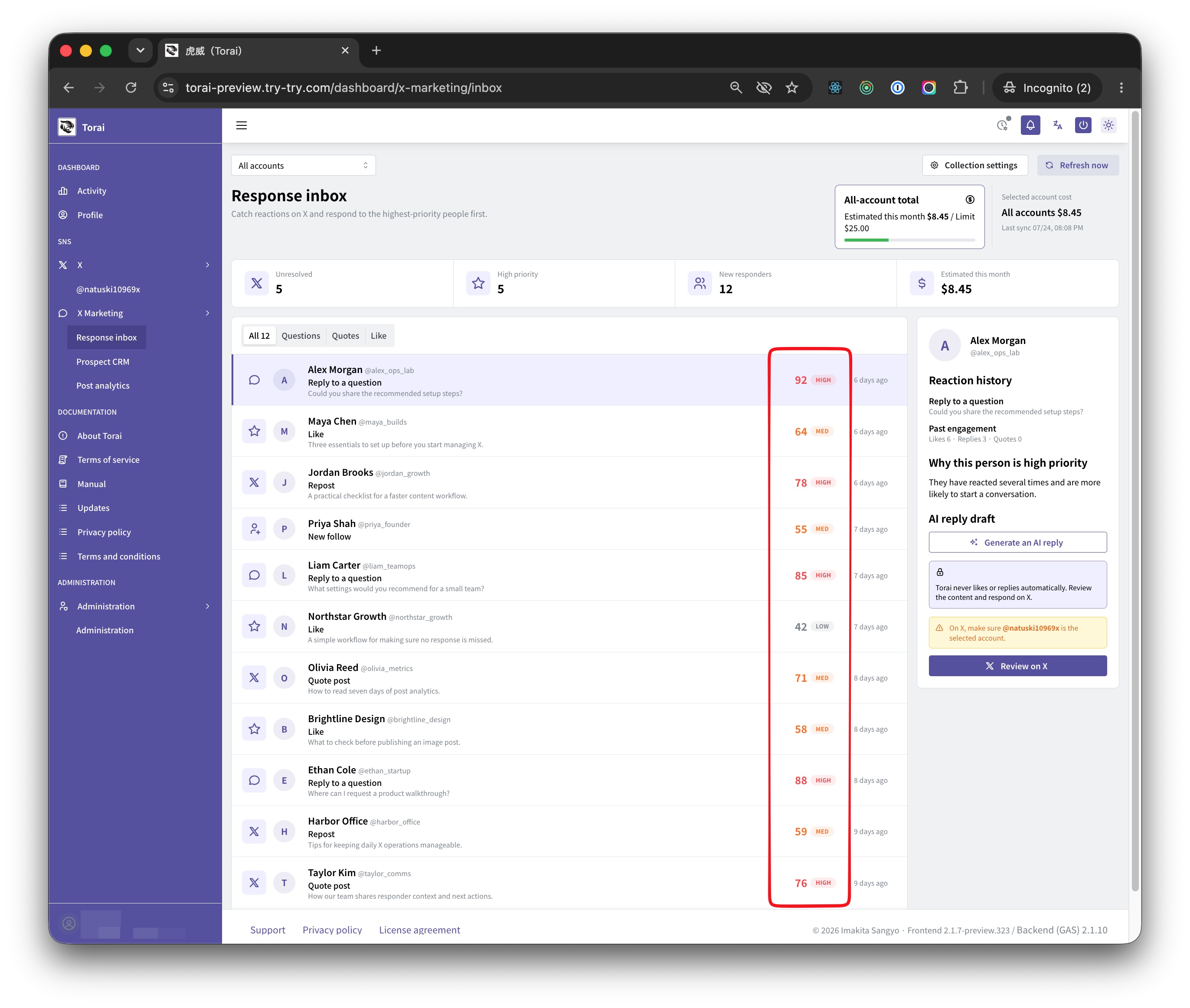
The score is a Torai guideline for ordering responses. Review the person's intent and post before making the final decision yourself.
Review details and create an AI reply draft
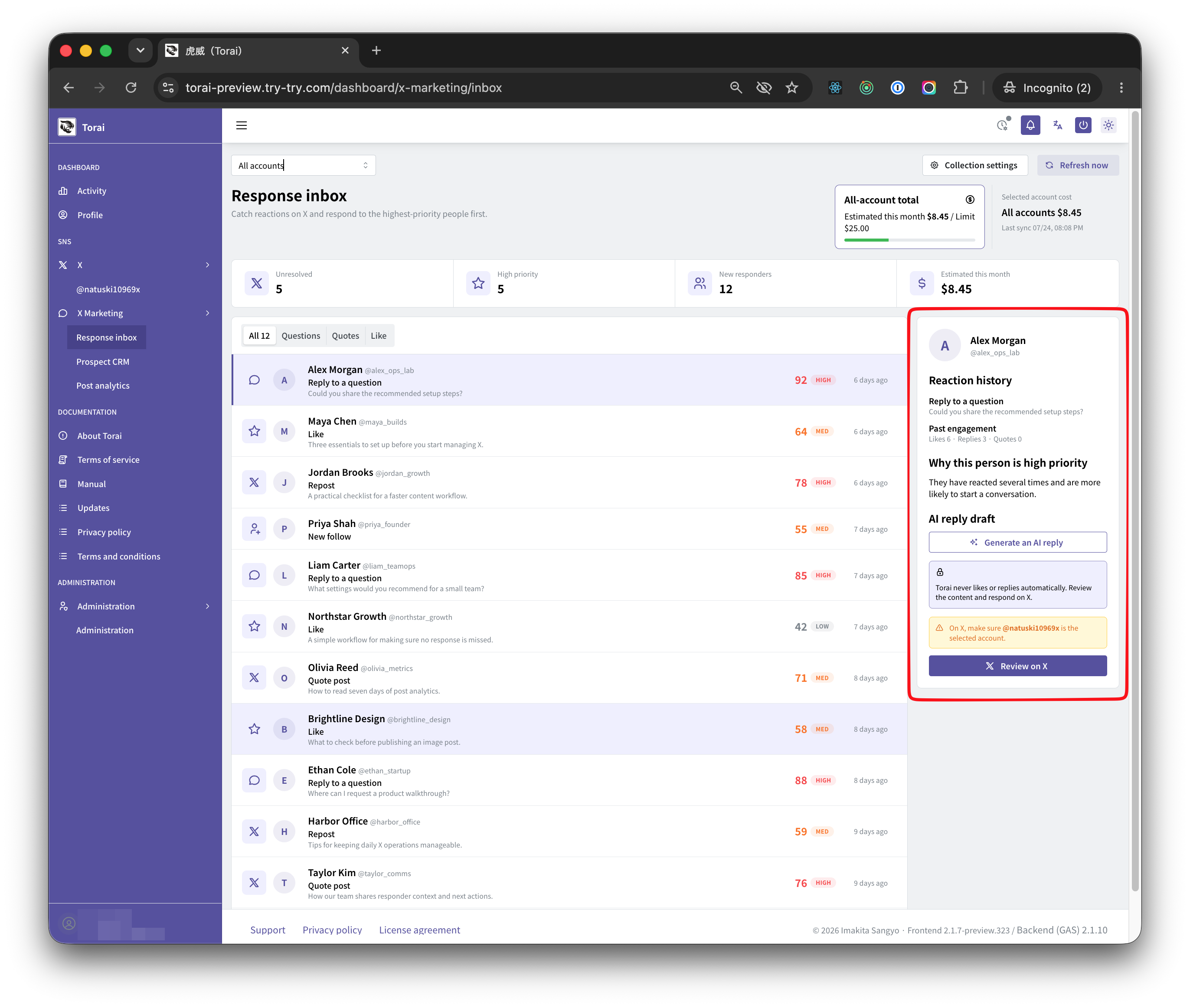
Select a responder to display:
- Display name and username
- Reaction and related post
- Engagement history
- Priority explanation
- AI reply-draft area
Click Create Reply with AI and Gemini generates one draft based on the selected reaction. Torai does not display an automatic template.
To use AI replies, register a Gemini API key under Profile > API Keys. If it is missing, Torai displays Gemini API key is not registered. See Set Up a Gemini API Key.
You can edit the generated reply on the page. Click Copy Reply Draft to copy the current text to the clipboard. Click Generate Again with AI to create a new draft.
AI output may be inaccurate or unsuitable for the conversation. Always review and edit it before pasting it into X.
5. Use “Check on X”
Click Check on X to display a confirmation of the X account you should use. After confirmation, the related post or profile opens in another browser tab.
The new tab uses the X account currently signed in to your browser. It does not automatically switch to the account selected in Torai.
Before replying or taking action on X, confirm that the account shown in Torai's confirmation and the account currently selected on X are the same.

If the browser still has an active X session, you normally do not need to sign in each time. If you signed out or the session expired, X displays its sign-in page.
6. Use Responder CRM
Open Responder CRM from the left menu.
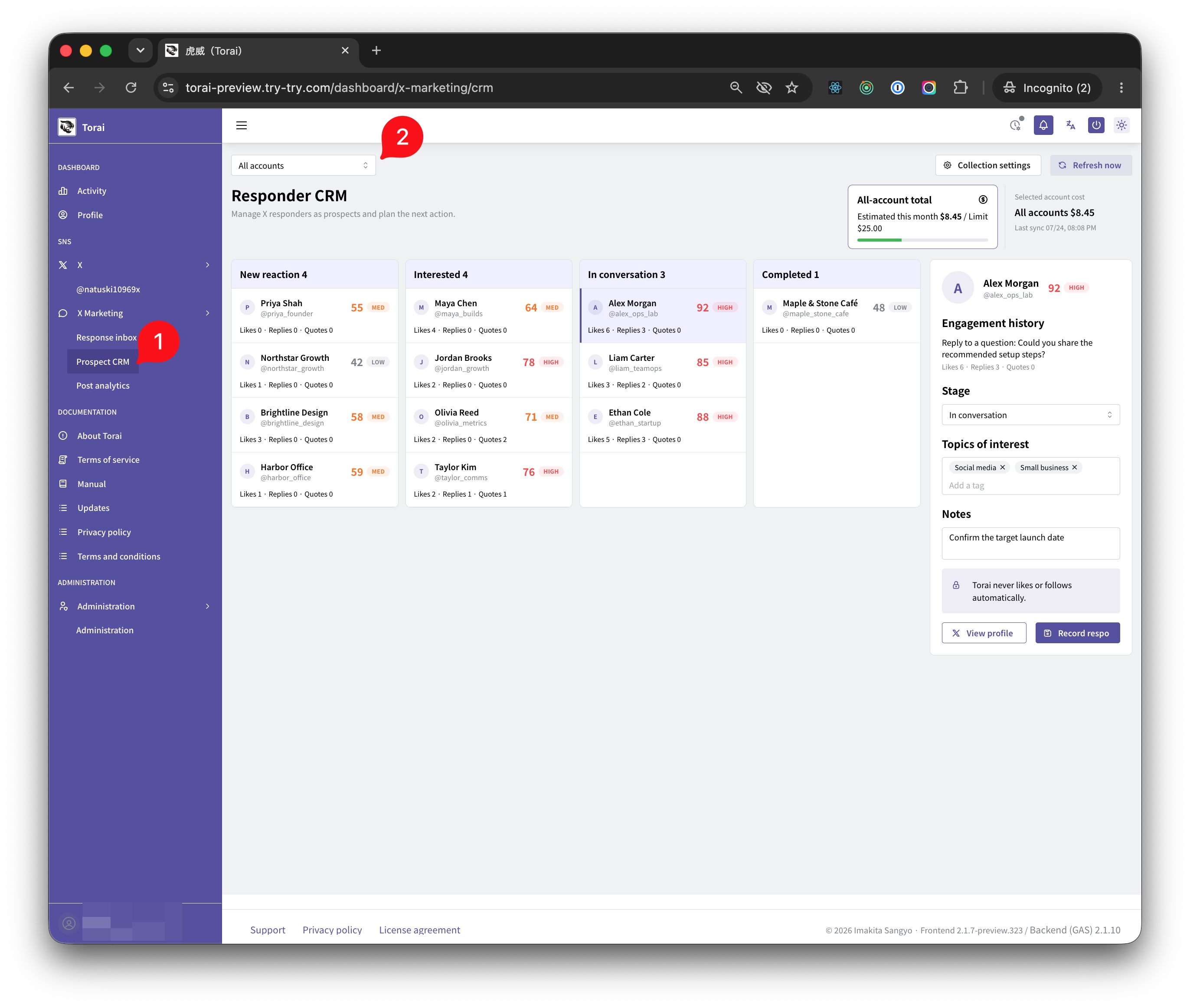
Manage responders in four stages:
- New response
- Interested
- In conversation
- Completed
Select a responder card to edit:
- Stage: Choose the current response status.
- Topics of interest: Register up to ten custom tags.
- Memo: Record the response or next action in up to 500 characters.
After editing, click Record Response. Saving records the reaction as handled.
Click View Profile to open the person's X profile in another tab.
Responder CRM does not make Torai automatically like, follow, or reply. Before taking action on X, review the content and confirm the account you are using.
7. Use Post Analytics
Open Post Analytics under X Marketing in the left menu.
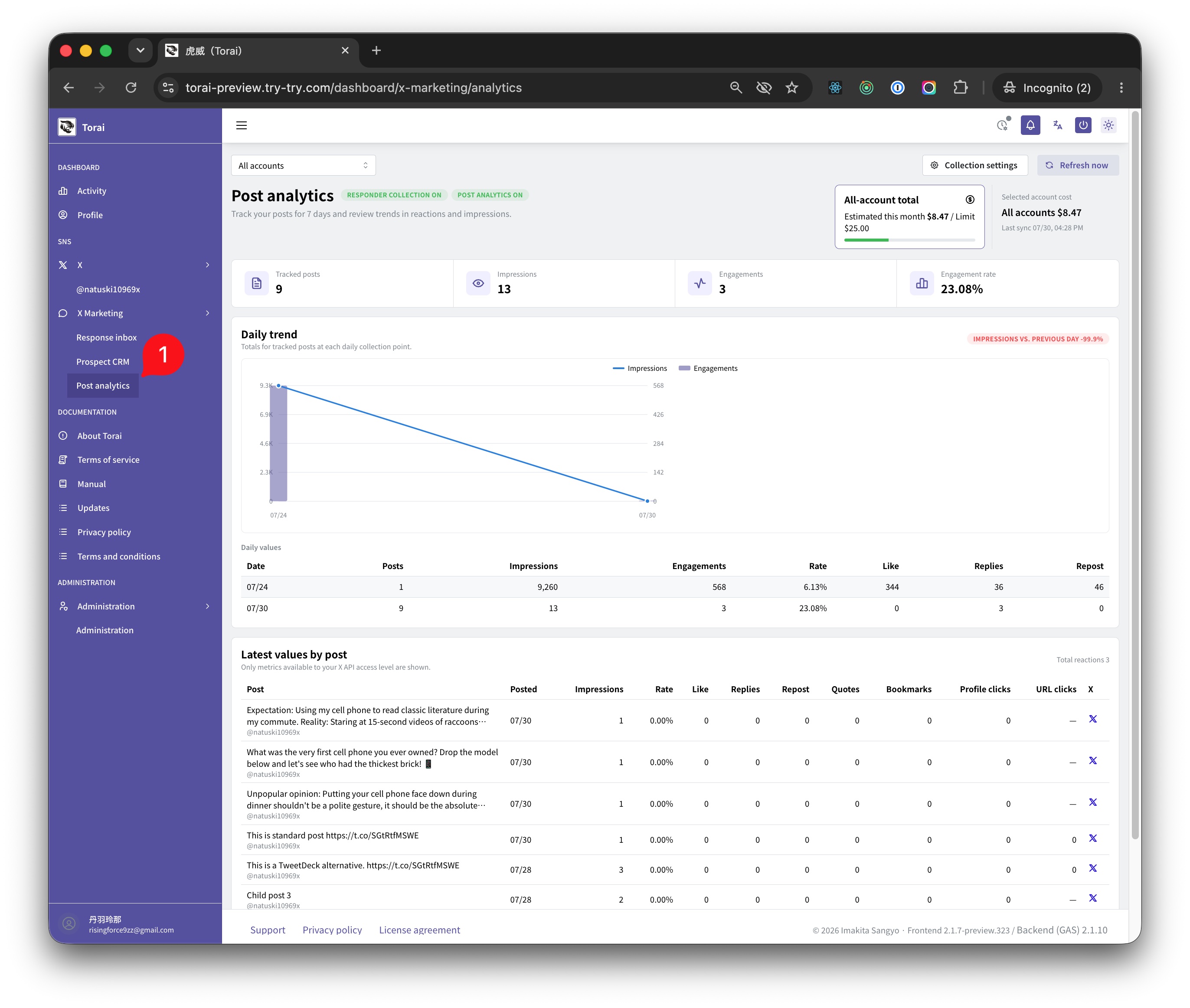
Post Analytics shows metrics available from the X API for your posts within the configured tracking period. Data updates when you click Refresh Now or the next daily collection finishes.
Check collection-status badges
Two badges appear next to the Post Analytics title:
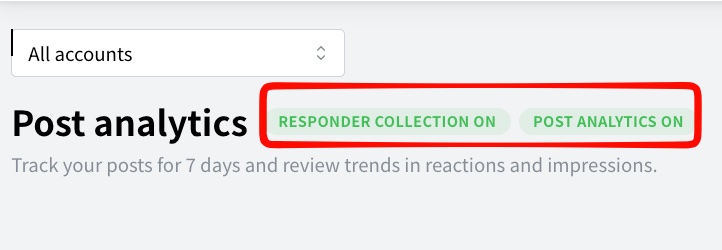
- Responder collection ON/OFF
- Post Analytics ON/OFF
ON is green and OFF is gray. After you save collection settings and the page reloads, the badges reflect the saved state.
If Post Analytics is off but saved data exists, the page says Post Analytics is stopped and continues to display the last saved results.
Review totals
The top of the page shows four values for the selected account:

| Item | Description |
|---|---|
| Tracked posts | Number of eligible posts within the tracking period |
| Impressions | Total impressions for tracked posts |
| Engagements | Total engagements returned by the X API |
| Engagement rate | Engagements ÷ impressions × 100 |
If impressions are not available under your X API permissions or response data, Torai displays — rather than an estimate.
Read the daily trend chart
Daily Trend shows totals for tracked posts at each day's collection time.
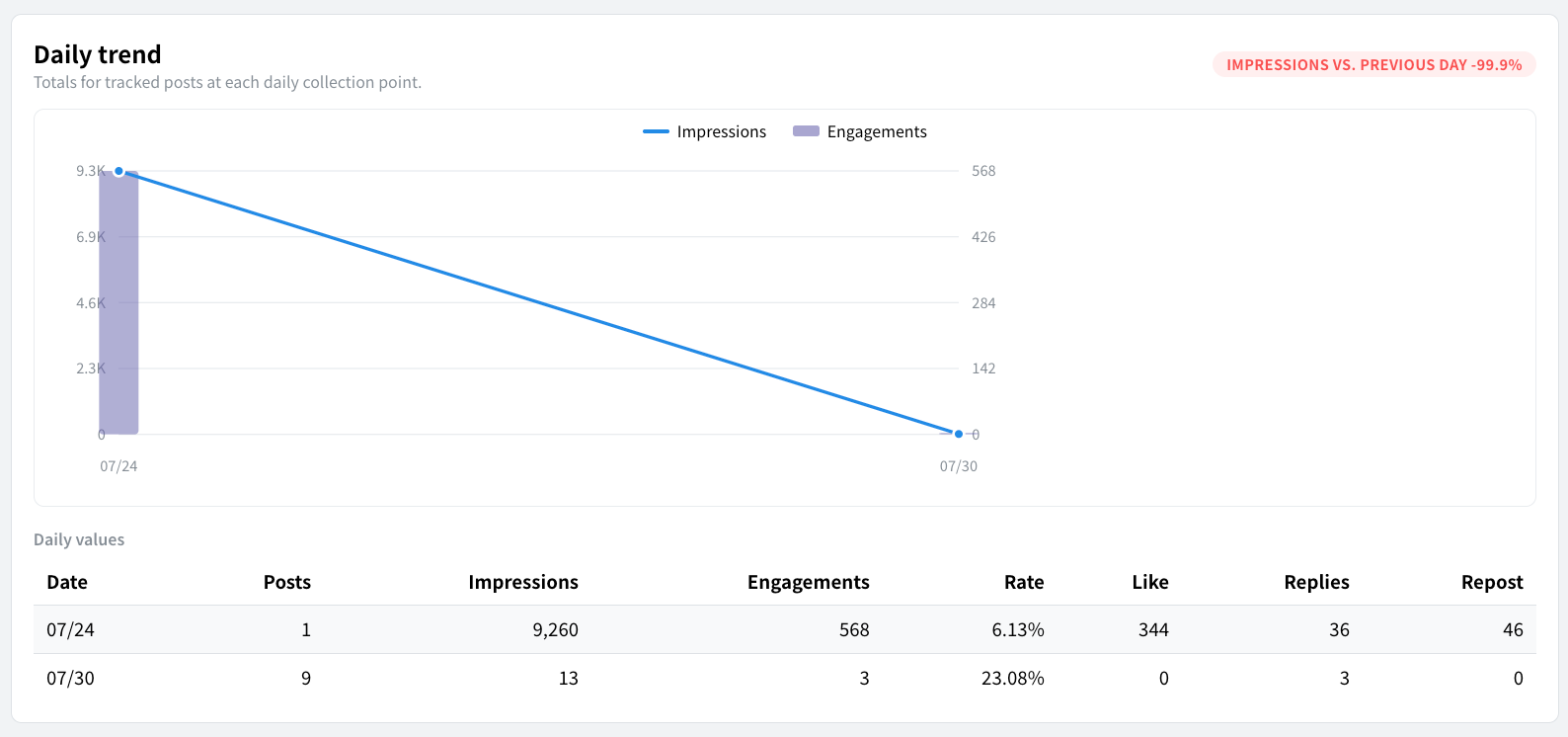
- Blue line: Impressions
- Purple bars: Engagements
- Day-over-day badge: Displayed when impressions are available for the two most recent days
Point to a dot or bar to see its date and value. For a 30-day tracking period or other wide data sets, scroll the chart horizontally.
The Daily Values table below the chart shows the exact post count, impressions, engagements, engagement rate, likes, replies, and reposts.
Review the latest metrics by post
Latest Values by Post shows:
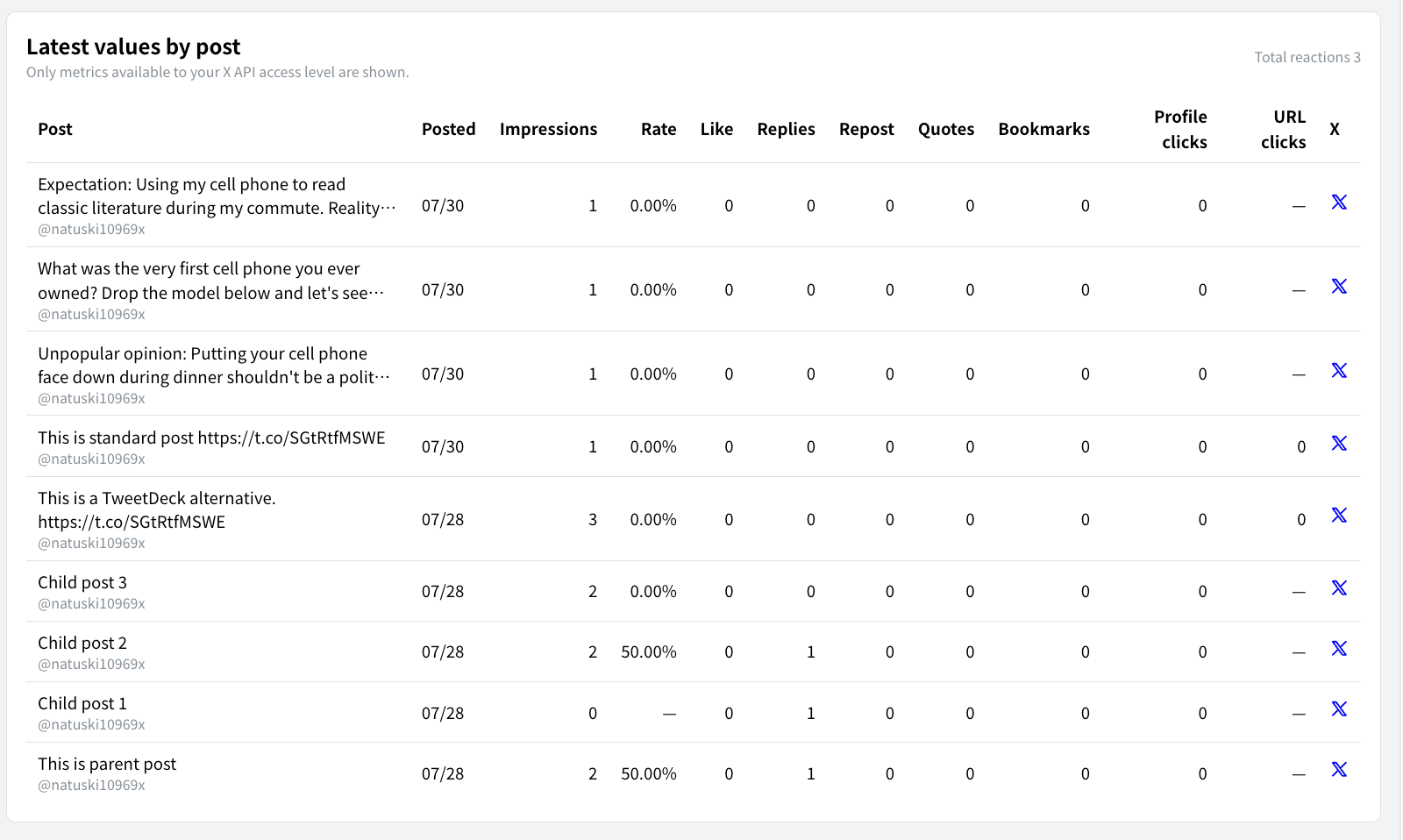
- Post text and account
- Publication date
- Impressions
- Engagement rate
- Likes, replies, reposts, and quotes
- Bookmarks
- Profile clicks
- URL clicks
Metrics that are not available under your permissions display —. Click the X icon at the right to open the post in another browser tab.
Post Analytics displays only values returned by the X API. It does not estimate unavailable impressions or clicks from public reaction counts.
8. Storage and data limits
X Marketing data is stored in your connected Google Sheet.
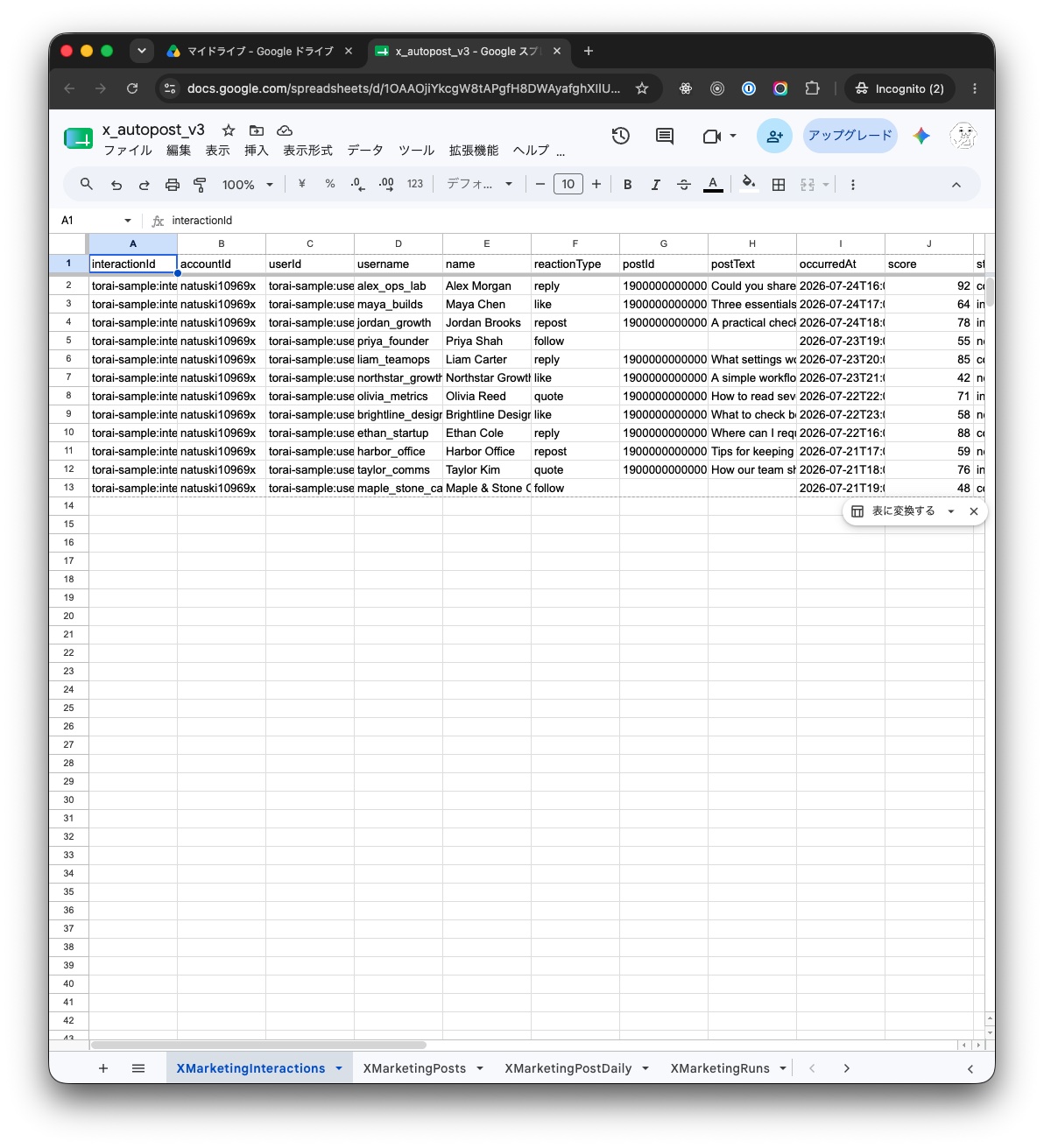
| Sheet | Stored data |
|---|---|
XMarketingInteractions | Responders, related posts, scores, stages, tags, memos, and more |
XMarketingPosts | Latest metrics for each tracked post |
XMarketingPostDaily | Daily snapshot for each post |
XMarketingRuns | Collection time, account, resources collected, estimated cost, result, and more |
For stable operation, Torai stores the 2,000 most recent responder records and up to 2,000 latest post-metric records. The Torai UI receives up to 1,000 responder records and 1,000 analytics records at a time.
Daily snapshots are limited to 20,000 records and about 32 days. If the same post is collected several times on one day, Torai updates that day's snapshot with the latest value. Older records beyond the storage limit or retention period are removed during the next collection and save.
Turning off responder collection or Post Analytics does not delete saved data.
Changing column names or values directly in the sheet may make the data unreadable to Torai. You can inspect or copy it for backups, but normally make edits through the Torai UI.
9. If data does not appear
Check these items in order:
- The required feature is on in Collection Settings
- Refresh Now completes and shows a notification
- The Responder Collection and Post Analytics badges show the expected states
- The X account is registered correctly
- Your own posts or mentions exist within the tracking period
- X Developer Console credit and Usage have no issues
- The latest Apps Script is saved and the web app is updated
- If Apps Script was redeployed, Torai's GAS URL has been updated to the new web app URL
- The monthly budget limit has not been reached
If only one account fails, check its four API credentials and X Developer Console permissions.
Use X Marketing safely
- Do not decide how to respond using only an AI reply or lead score. Review the original post and profile.
- Before taking action on X, confirm the account currently selected there.
- Regularly compare Torai's estimated X API cost with actual X Developer Console usage.
- Your spreadsheet stores usernames, reactions, response memos, post text, and metrics. Restrict sharing appropriately.
- Do not use X Marketing for solicitation, harassment, automated high-volume responses, or any activity that violates X rules or applicable laws.