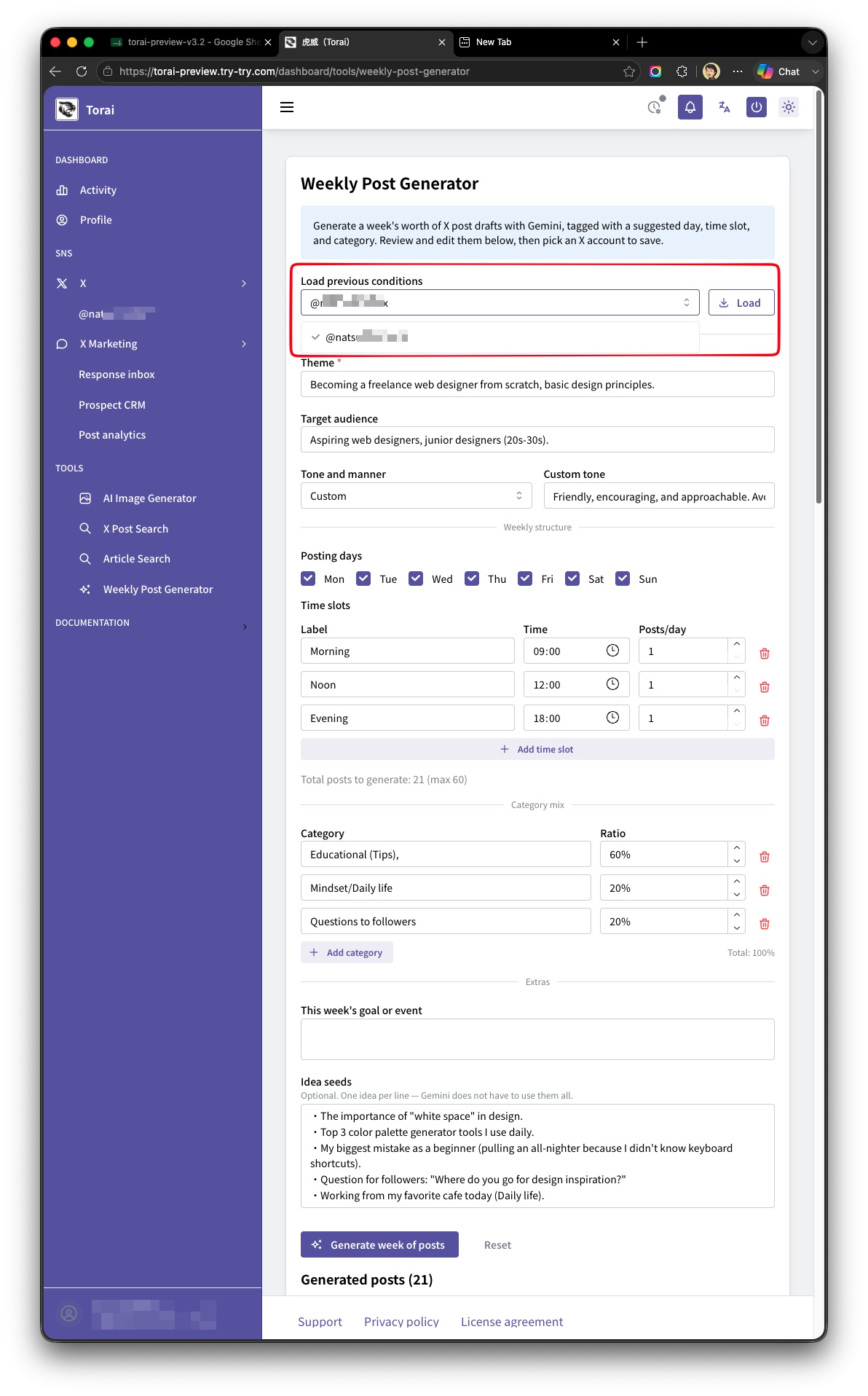
Weekly Post Generator
Use Gemini (BYOK: your own API key) to generate a week's worth of X post drafts at once. Each generated post is automatically tagged with a suggested day of week, time slot, and category.
Before you start
- You have registered a Gemini API Key in Torai.
Generation itself only requires a Gemini API key; saving to Drive is not involved. To save the generated posts to an X account, however, you need GAS integration (Google Sheets connection) set up, the same as for regular X post creation.
1. Open the Weekly Post Generator
Open Weekly Post Generator under Tools in the left menu.
2. Enter the generation conditions
The form includes the following fields.
Basics
| Field | Description |
|---|---|
| Theme | The central theme of the posts (required) |
| Target audience | The readers or followers you have in mind |
| Tone and manner | Choose Polite (formal "desu/masu" style), Casual / friendly, or Gal-style slang, or choose Custom to enter your own |
Weekly structure
| Field | Description |
|---|---|
| Posting days | Select any combination of Monday through Sunday |
| Time slots | Add or remove rows, each with a label (e.g. Morning), a time, and a number of posts per day |
| Category mix | Add or remove rows with a category name and a percentage; used as a hint for Gemini |
| This week's goal or event | Optional — anything you especially want to communicate or promote this week |
| Idea seeds | Optional — one idea per line; Gemini is not required to use them all |
The total number of posts generated is the number of posting days multiplied by the total posts-per-day across your time slots. This total is shown live on screen, with a warning if it exceeds the cap (60 posts).
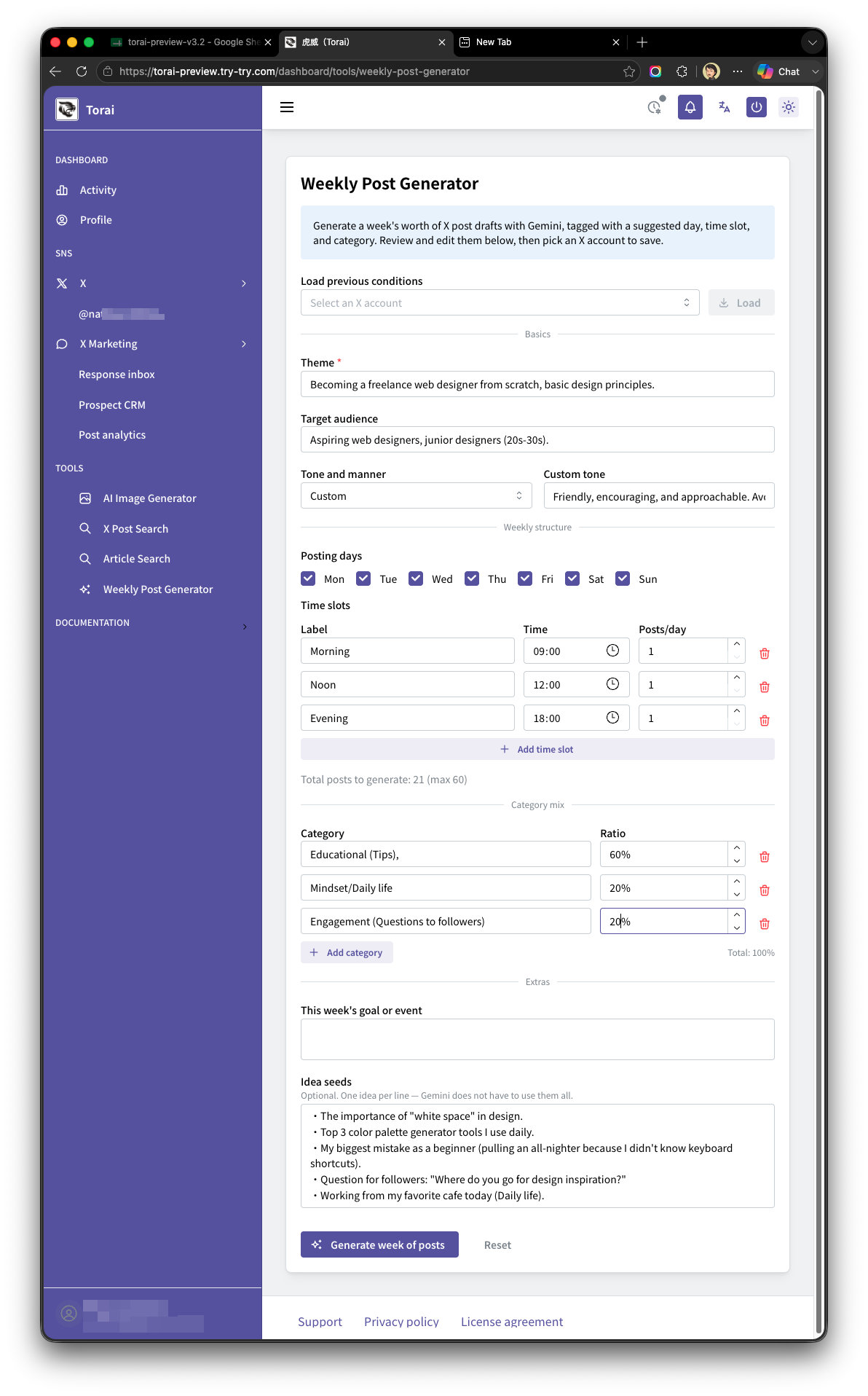
3. Generate the drafts
Click Generate week of posts to have Gemini create the drafts. Each generated post is tagged with a suggested day of week, time slot, and category, and the results are grouped by day.
You can edit each post's text directly. Remove any posts you don't want with the trash icon.
Always review AI-generated content. It may contain inaccurate information or wording you did not intend.
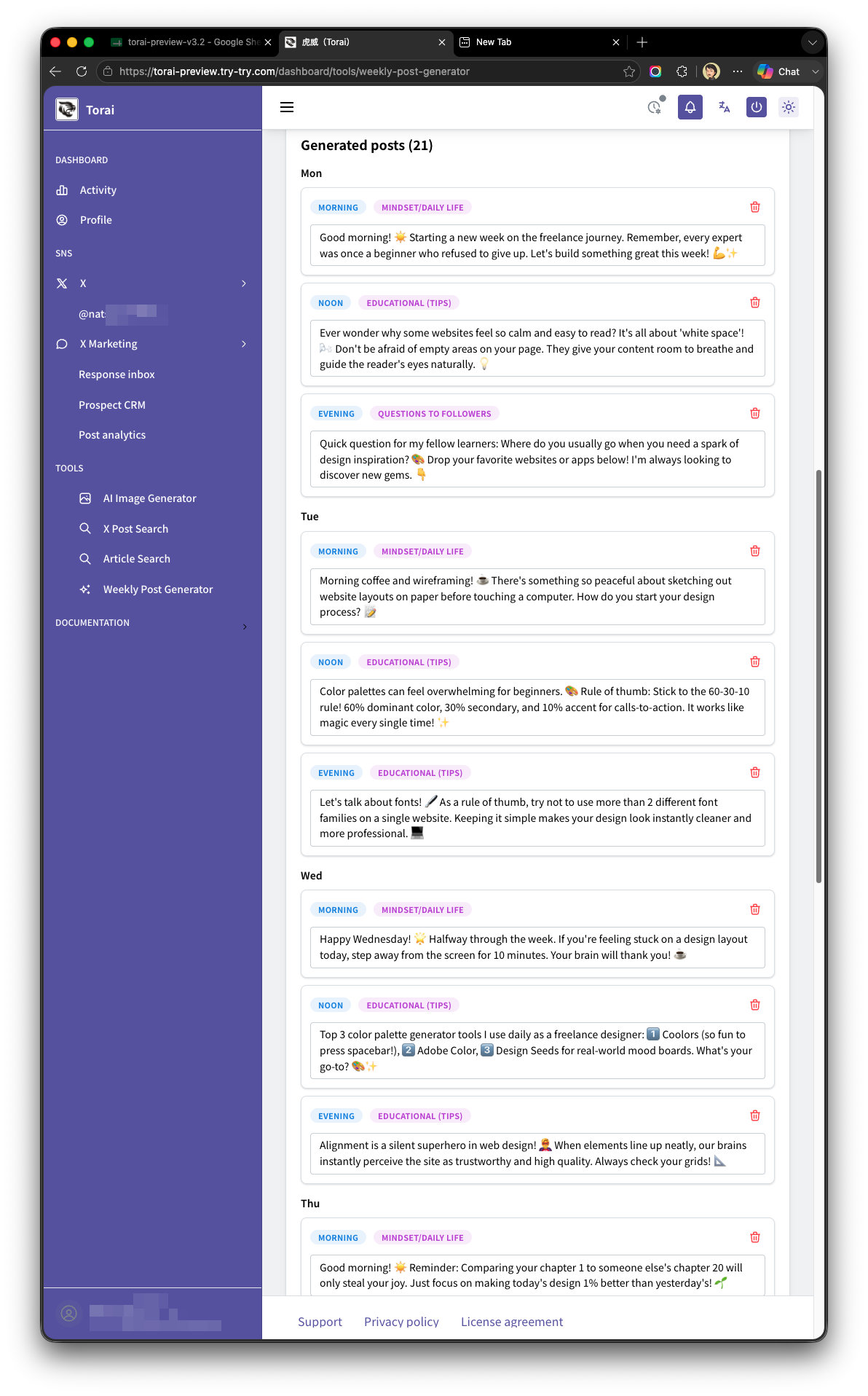
4. Choose an X account and save
Once you're satisfied, select the X account to save to and click Save posts.
Saving does the following:
- Each post's scheduled publication time is calculated automatically from its tagged day of week and time slot (using the next occurrence of that day, at the slot's configured time) and the post is registered for the selected X account. You can edit the scheduled time later from the regular post list.
- The set of conditions you used this time is saved as the "latest conditions" for the selected X account (only one saved set per account; saving again overwrites it).
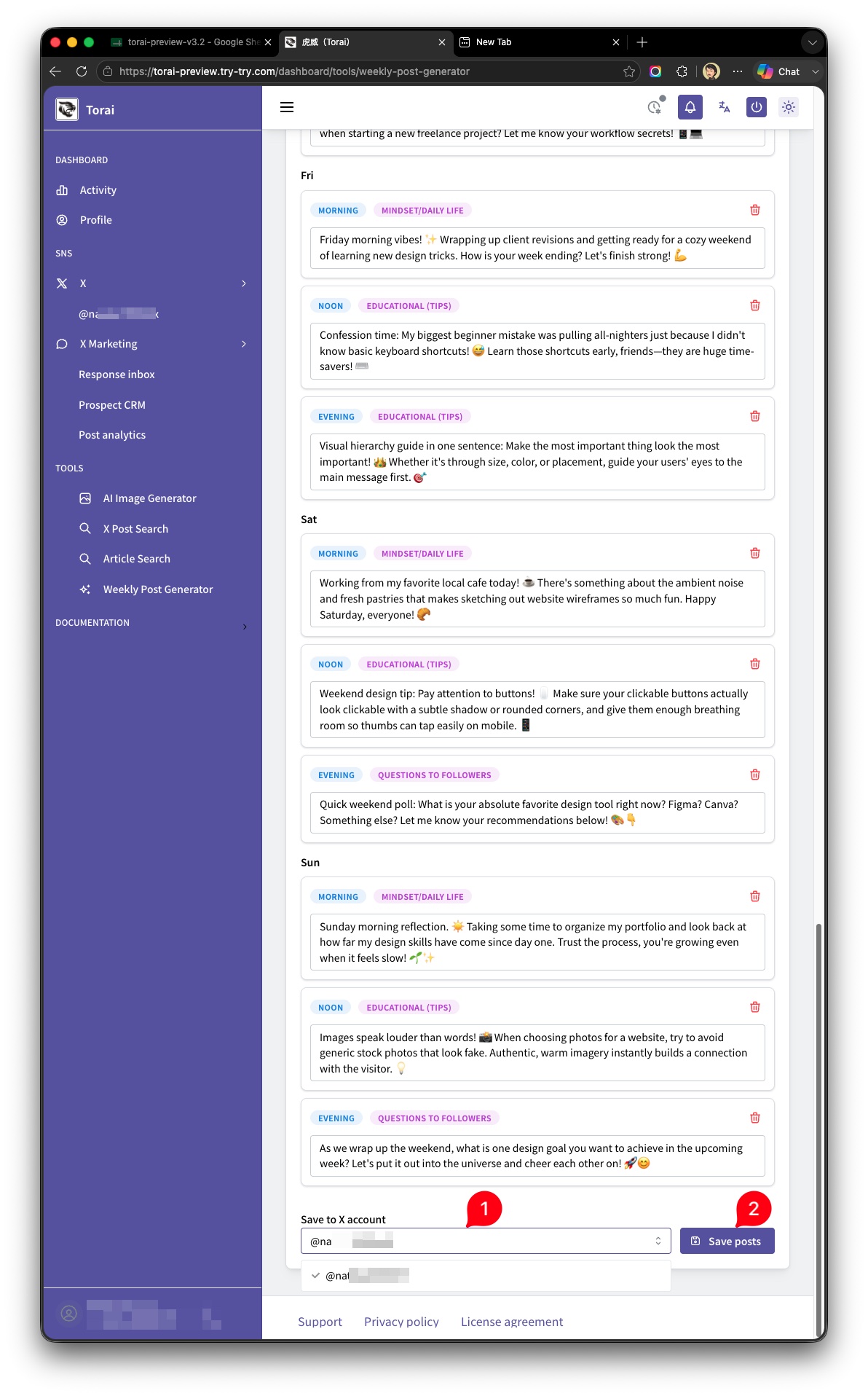
5. Load previous conditions
Selecting an X account from Load previous conditions at the top of the form loads that account's most recently saved conditions into the form. Conditions are not loaded automatically, so use this if you want to reuse the same settings as last time.
If the selected account has no saved conditions yet, Torai tells you so.