Thread Posts
Torai can schedule a thread in which multiple posts are connected by replies.
The second and later posts are published as replies to the first post. The third post replies to the second, and so on. This lets you tell a story as a series, and the connected display can make the thread more noticeable.
Because several posts are published in sequence, a thread uses more API activity than a single post.
Differences between post types
| Type | Description |
|---|---|
| Standard post | Published as one post |
| Thread | Connects several posts with replies |
| Quote post | Publishes a post quoting an existing post |
Thread

Quote post
A quote post treats the quoted destination as a link, which can result in a higher API charge than a standard post.
Benefits of threads
Threads can contribute to engagement because they:
- Appear as a connected thread in the timeline, even when partly collapsed
- Make it easier to tell a story that holds attention
- Include replies, even if they are your own, which can increase engagement signals
1. Create the posts for the thread
First, create each item as a standard post.
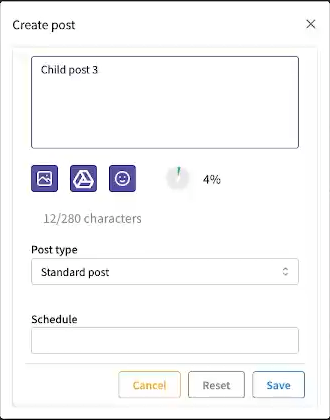
The first becomes the parent post and the later items become replies, so the order matters.
2. Open thread creation
Select the posts from the post list and click the thread creation button.
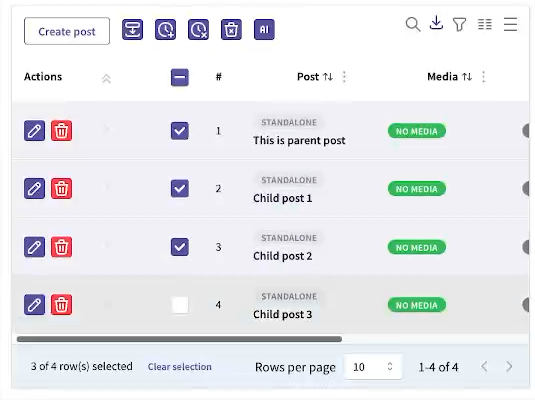
3. Select the posts in the thread
Use the trash icon to remove any post that should not be included.
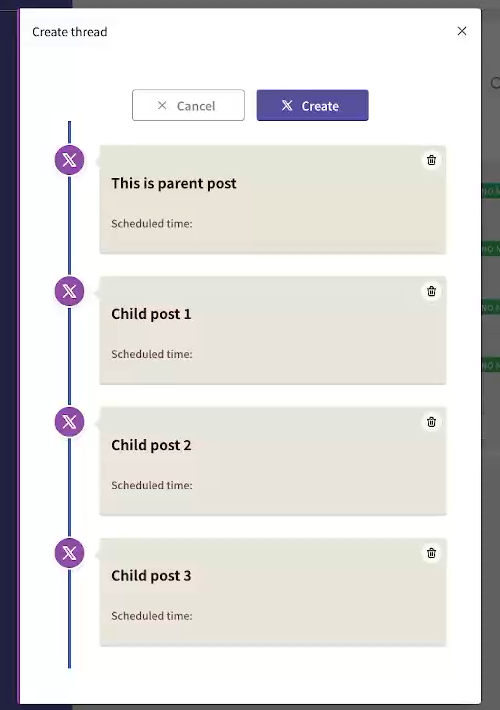
When the contents are correct, click Create.
The parent and child posts are displayed.
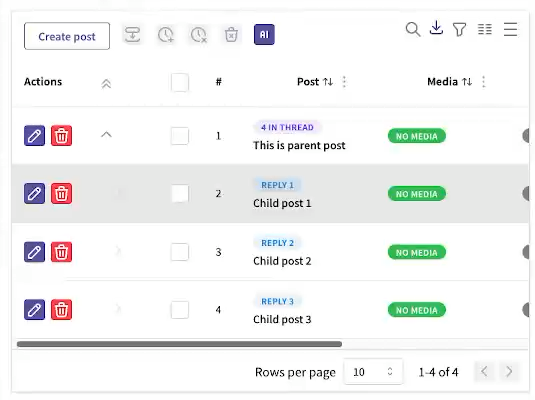
4. Set the publication time
Torai publishes the first post, then publishes each later post as a reply.
Set the thread start time. You can set times individually or in bulk.
Selecting the parent post selects every post in the thread.
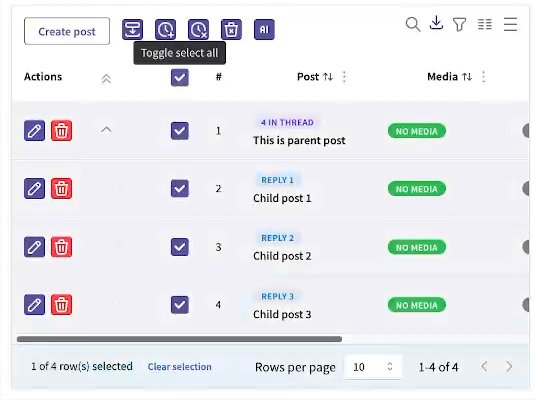
Click Set publication times in bulk at the top.
5. Save the schedule
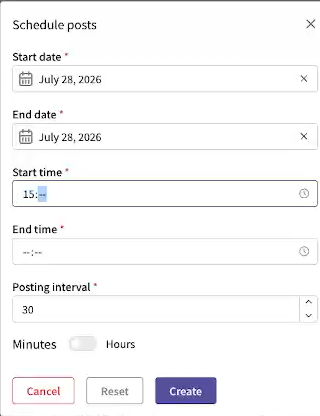
Set:
- Start and end dates
- Start and end times
- Posting interval
Then click Create.
6. Check the published thread
After automated posting, check X to confirm that the thread is connected in the correct order.
Important notes
- Each post in a thread uses an API posting operation.
- If a post fails, the thread may stop partway through.
- Threads containing images or videos may take longer to publish.
- Check X Developer Console Usage before scheduling many threads at once.