Maintenance
As published-post and error data grows, processing can become slower. Perform regular maintenance.
Torai combines Google Sheets, Google Drive, Google Apps Script, and the X API. Check each component regularly for stable operation.
1. Organize published-post data
When published-post data grows, Google Sheets display and Apps Script processing may slow down.
Review the published list regularly and archive data you no longer need. Archiving creates an archive spreadsheet in Google Drive.
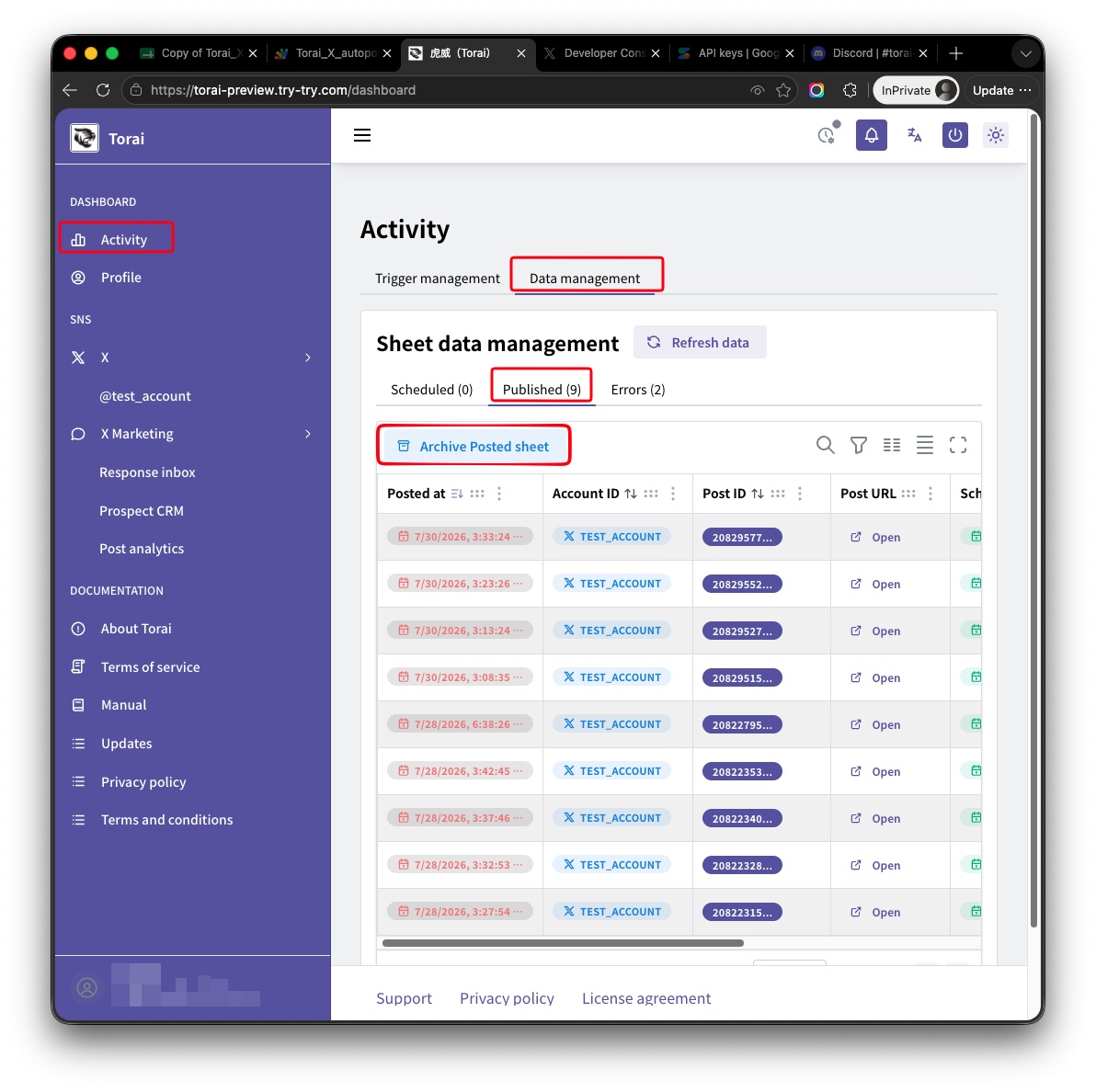
Back up any post history you need before deleting it. If you use the history for operational records or analytics, save it to another sheet or a CSV file first.
2. Review error data
When an error occurs, review the error list or Errors sheet.
Archiving saves errors as a separate sheet in the same archive file as published posts.
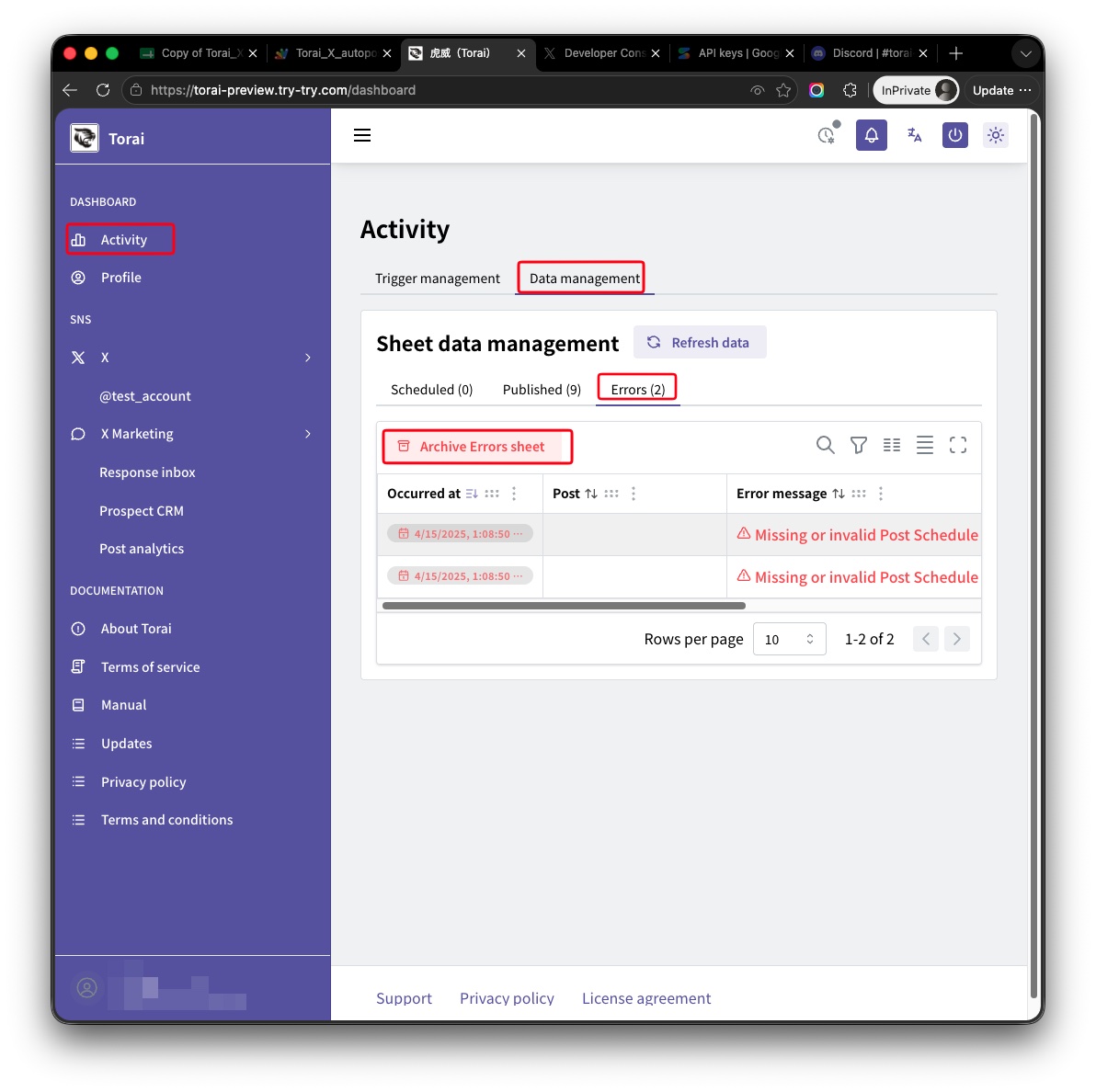
If the same error repeats, resolve the cause before trying to publish again.
Common errors:
- Incorrect API credentials
- Insufficient X API permissions
- Insufficient X API credit
- Expired Apps Script authorization
- Media file exceeds a size limit
- Google Drive file reference error
3. Update the Apps Script code
When Torai's Apps Script code is updated, paste the latest code into Apps Script.
We announce Apps Script updates in the newsletter and through messages in Torai.
From the top menu, click Extensions > Apps Script.
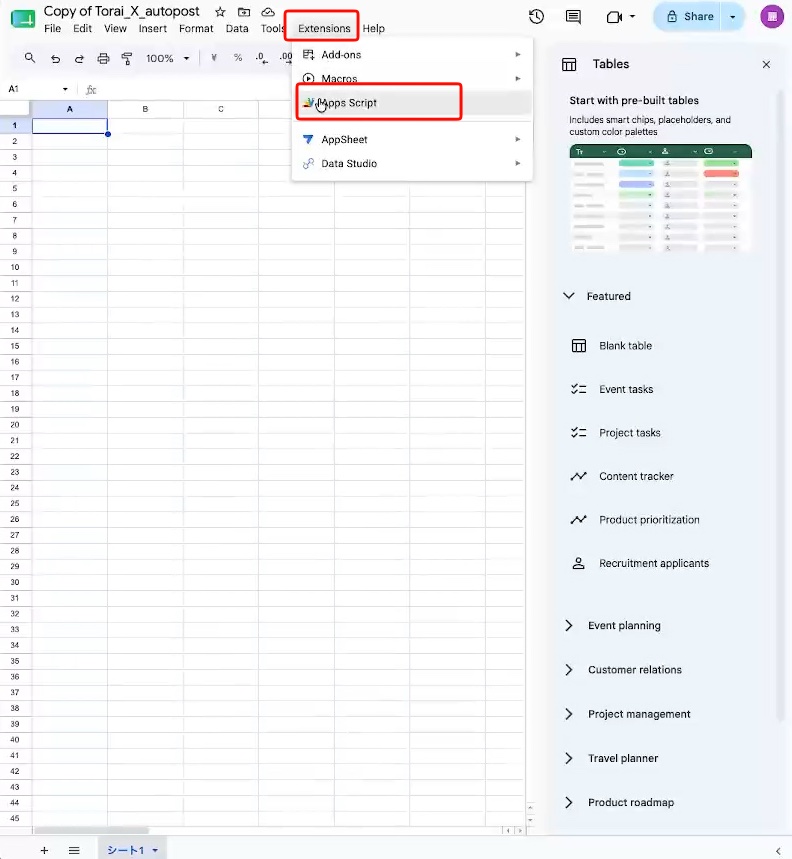
The Apps Script editor opens in another tab.
Save after replacing the code.
4. Redeploy the web app
After updating Apps Script, redeploy the web app if required.
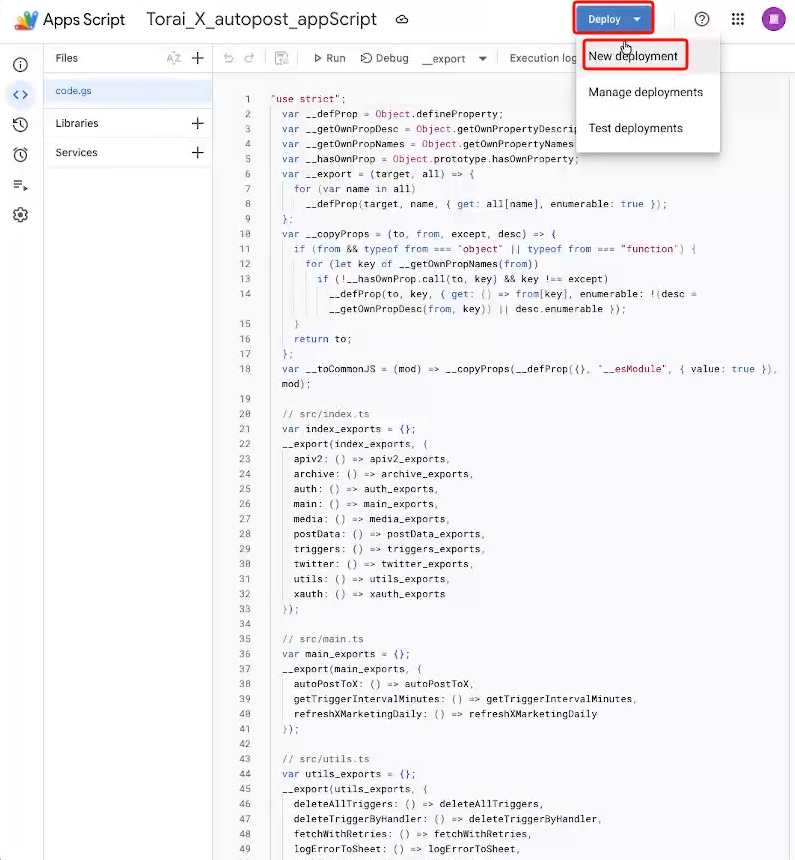
Open Deploy > Manage deployments and deploy a new version.
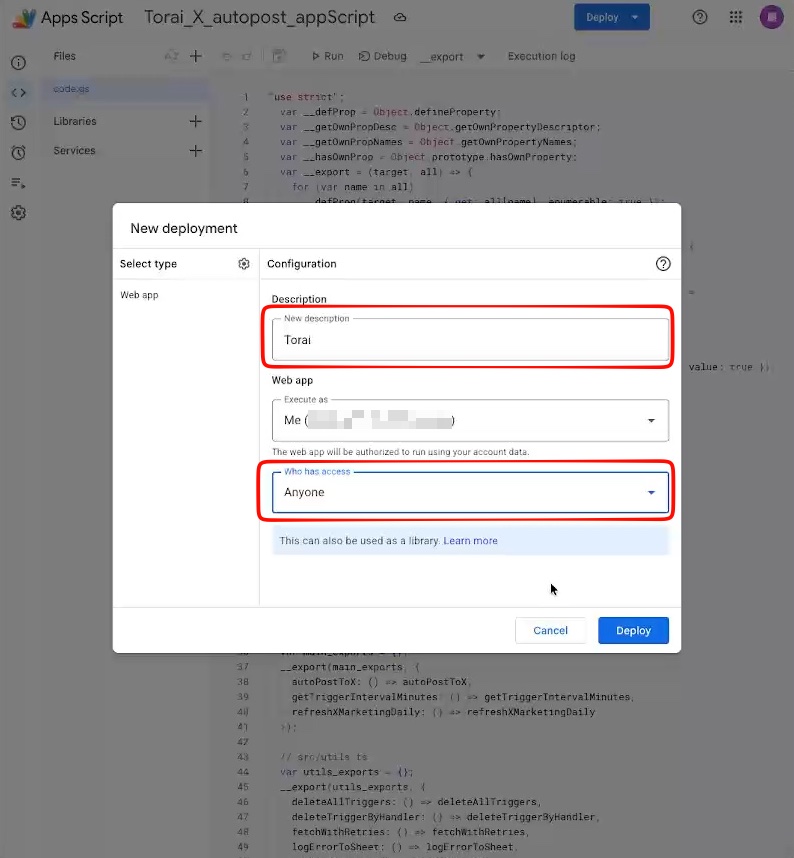
Click Deploy in the upper-right corner, then choose New deployment.
In the deployment dialog, use these settings:
- Description: include a version number
- Web app executes as: yourself
- Who has access: anyone (security is provided by the verification code)
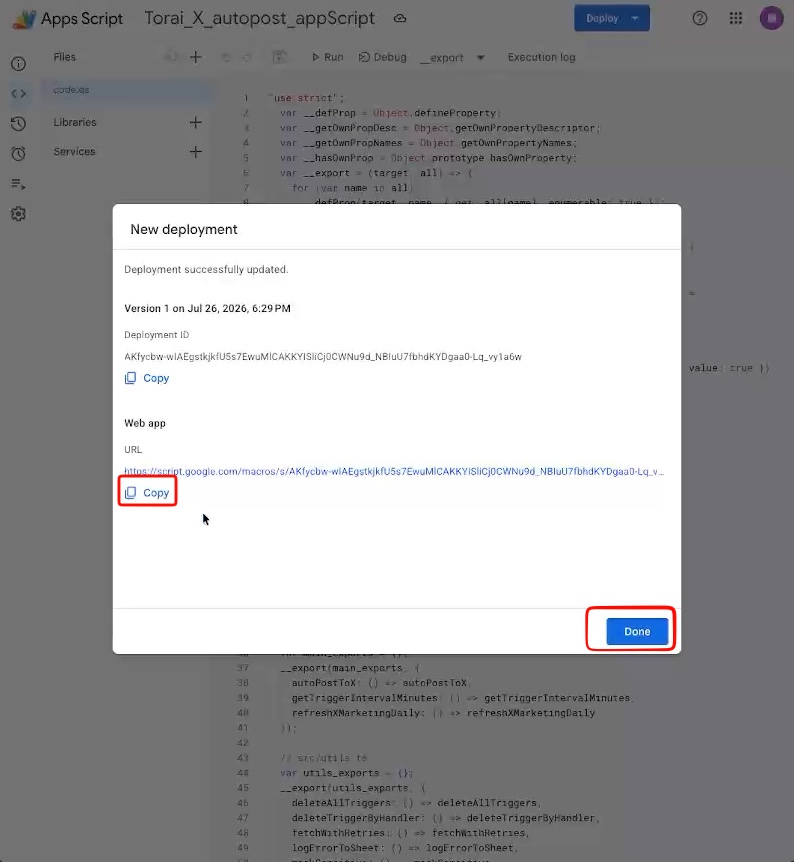
If the web app URL changes, update the GAS URL on Torai's API Keys page and repeat identity verification.
First, copy the web app URL.
Return to Torai and click Change next to Google Sheets URL under Profile > API Keys.
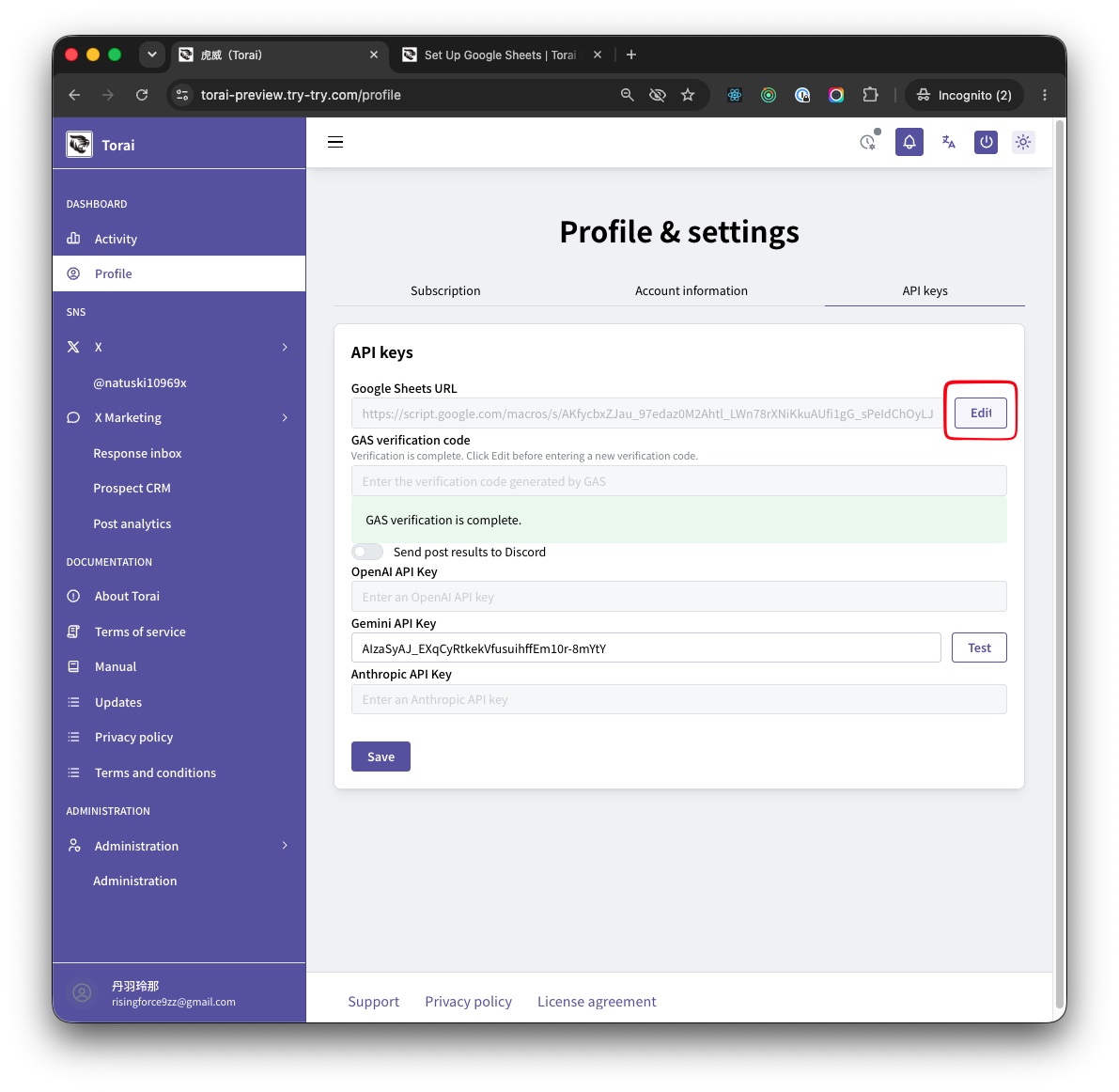
Paste the new URL.
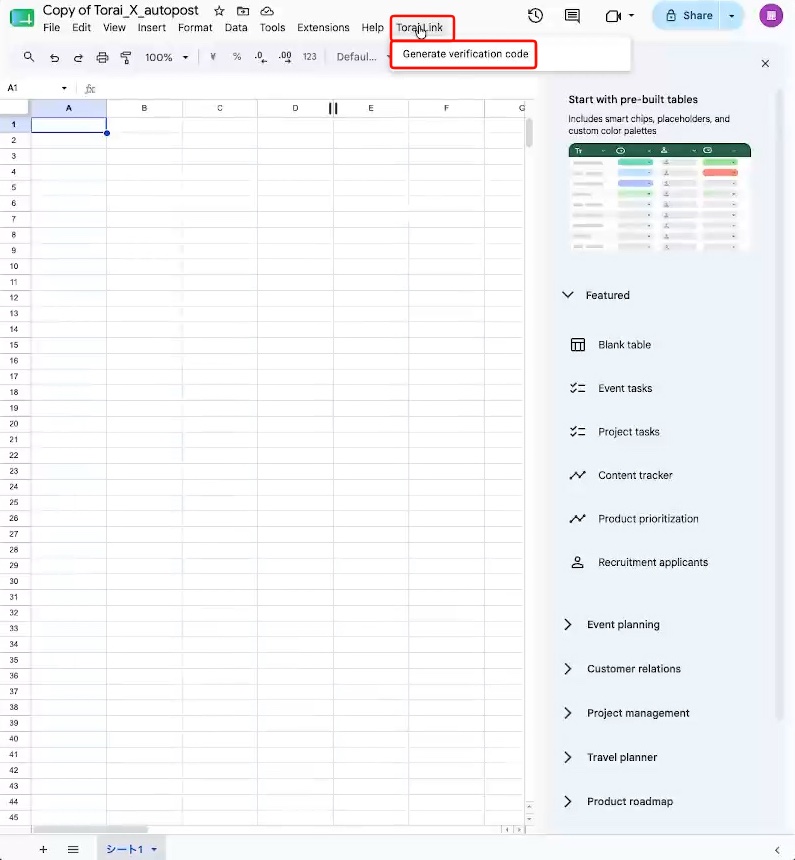
Return to Google Sheets and select Torai connection > Generate verification code from the menu.
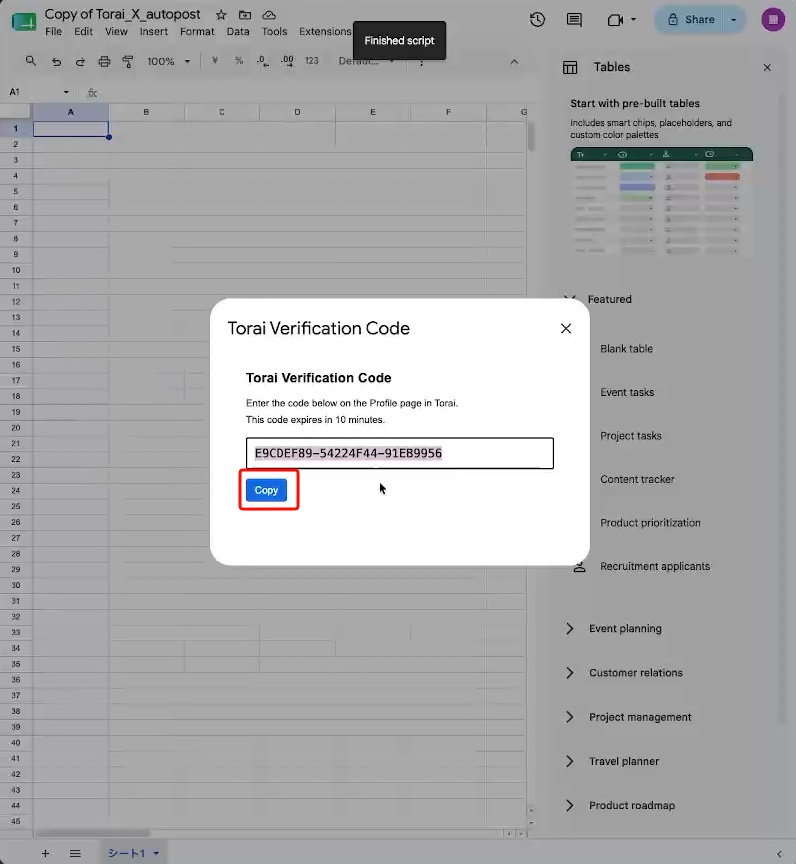
Paste the sheet URL and verification code, then click Save.
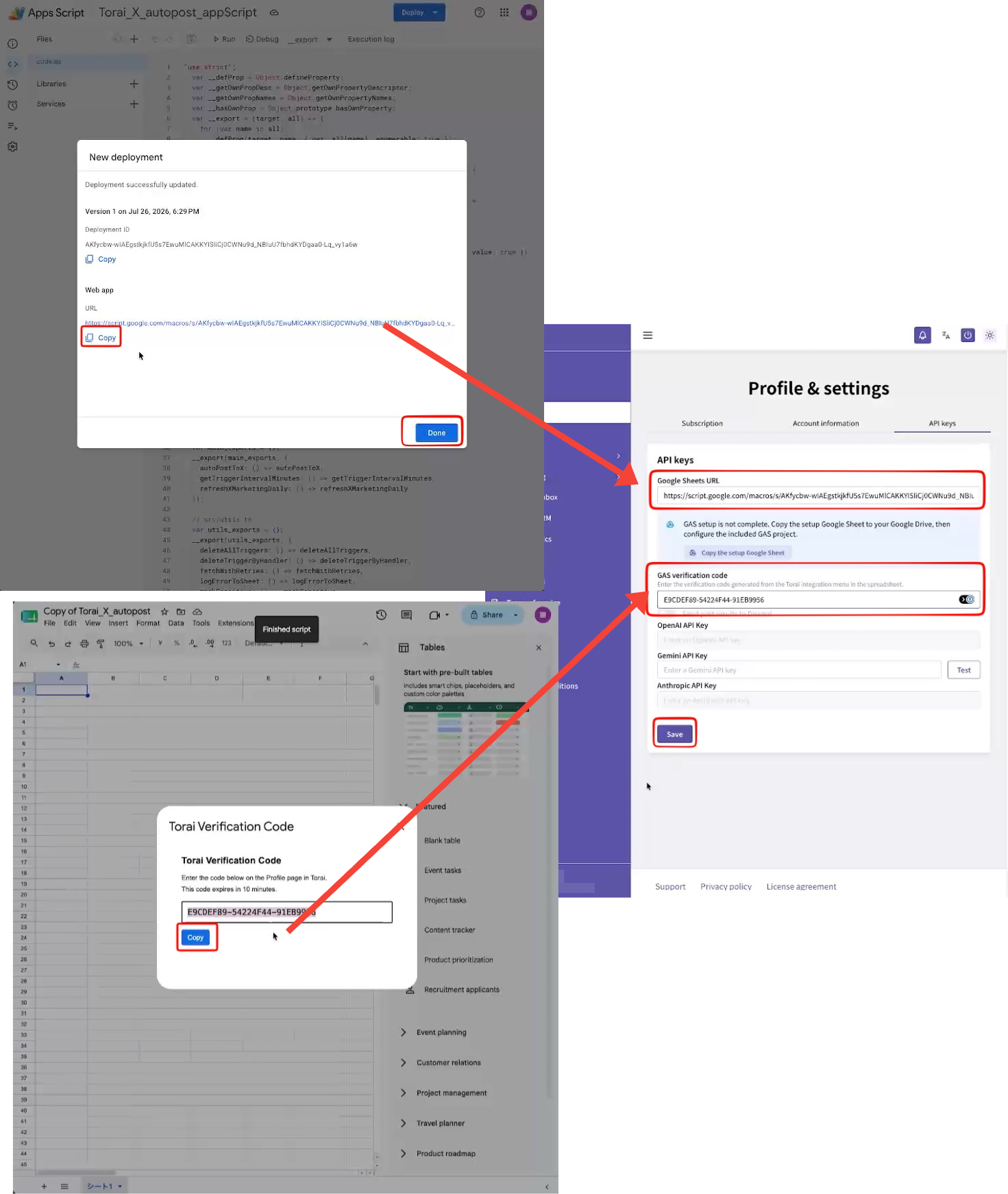
Updating an existing deployment may keep the same URL. Check the web app URL displayed on the page.
5. Check X Developer Console Usage
Because the X API uses pay-per-use pricing, check Usage and your credit balance regularly.
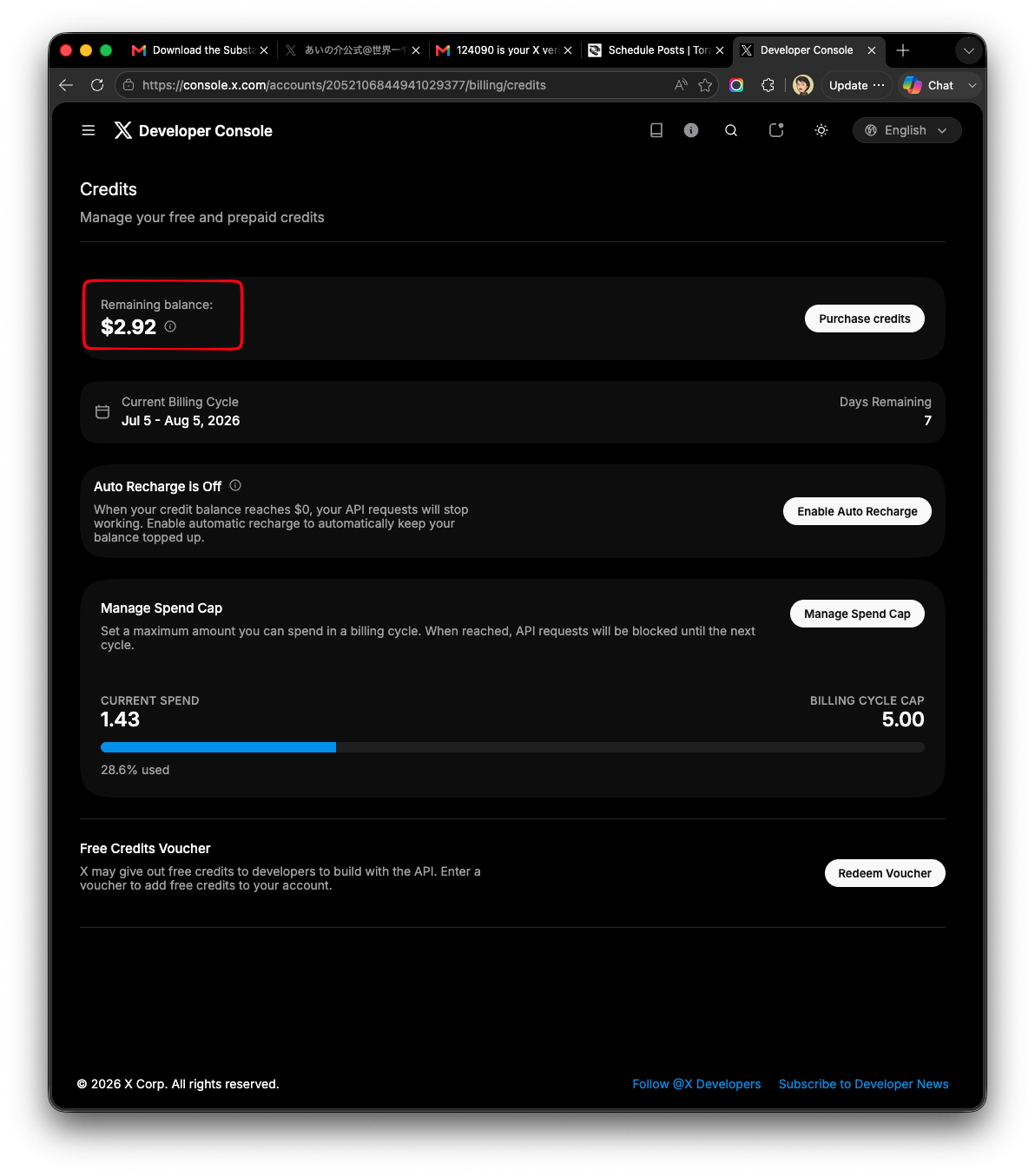
After publishing many posts or threads, and while Responder Collection or Post Analytics is enabled, confirm that usage matches your expectations.
The X Marketing estimate in Torai covers data reads only. Check the X Developer Console for the actual total including publishing charges.
7. Check Google Drive storage
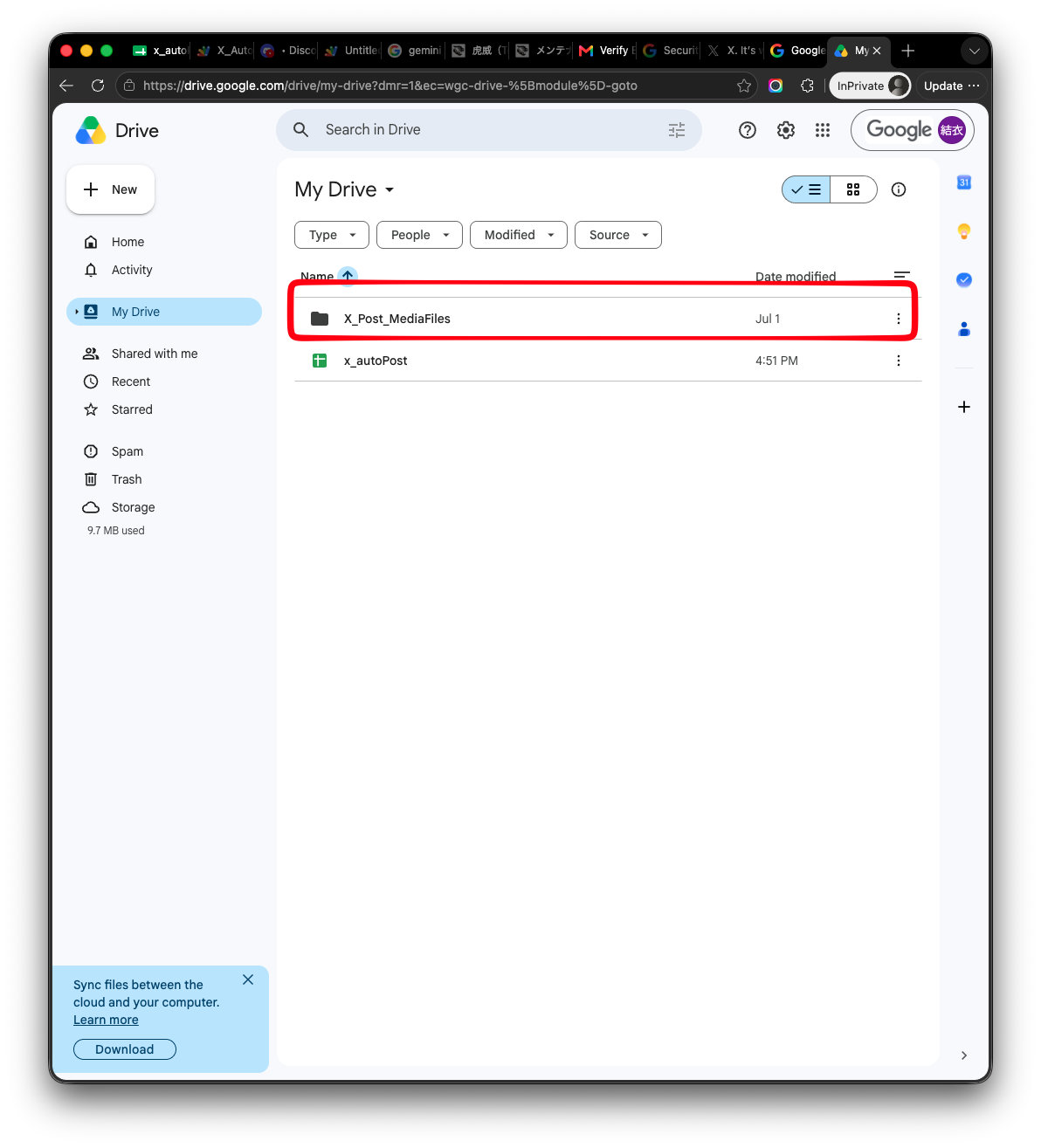
Using many images and videos increases Google Drive storage.
Remove media you no longer need, but take care not to delete files currently used by Torai.
Torai collects images and videos for posts in the X_Post_MediaFiles folder in Google Drive.
Suggested maintenance schedule
| Item | Suggested frequency |
|---|---|
| Organize published data | Monthly or after publishing in large volumes |
| Review errors | When a post fails or weekly |
| Update Apps Script | When Torai announces an update |
| Check X API Usage | Before and after large-volume publishing, or weekly |
| Review X Marketing run history | When collection fails, or weekly |
| Check Google Drive storage | Monthly |