Create Posts for X
Create the posts that Torai will publish to X.
Torai provides controls similar to X's posting screen for text, images, videos, and scheduled times. If you registered an AI API key, you can also generate post drafts from keywords.
1. Open the destination X account
Select the account under X Accounts in the left menu.
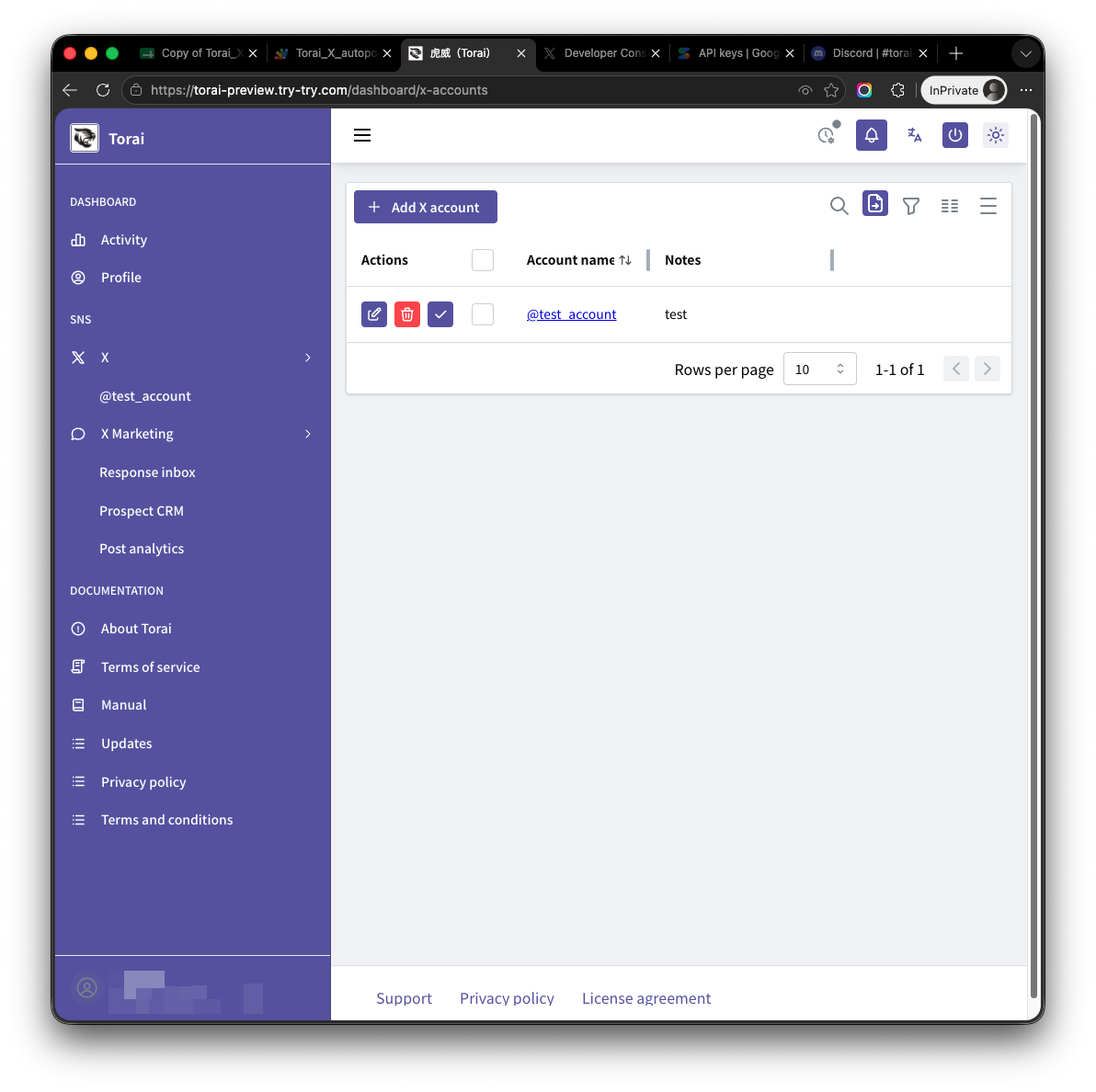
The account details or post list opens.
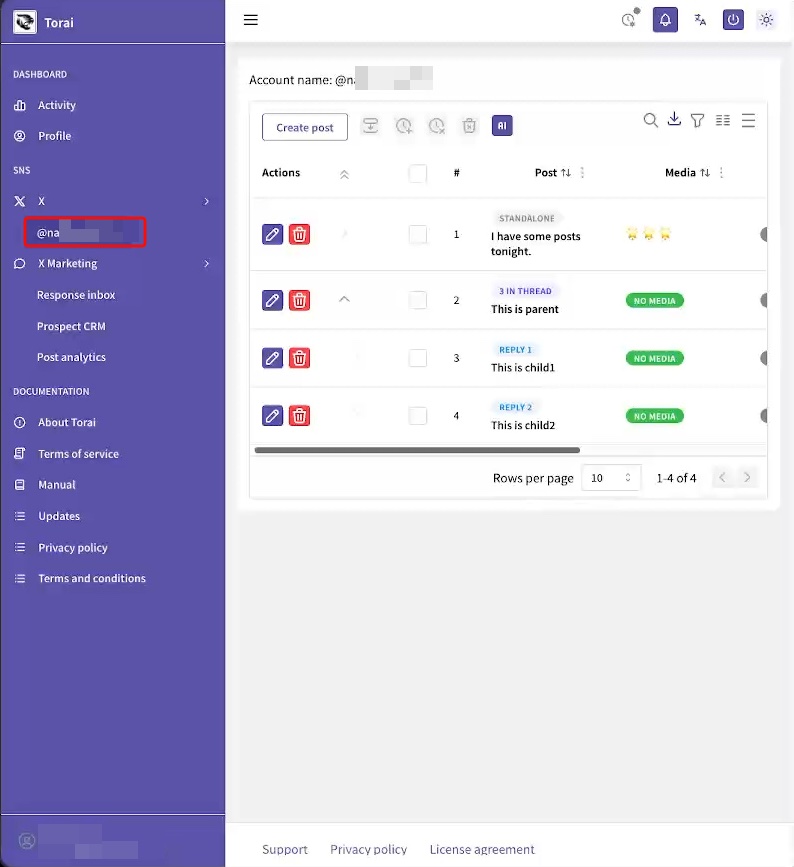
2. Create a post
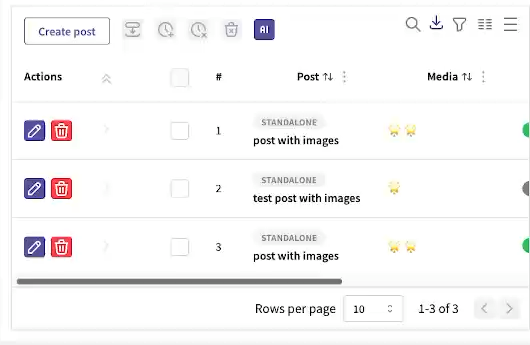
Click Create post or the post creation button.
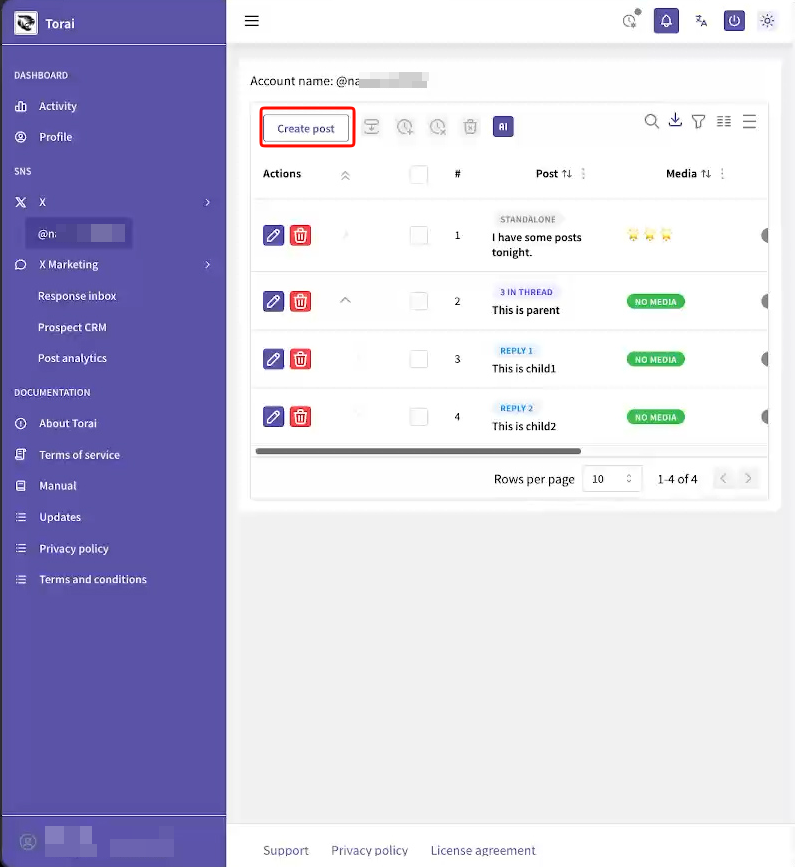
Open post form.
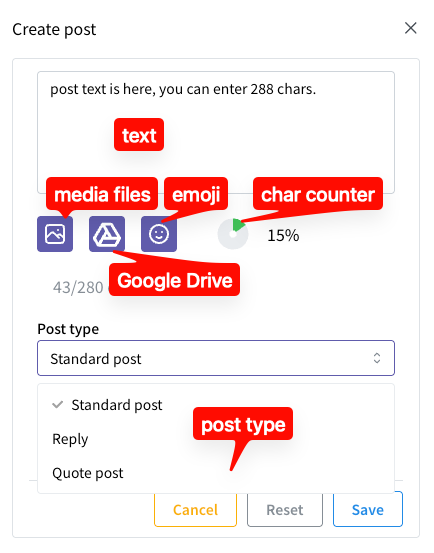
- Enter the post text.
- Select an image or video from your computer.
- Select an image or video from Google Drive.
- Choose emoji.
- Review the percentage of the 280-character limit used.
- Choose a post type.
- Set a publication date and time.
Paid X Premium plans may support longer posts, but Torai currently limits input to 140 Japanese characters.
Post content
Enter the text.
You can choose images and videos from your computer or Google Drive. Files selected from your computer are also saved to Google Drive, and Apps Script publishes the Google Drive copy.
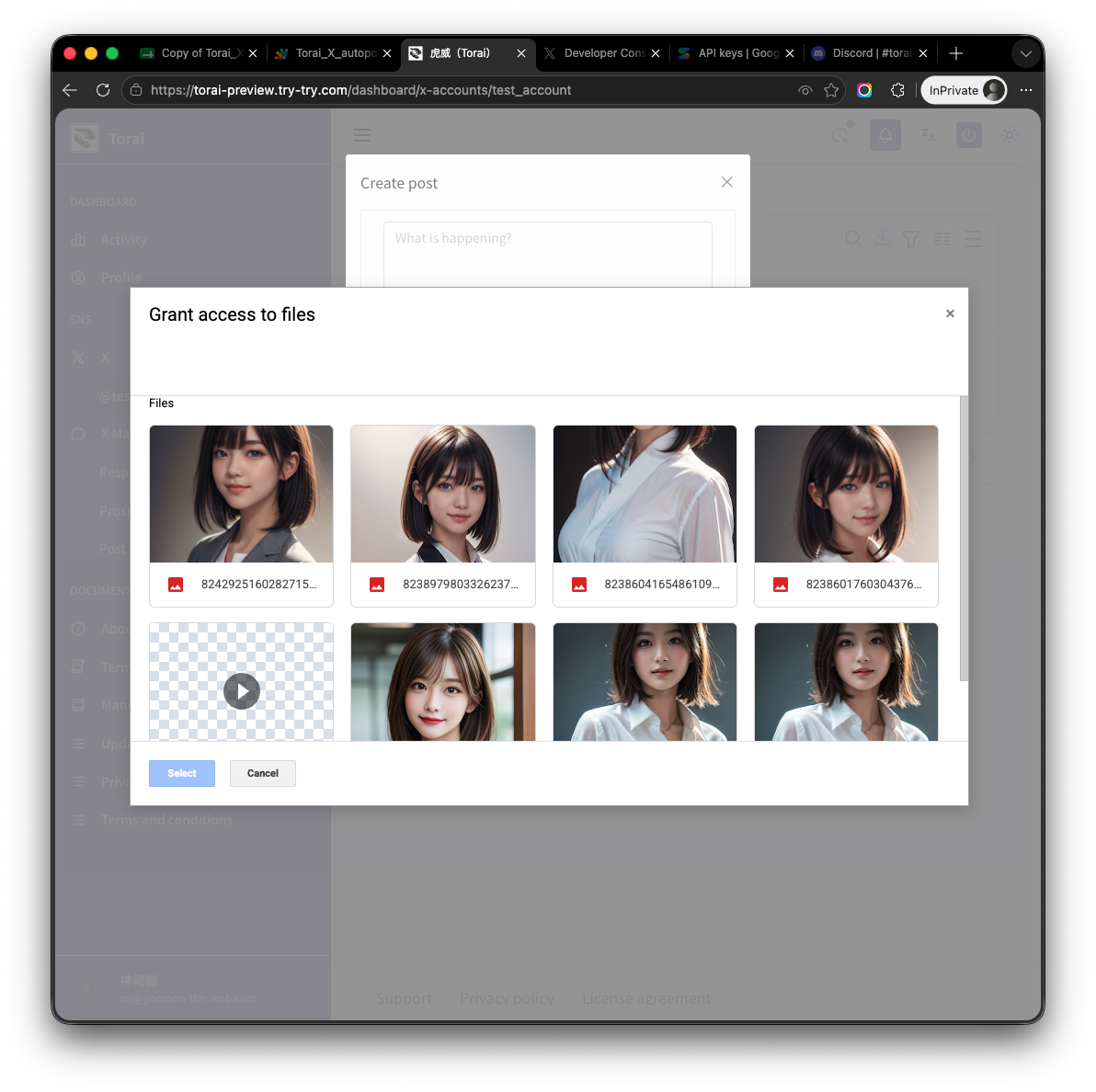
Selected images are previewed. Videos appear as an icon rather than a thumbnail.
Choose from:
- Standard post
- Reply
- Quote repost
The following restrictions apply.
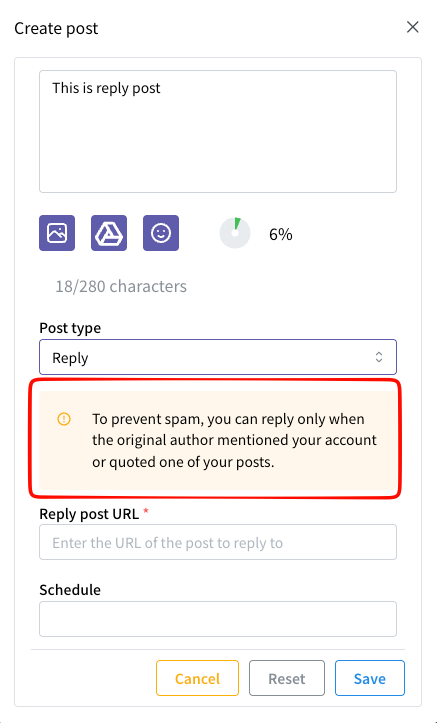
A reply is possible only when the other person mentioned you or quoted one of your posts. Other replies produce an error.
A quote repost is treated as a post containing a link and adds $0.20.
The publication time must be at least one hour in the future.
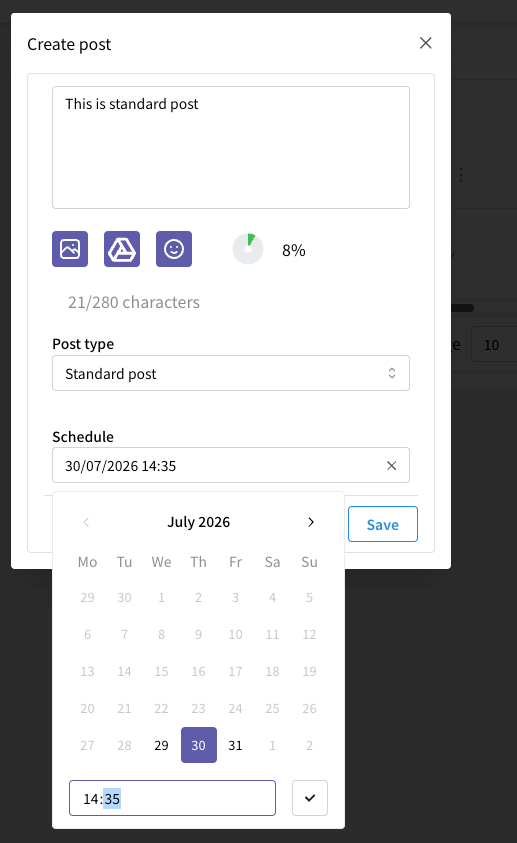
When complete, click Save.
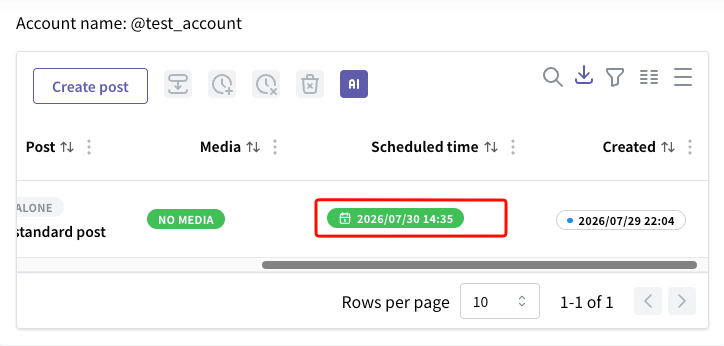
If Google Drive has not yet been connected, Google asks you to authorize access. Select every required checkbox and click Continue.
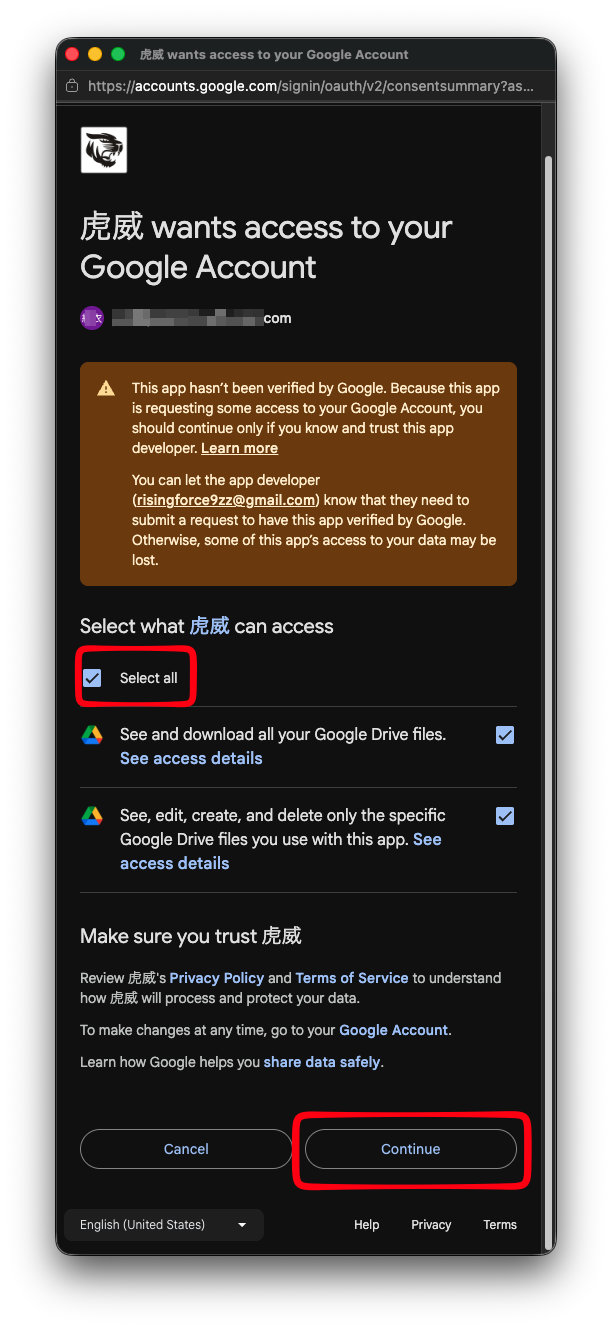
The saved scheduled post appears in the list.
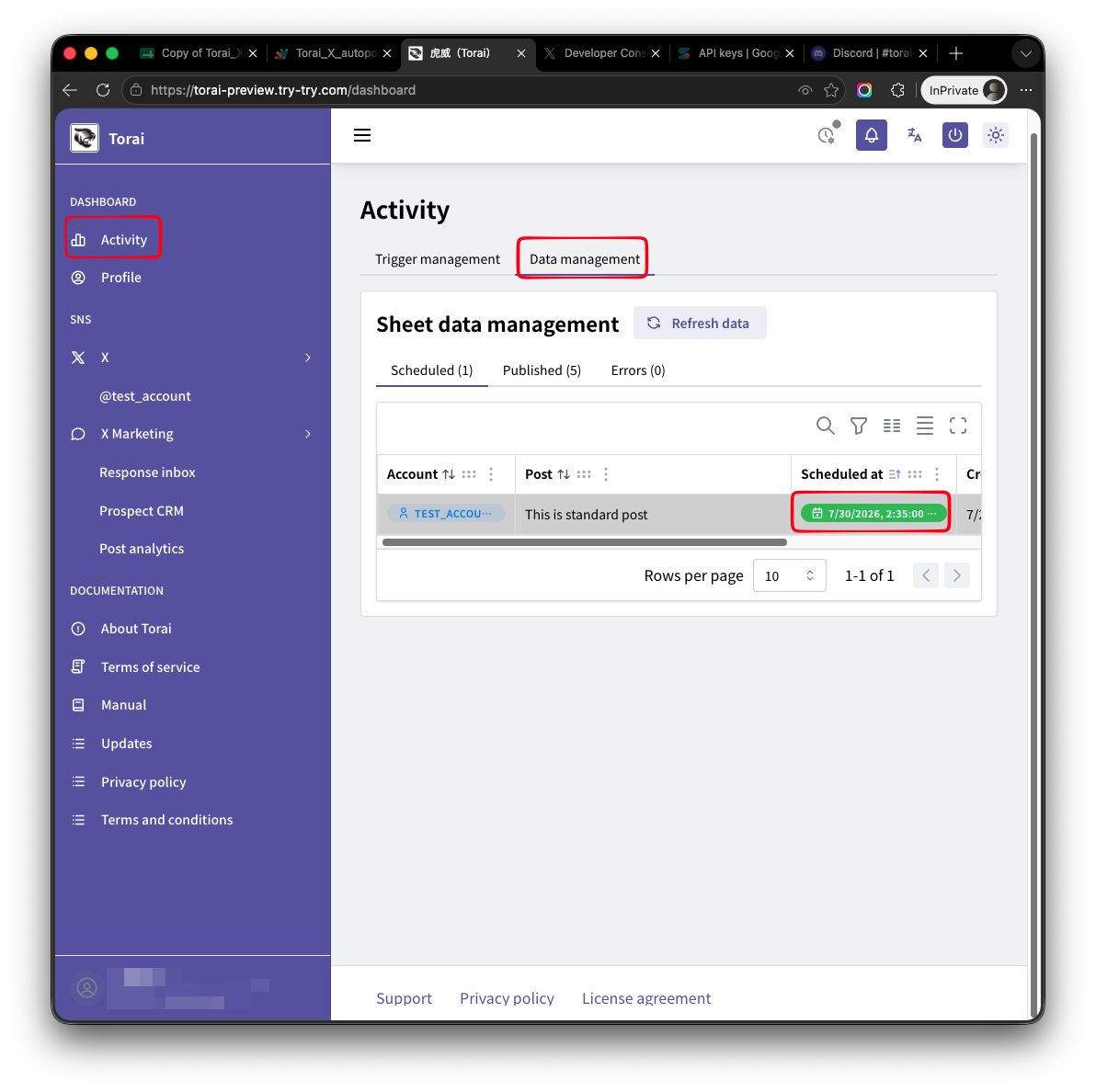
You can see all post data under Activity > Data Management > Scheduled Posts.
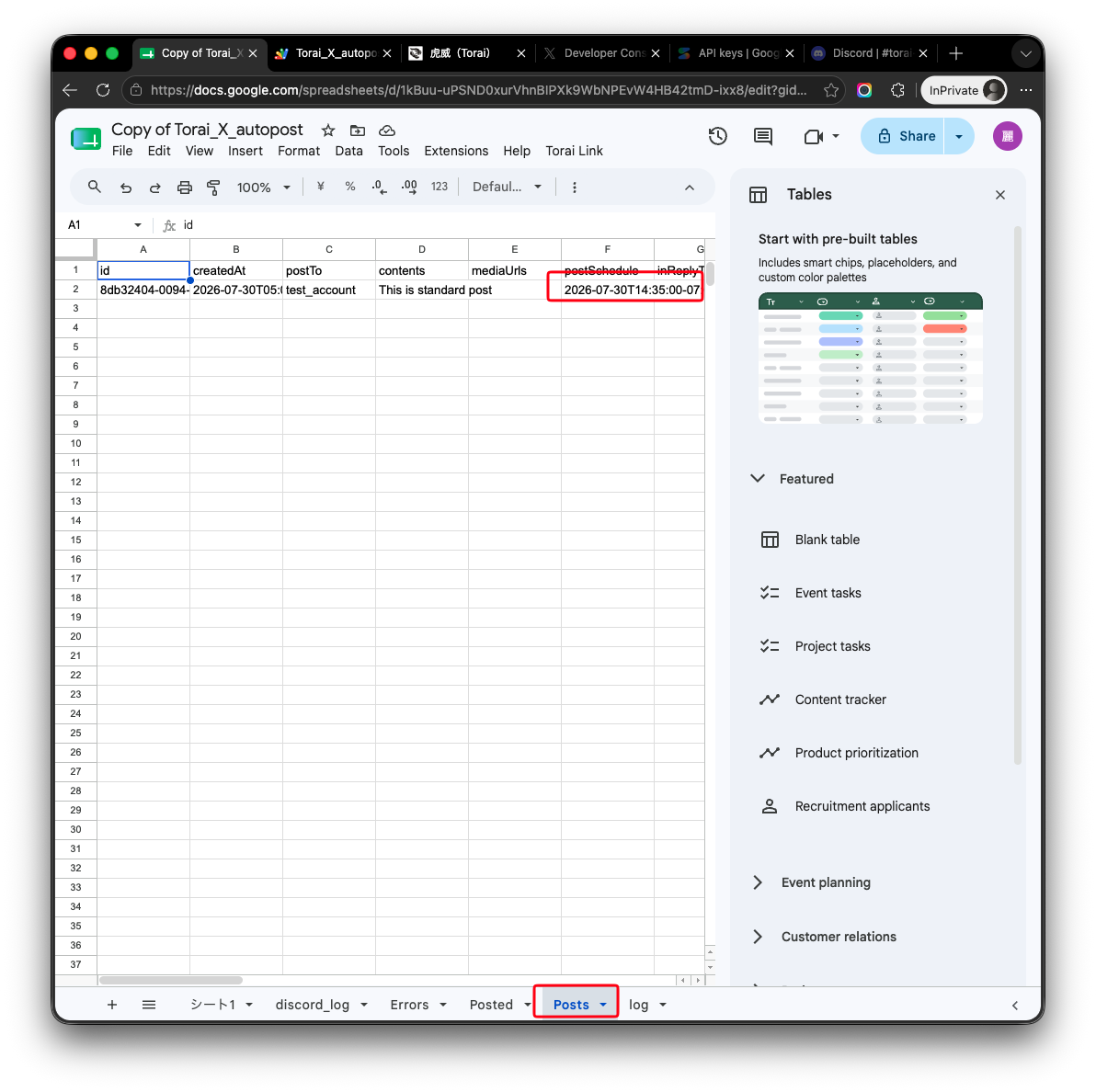
The data is also synchronized with Google Sheets.
3. Add an image or video
Use the media buttons for your computer or Google Drive to select a file.
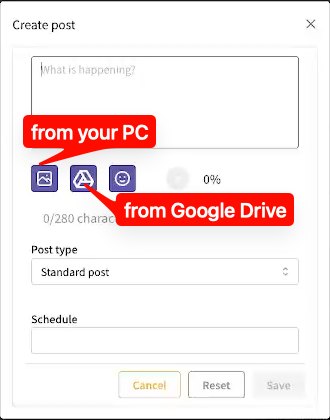
Torai uses files stored in Google Drive for publishing. Follow the on-screen instructions if a file must be uploaded or selected.
When you click the Google Drive button, images and videos in Drive appear as shown below.
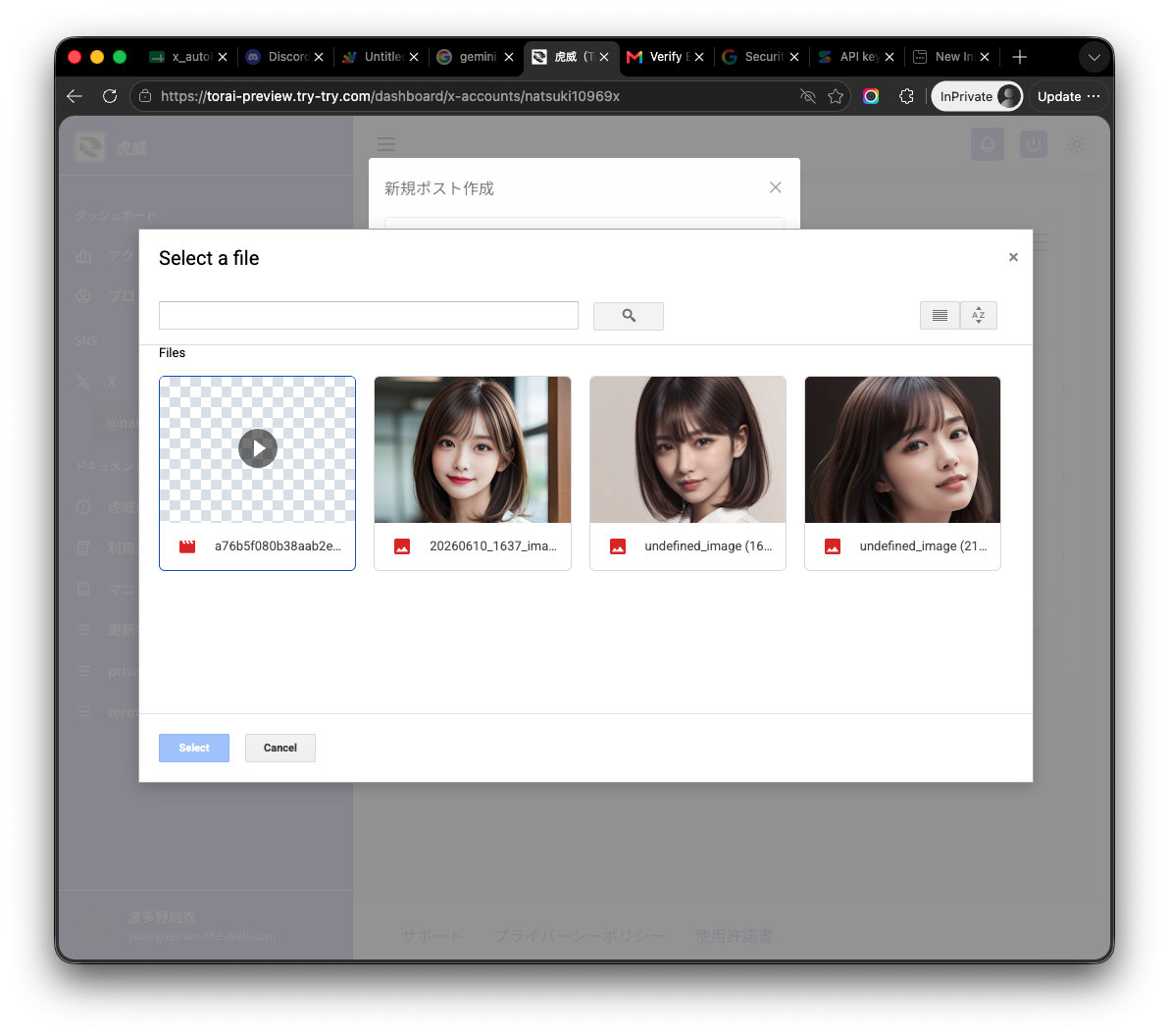
Video files can be large and may affect Apps Script execution-time limits. Test first before publishing a large video.
X's file-size limit is 512 MB.
4. Set a publication time
Set the date and time for publication.
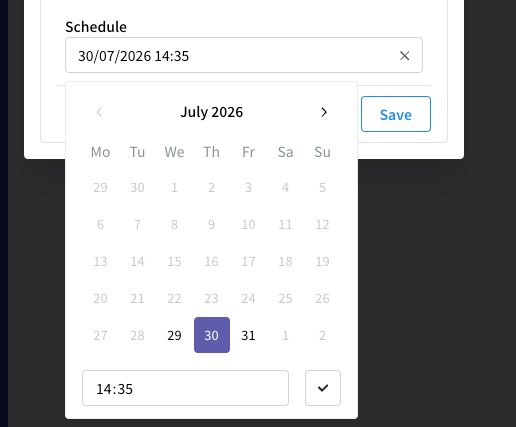
The earliest available time is one hour from now.
Set times in bulk
You can set times for multiple posts at once.
Specify:
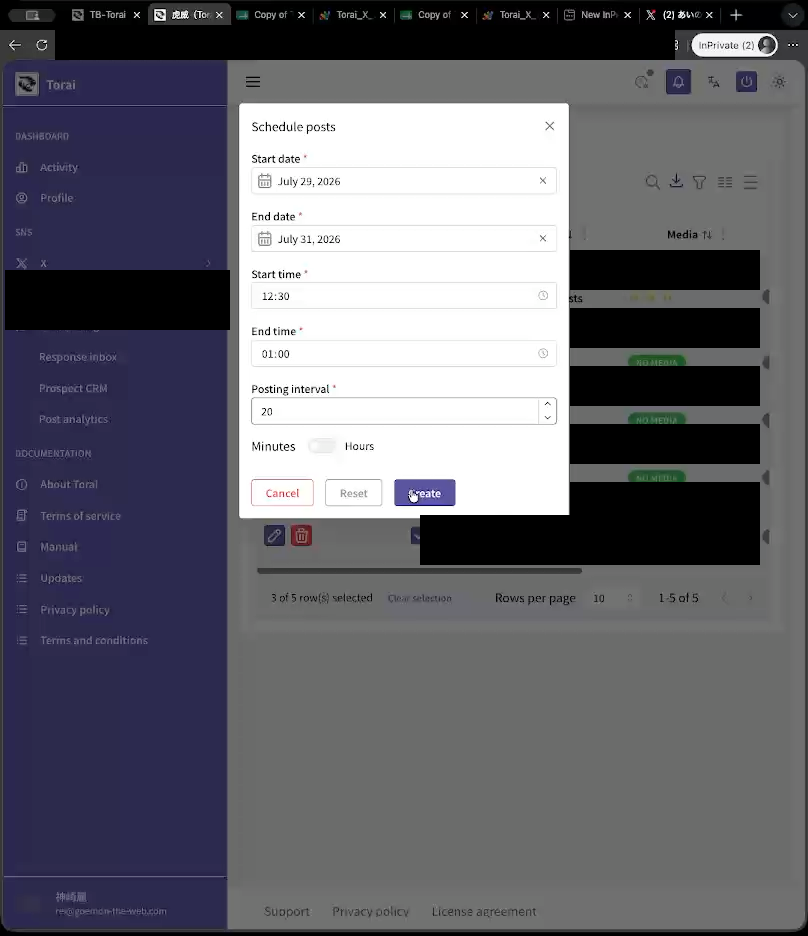
- Start and end dates
- Start and end times
- Posting interval
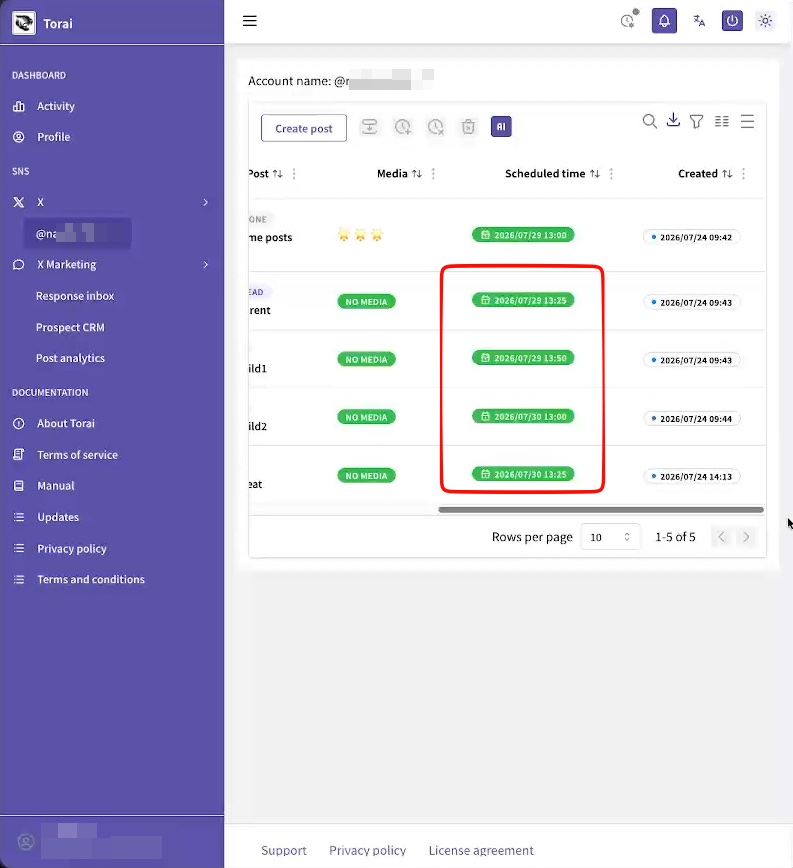
This assigns publication times to all selected posts.
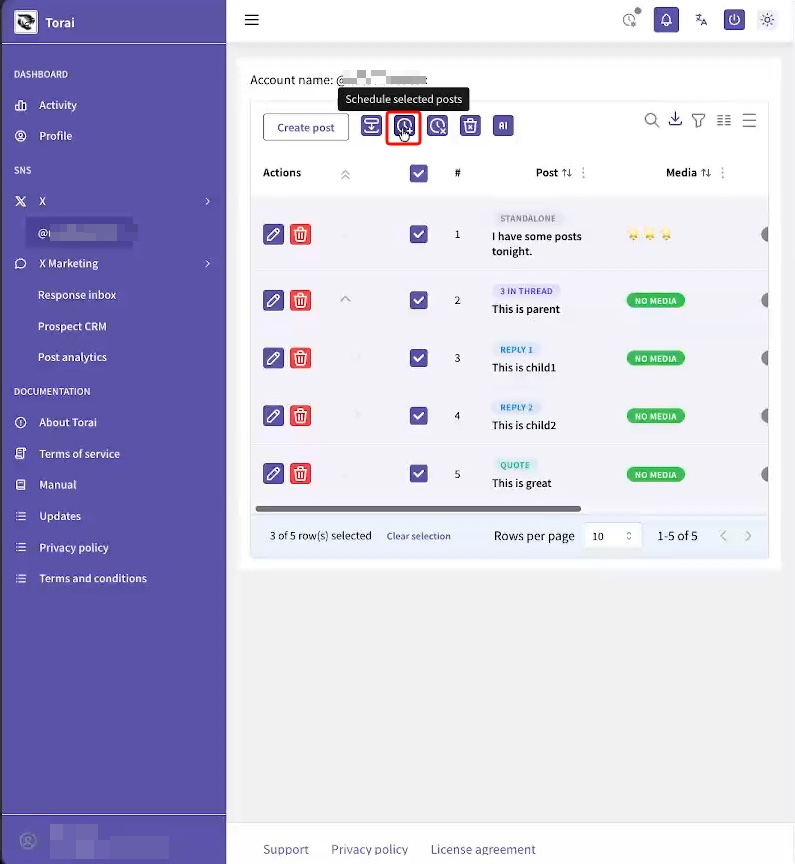
- Select the posts to schedule.
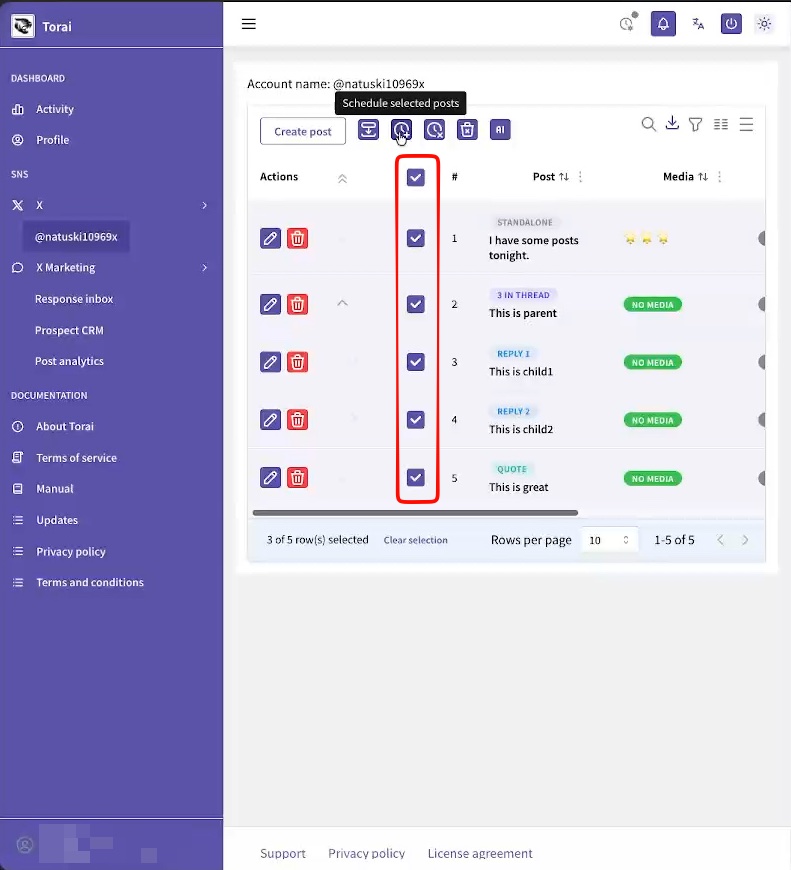
- Click the bulk publication-time button.
- Enter the start date, end date, start time, end time, and interval, then click Create.
- The publication times are assigned.
5. Create post drafts with AI
If a Gemini API key is registered, you can create post drafts from keywords.
-
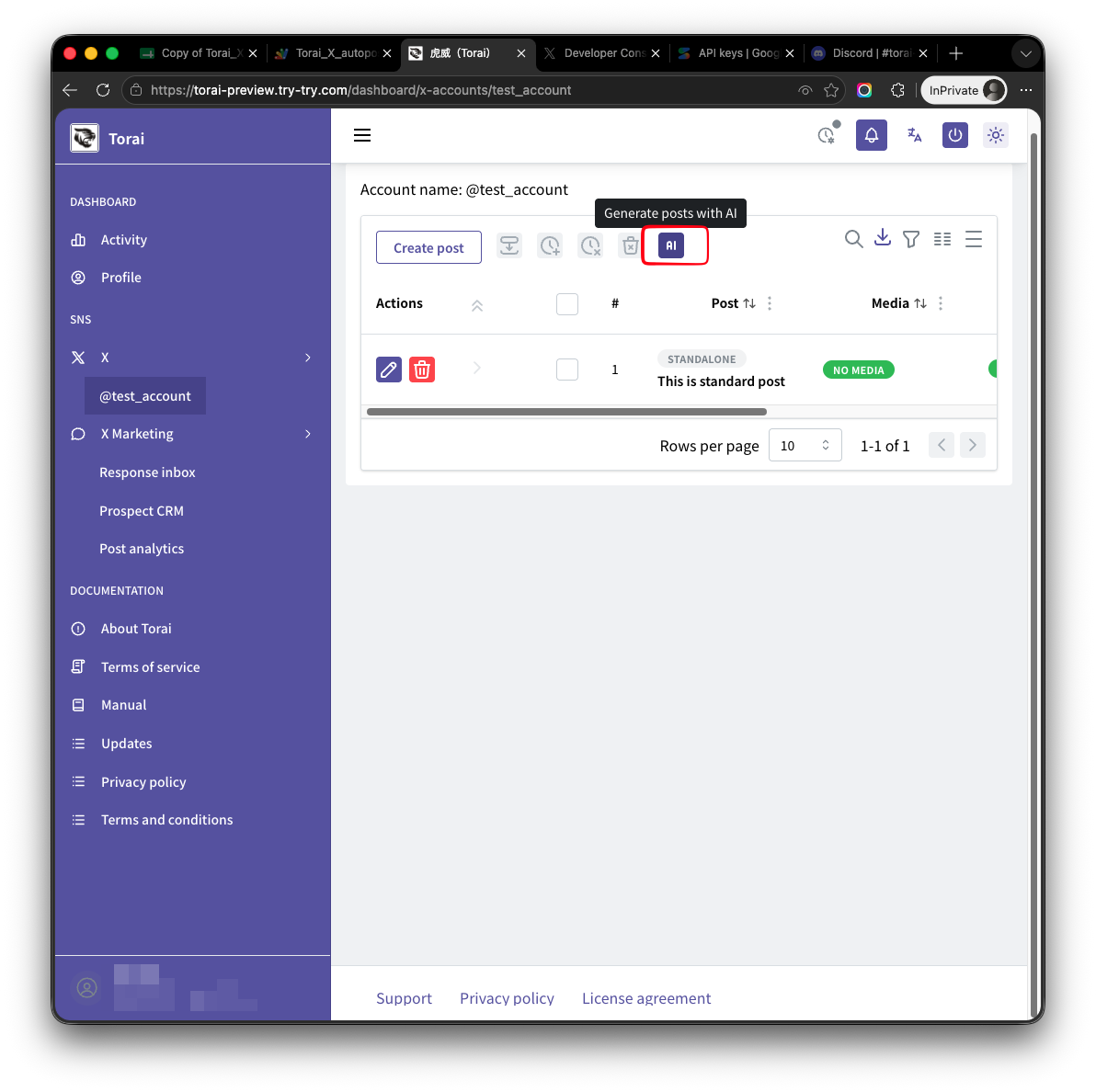
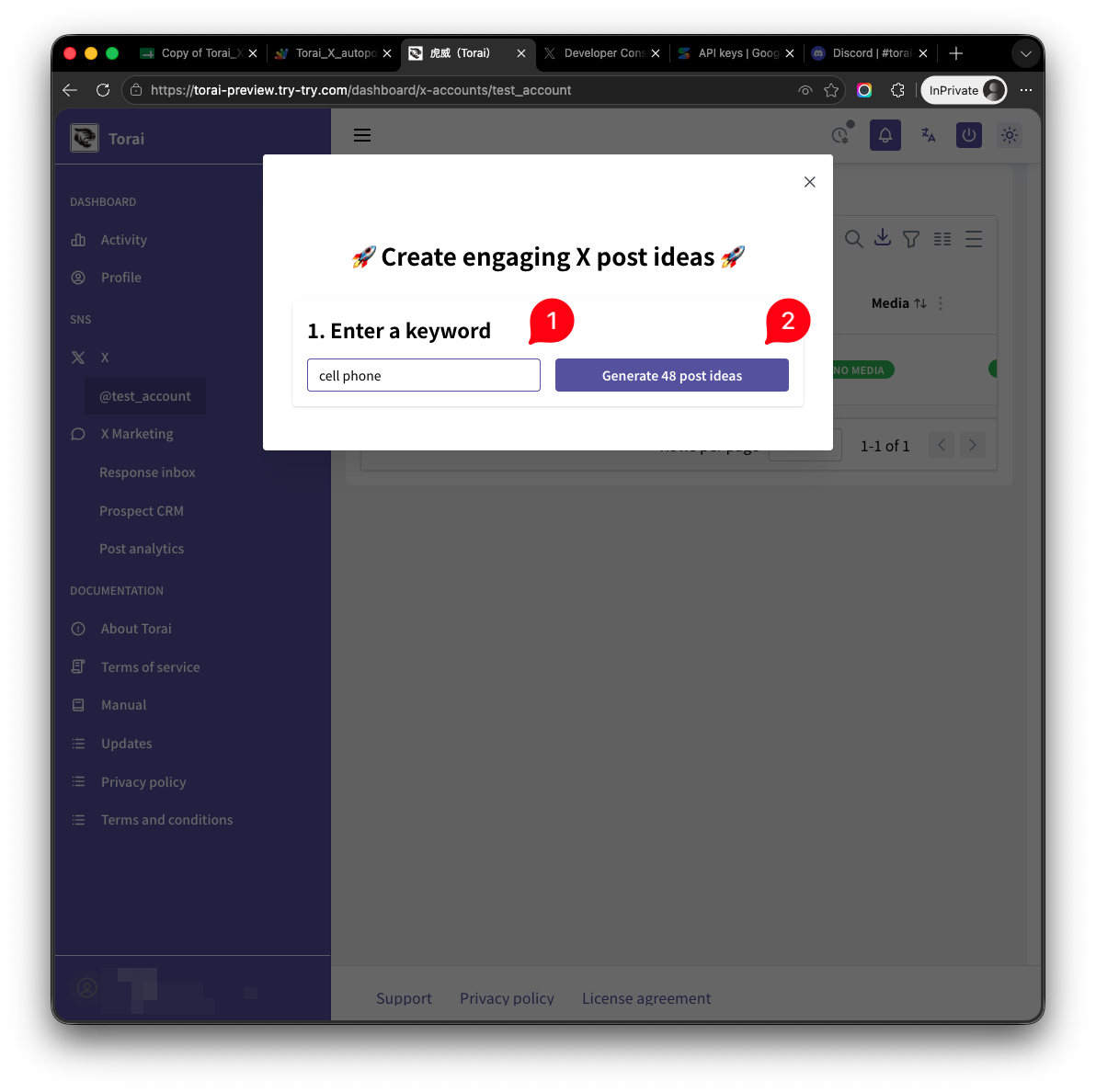
Click AI on the destination account's post list.
-
Enter keywords and click Create 48 post ideas.
-
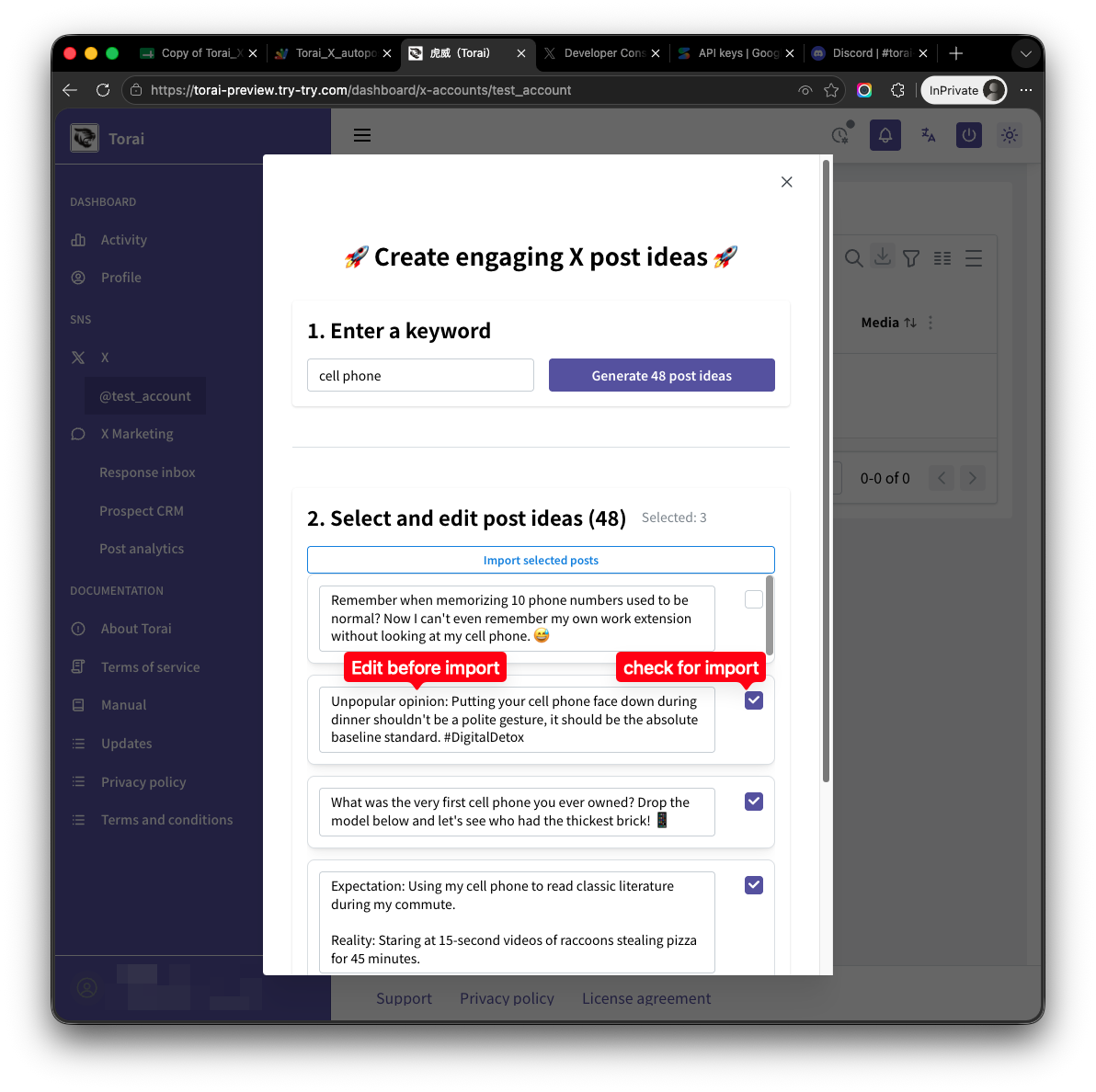
Every generated draft can be edited. Select the posts you want, then click Import selected posts.
-
The imported drafts appear in the post list.
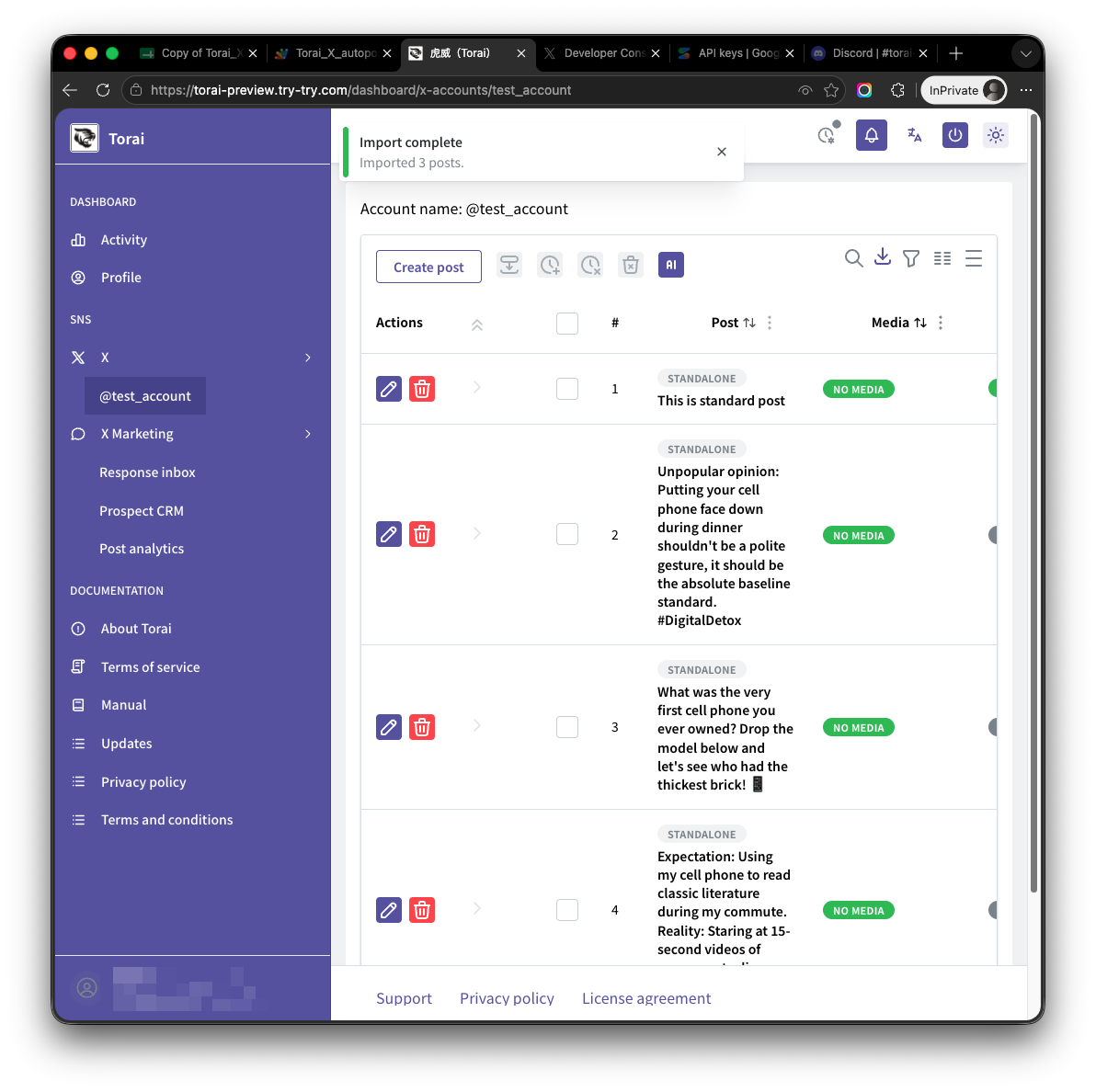
Always review AI-generated text. It may contain inaccurate information, excessive claims, or wording you did not intend.
Pre-publication checklist
- Is the destination account correct?
- Is the text free of errors and unnecessary URLs?
- Are the image or video correct?
- Is the scheduled time correct?
- Should this post be part of a thread?
- Are API usage and charges acceptable?