AI Image Generator
Use Agnes AI (BYOK: your own API key) to generate images for X posts from a prompt, and save them to Google Drive.
Before you start
Before using the AI Image Generator, confirm the following:
- You have registered an Agnes AI API Key in Torai.
- GAS integration (Google Sheets connection) is complete.
- You have applied the latest Apps Script to your spreadsheet and redeployed the web app.
If GAS integration is not set up, or your Apps Script version is out of date, Torai shows "AI image generation is unavailable" and the form is disabled.
Image generation itself calls Agnes AI through Apps Script, so GAS integration is required for generation, not just for saving to Drive.
1. Open the AI Image Generator
Open AI Image Generator under Tools in the left menu.
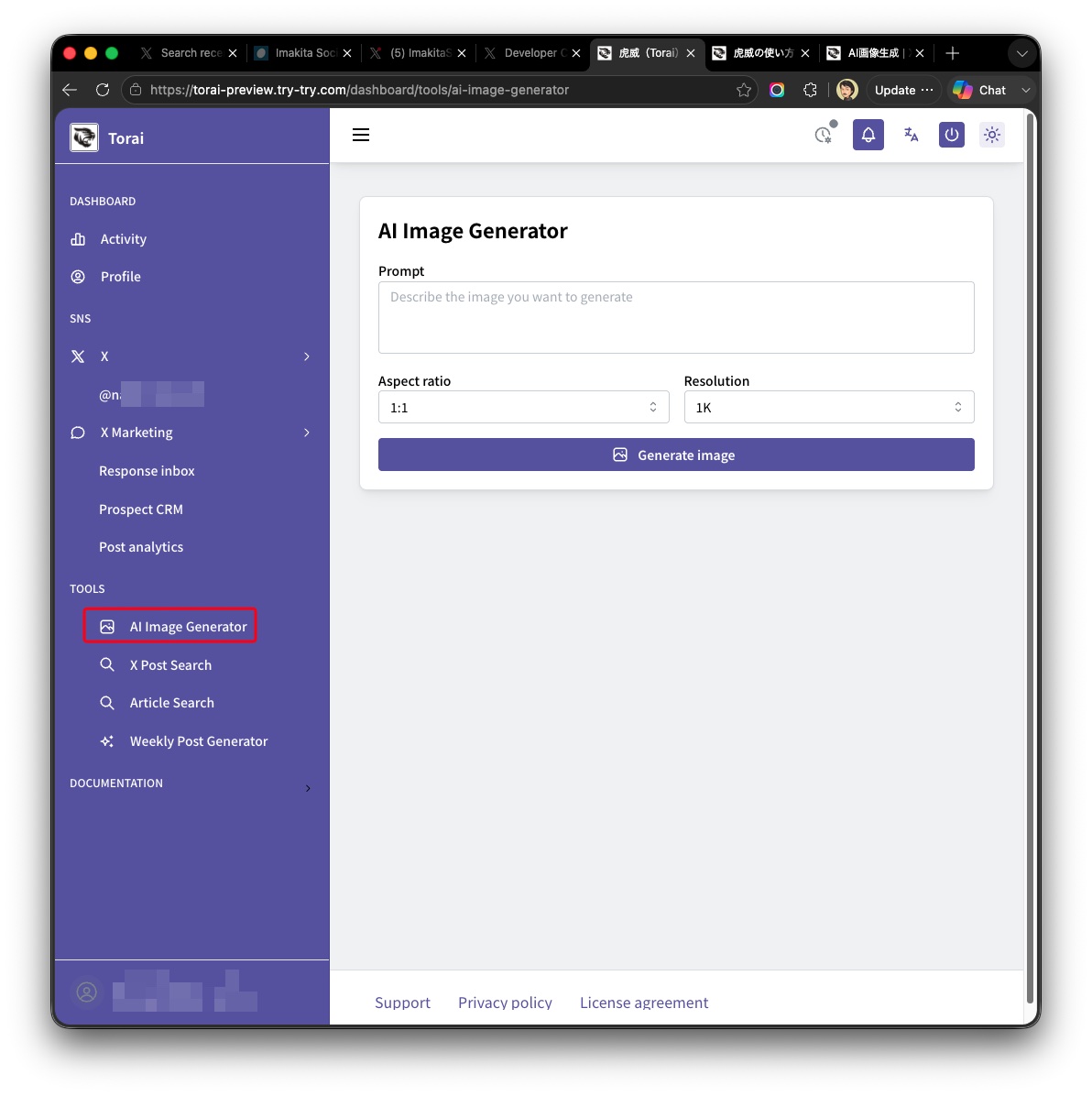
You can also open the same screen as a modal from the image icon button inside the X post creation form.
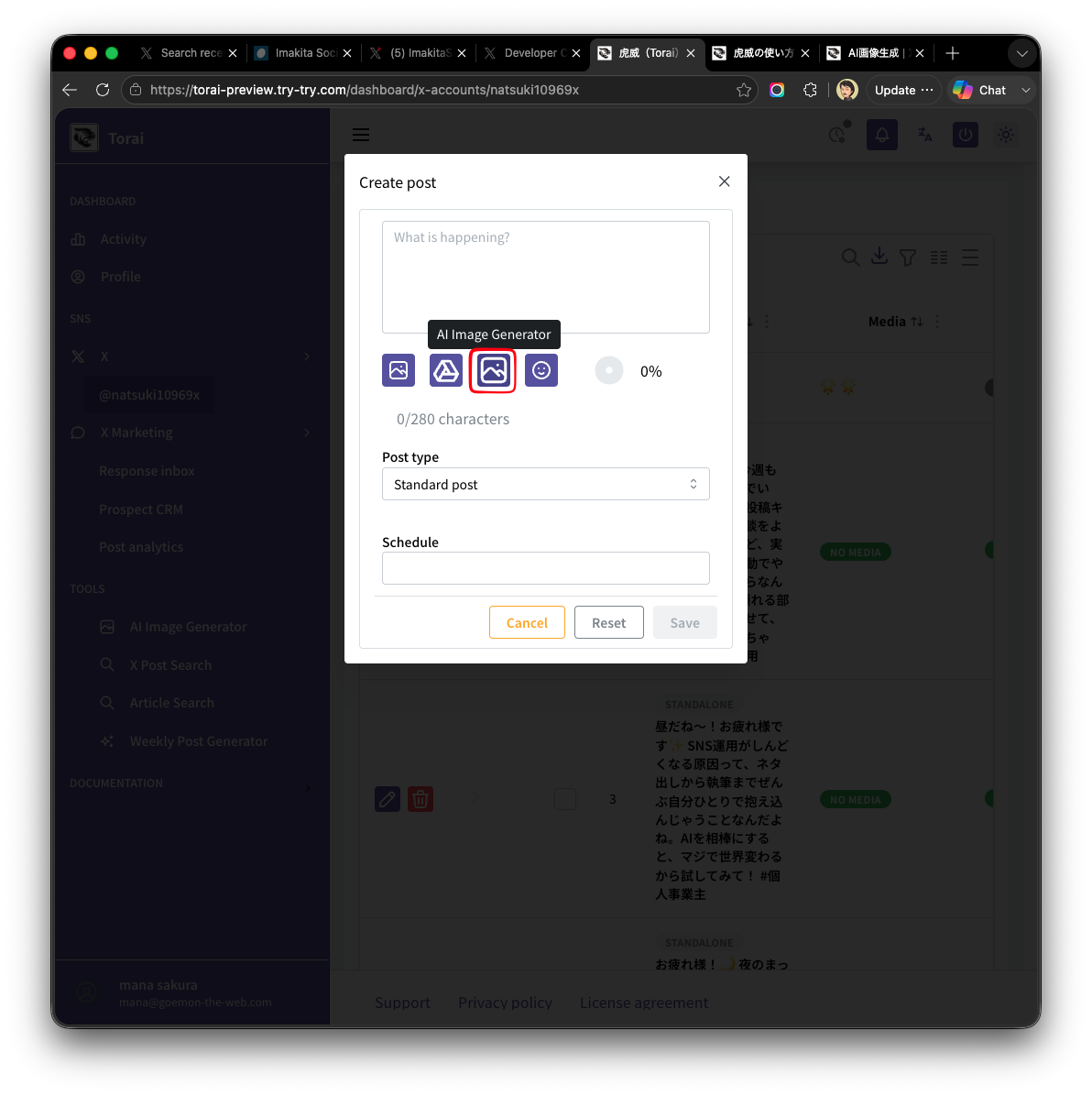
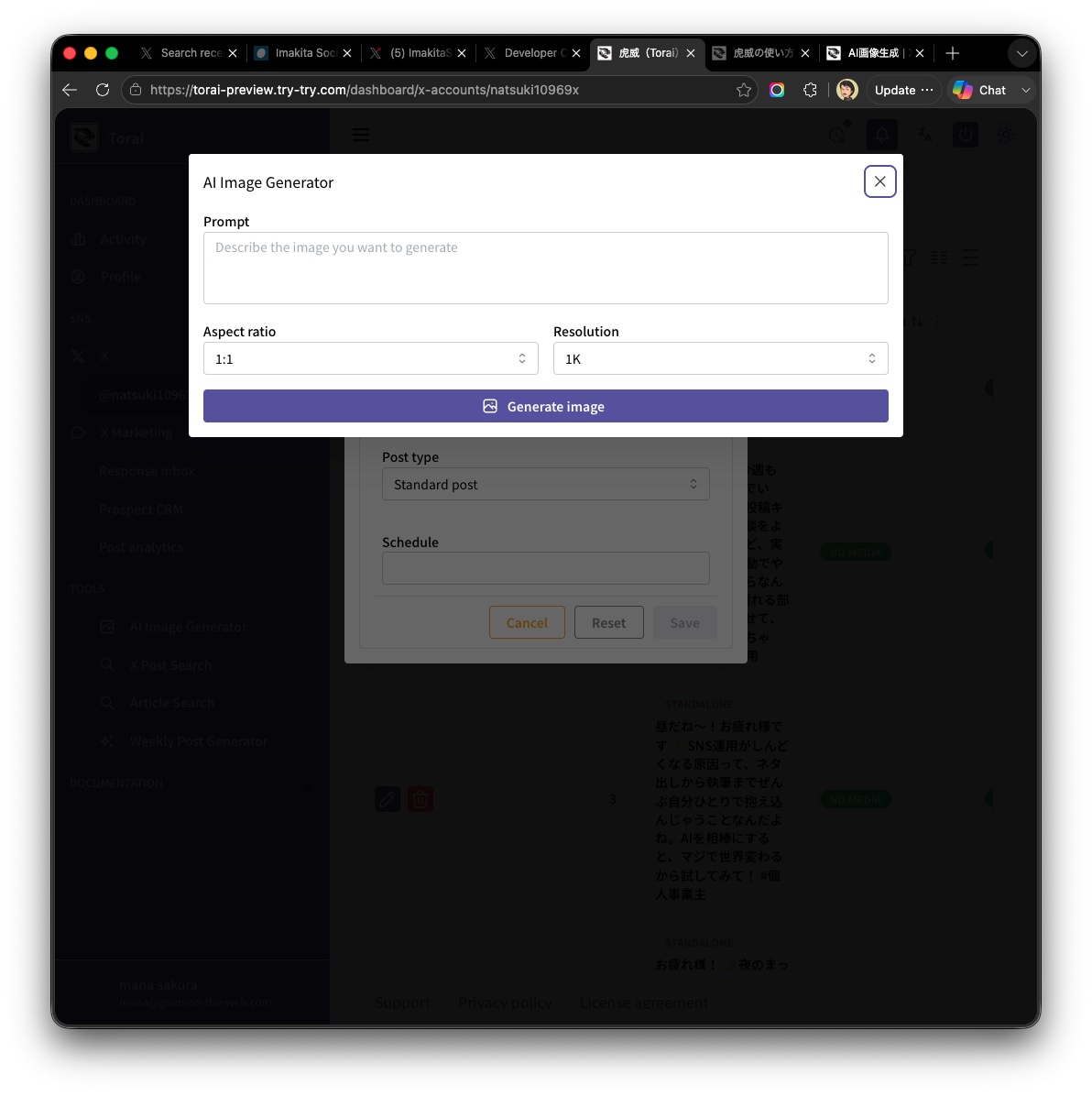
2. Generate an image
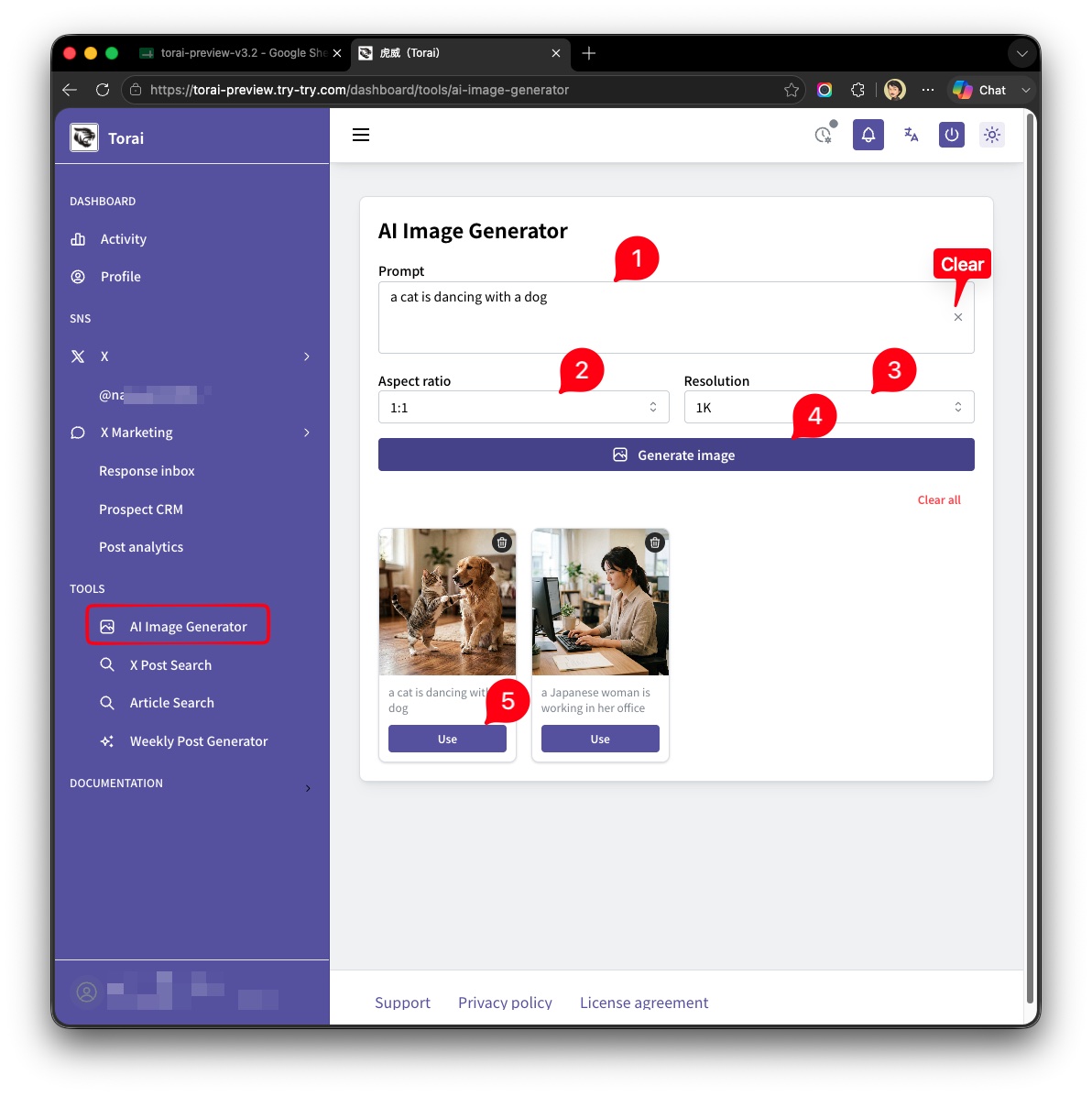
Enter the following and click Generate image.
| Field | Description |
|---|---|
| Prompt | Text describing the image you want to generate (required) |
| Aspect ratio | Choose from 1:1, 3:4, 4:3, 16:9, 9:16, 2:3, 3:2, or 21:9 |
| Resolution | Choose from 1K, 2K, 3K, or 4K |
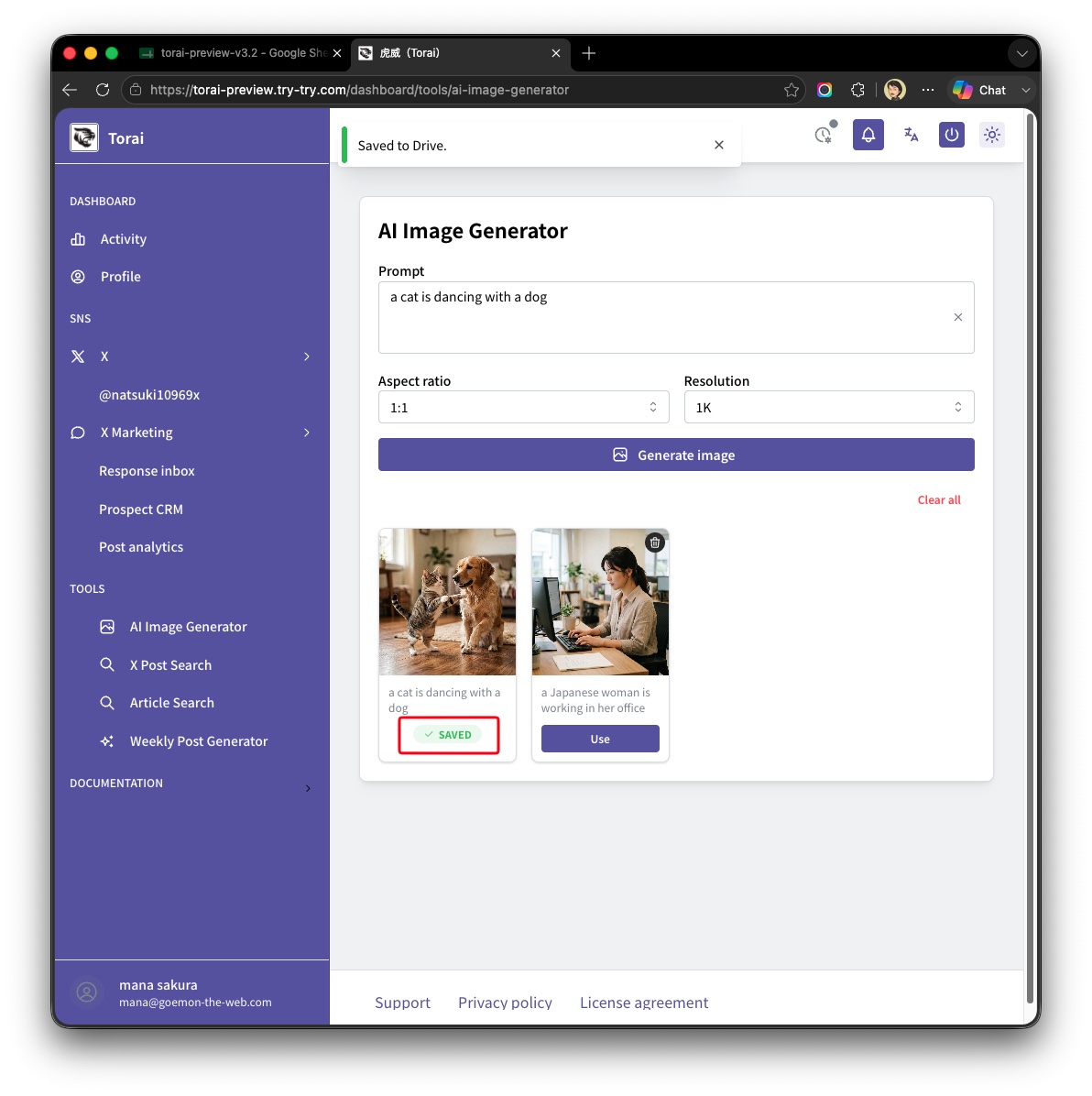
When generation completes, the image is added to the gallery at the bottom of the screen. Generating multiple times in the same session stacks the newest images at the top.
Agnes AI's free tier has fairly low rate limits. Generating several images in quick succession may result in a rate-limit error.
3. Use a generated image (save to Drive)
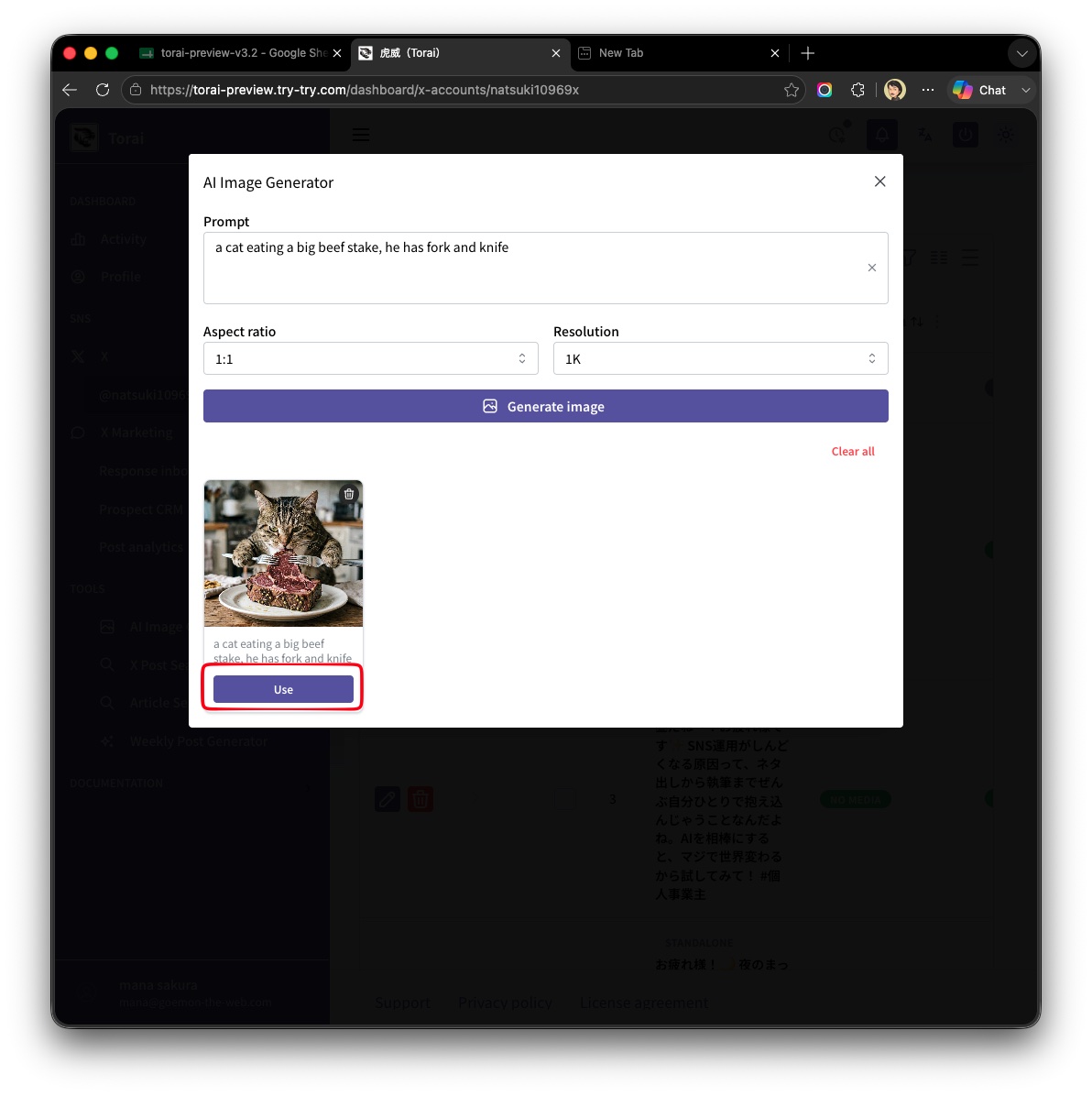
Click Use on an image card in the gallery to save that image to Google Drive.
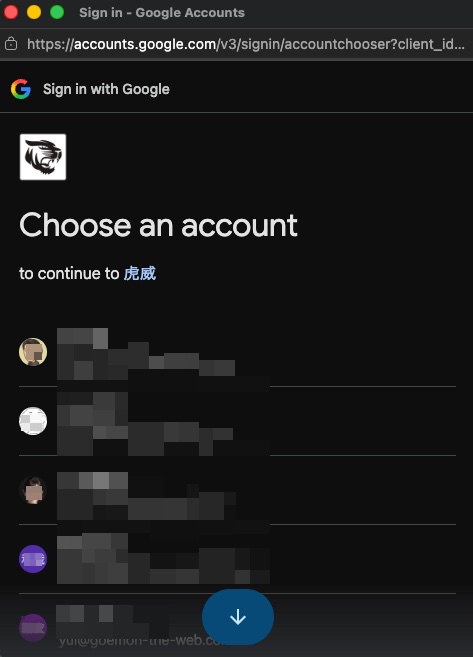
The first time, or if your Google access has expired, a popup asks you to authorize access to your Google account. Review it and grant access.
Images are saved to the X_Post_MediaFiles / AI_Generated folder. Once saved, the card shows a green Saved badge. Saved cards remain in the gallery, so you can compare multiple images you generated and saved in the same session.
Opened from the post creation form
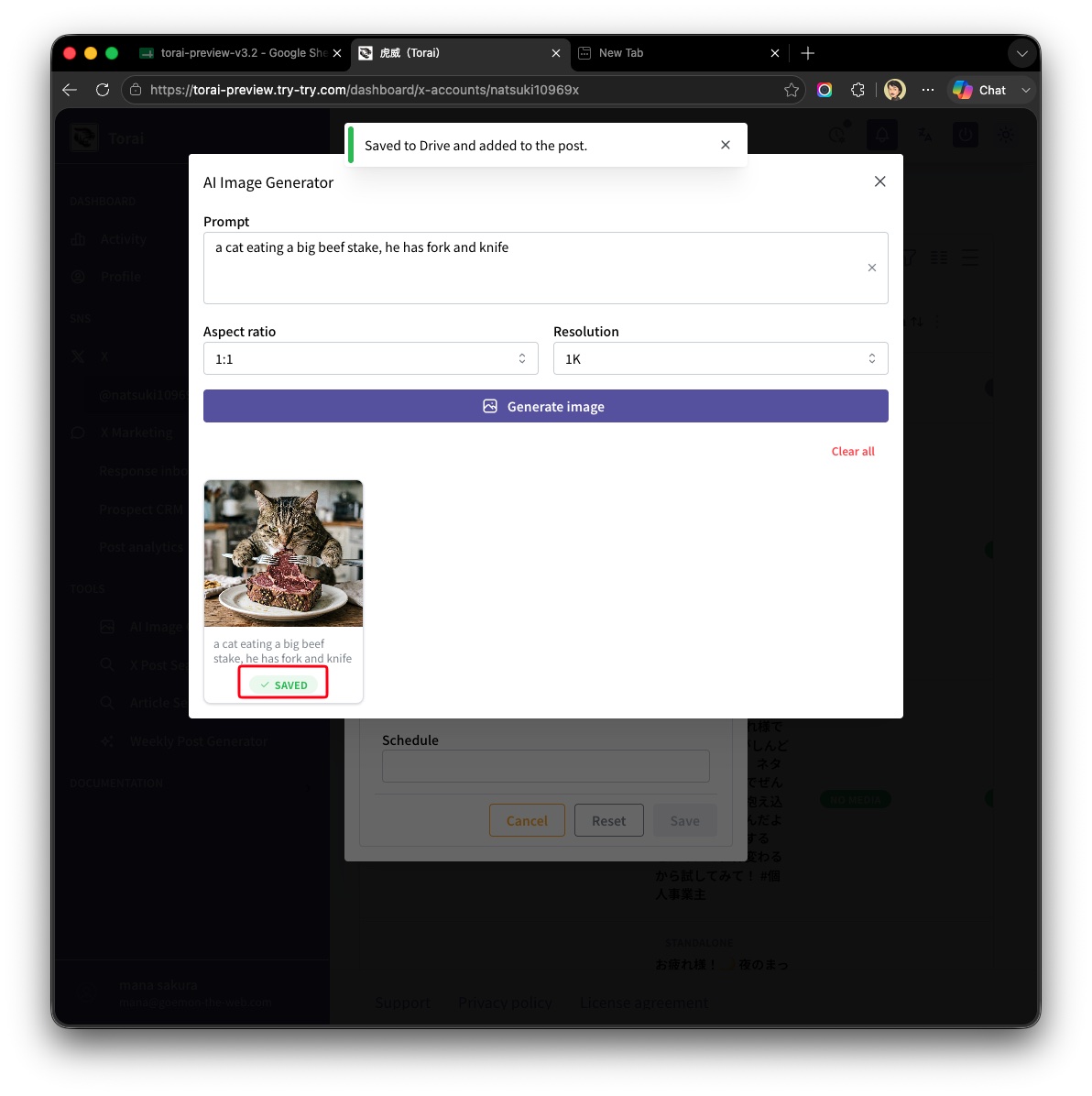
If you generated and saved the image from the modal inside the post creation form, clicking Use both saves the image and adds it directly as an attachment to that post. You do not need to select it again from Google Drive.
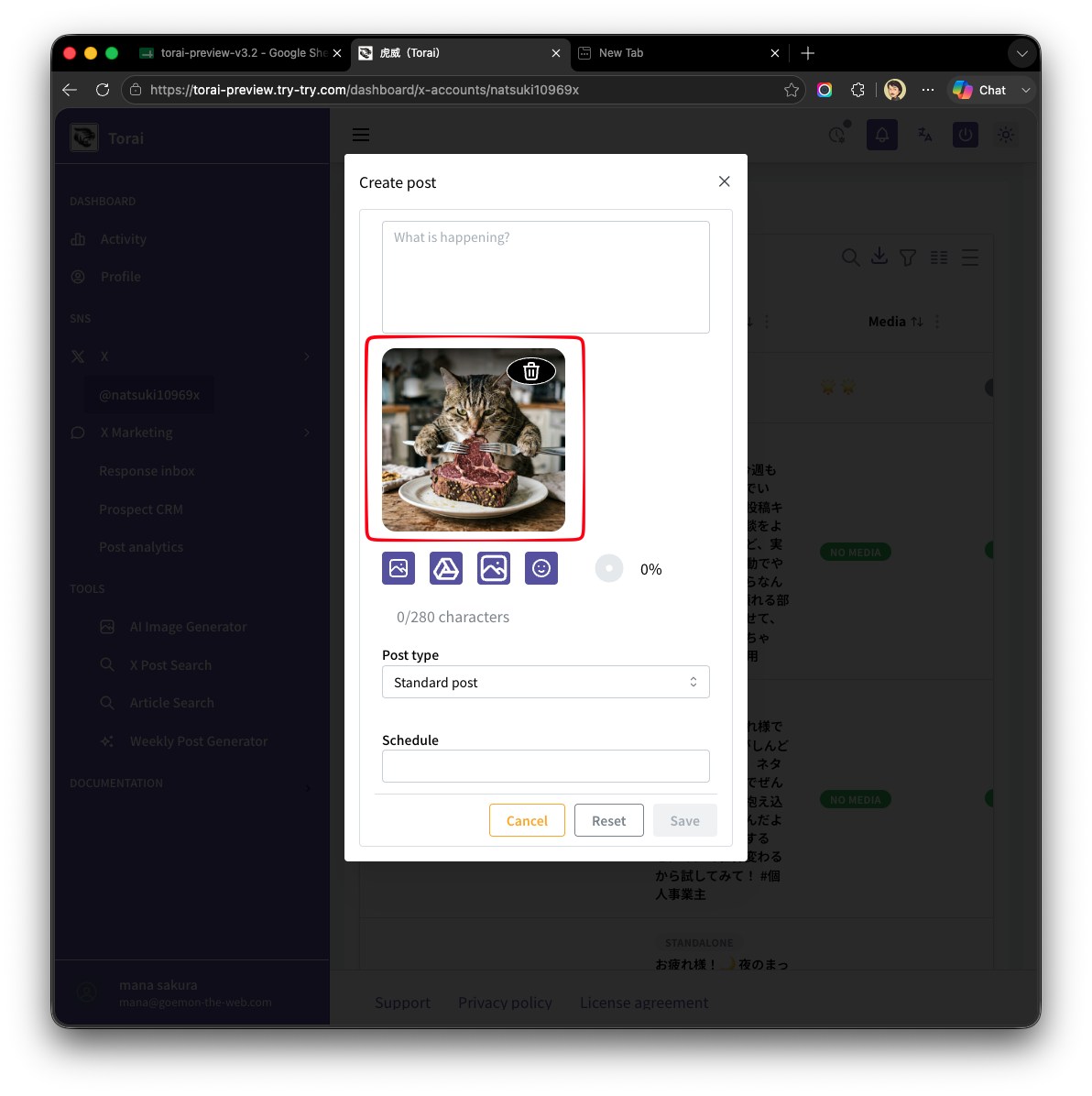
Opened as a standalone Tools page
If you opened the AI Image Generator as its own page from the Tools menu, saved images are not automatically added to a post. When creating a post later, select the image from the Google Drive button (Picker) in the post form.
4. Discard images you don't need
Click the trash icon in the top-right corner of an image card to discard it immediately. Discarded images are never saved to Google Drive.
The trash icon is only shown on images that have not yet been saved to Google Drive. Once a card shows the Saved badge, the trash icon disappears — removing a saved card from Torai's screen would not delete the file from Google Drive, so the icon is hidden to avoid that confusion. To delete a saved image file itself, delete it directly in Google Drive (in the X_Post_MediaFiles / AI_Generated folder).
The gallery also resets every time you open the AI Image Generator screen again. Images generated (but not saved) in a previous session are not kept.
Notes for safe use
- Agnes AI is an external service, not a Torai feature. Determine the copyright, usage rights, and commercial-use eligibility of generated images according to Agnes AI's own terms of service, at your own responsibility.
- Always review your prompt and the generated result for unintended or inappropriate content before publishing.
- Agnes AI's pricing and free-tier limits may change. Check the latest information before use.