Configure X App Permissions and Get Four API Credentials
To publish to X and collect X Marketing data with Torai, create an App in the X Developer Console and obtain four OAuth 1.0a credentials. You do not need a separate set of credentials for analytics:
- API Key
- API Key Secret
- Access Token
- Access Token Secret
Some credentials are displayed only once. When they appear, store them in a secure location such as a password manager. Do not save them in screenshots, chats, Git repositories, or public folders.
Before you start
Prepare the following:
- The X account you will use for posting
- Access to the X Developer Console
- Billing settings or credits required to use the X API
- Your Apps Script web app URL
- The Torai website URL
Enter the Apps Script web app URL as the X Callback URL / Redirect URL. If you do not have this URL yet, set up Google Sheets and Apps Script first.
1. Open the X Developer Console
Open the X Developer Console and sign in with the X account you will use for posting.

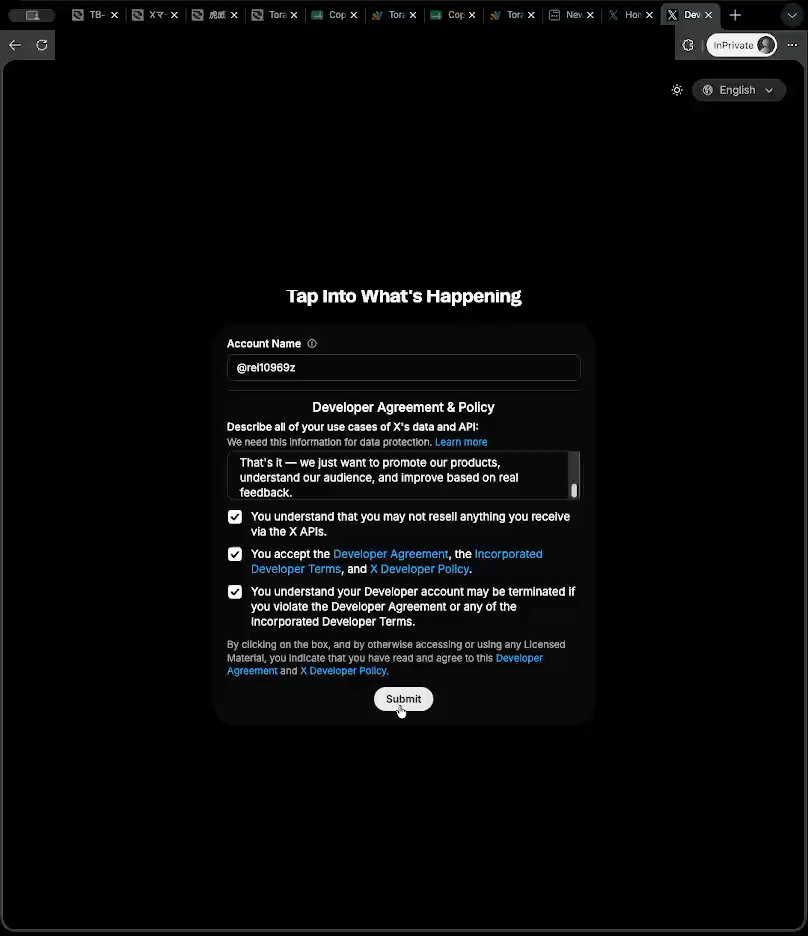
On your first visit, you may need to accept the Developer Agreement and enter profile information. Follow the on-screen instructions.
2. Check billing and credits
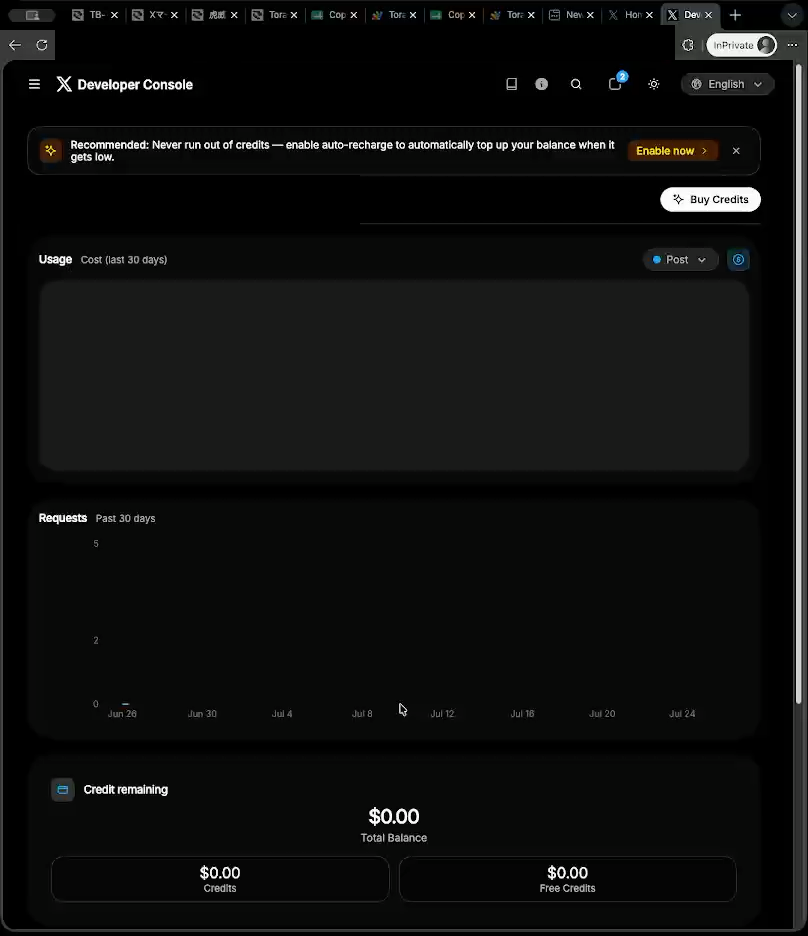
Using the X API may require X billing or credits. On the Developer Console dashboard, check your payment settings, credits, and usage.
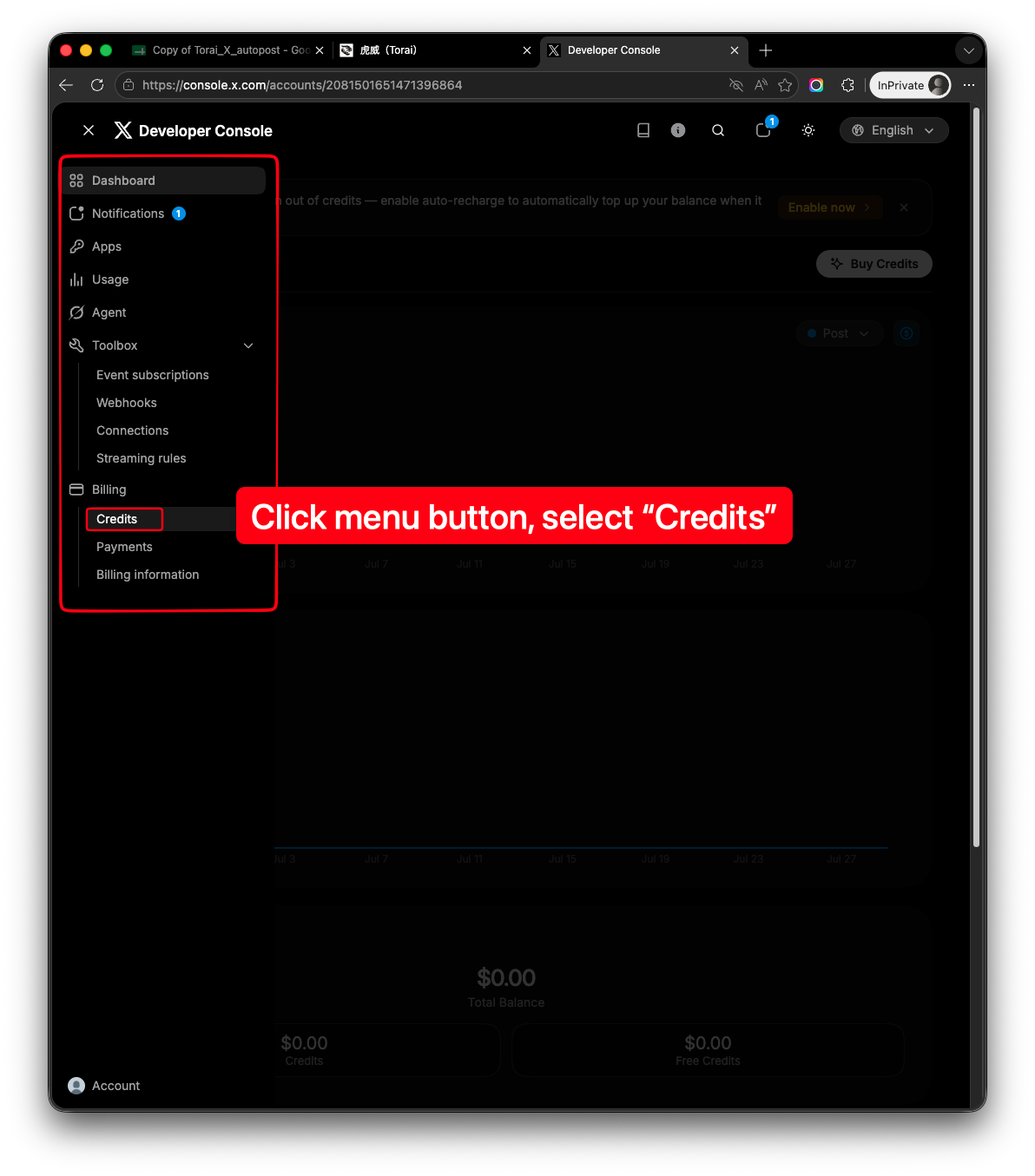
Click the menu button in the upper-left corner, then select Credits from the menu that appears.
To purchase credits, follow the on-screen instructions to register payment information.
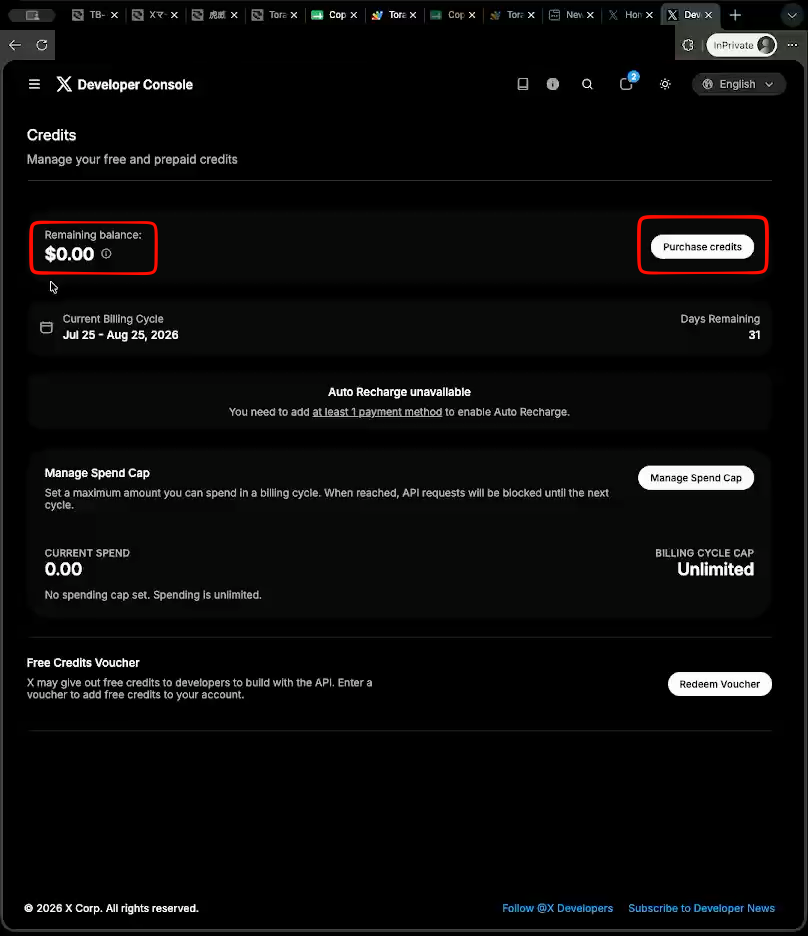
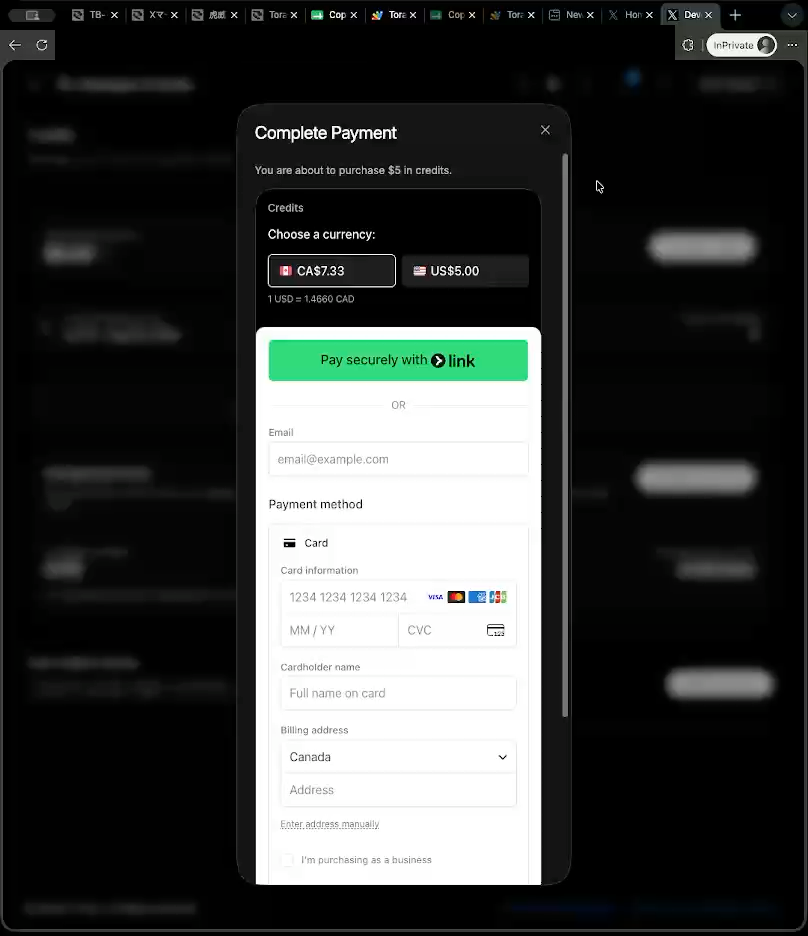
Review your credit balance and automatic top-up settings to reduce the chance of failed posts caused by insufficient credit.
3. Create a Project and App
Create a new app, or select the default app if it is not currently in use.
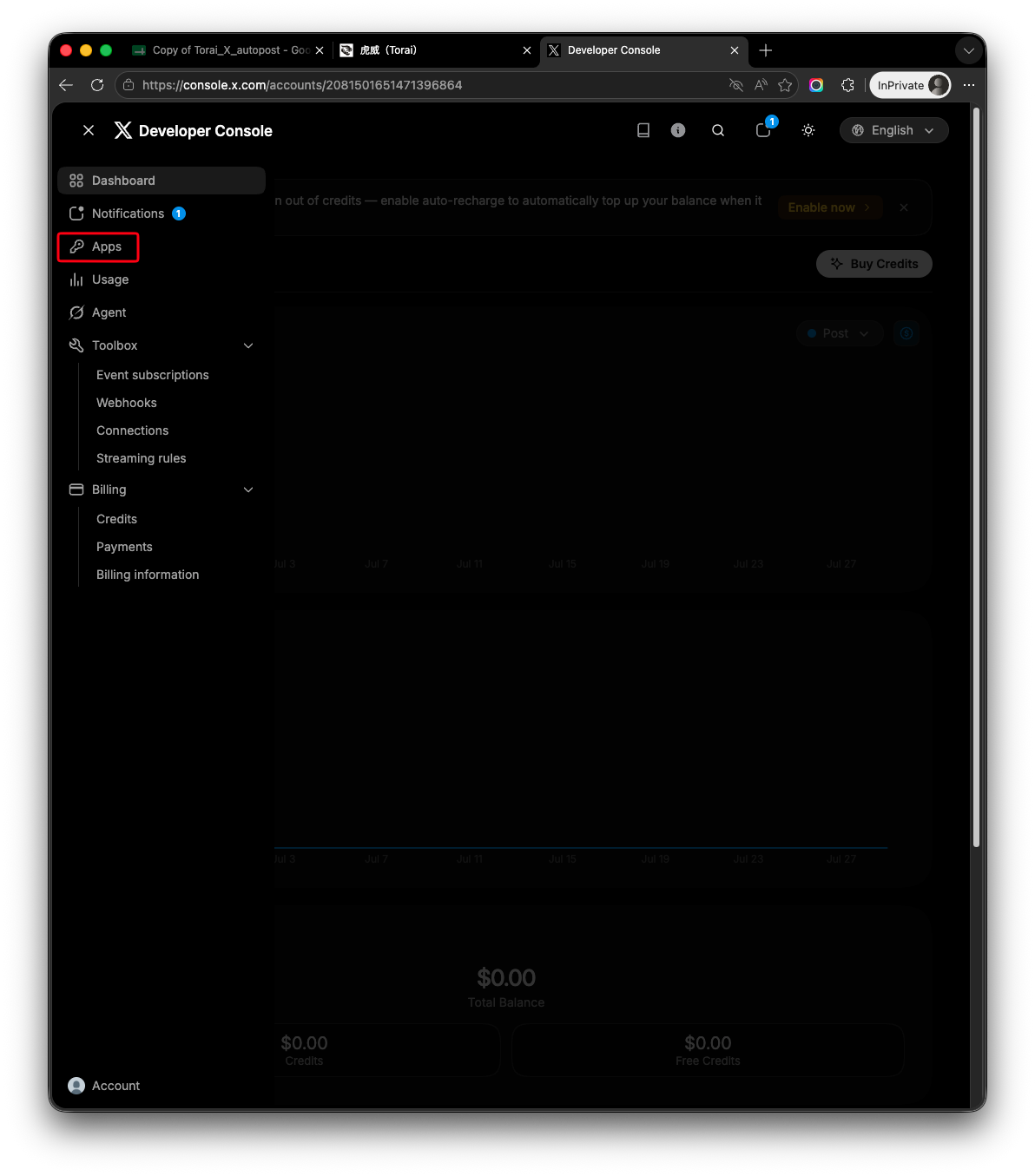
Select the default app
Click apps in Development. This is a default app when you first signin to X developer.
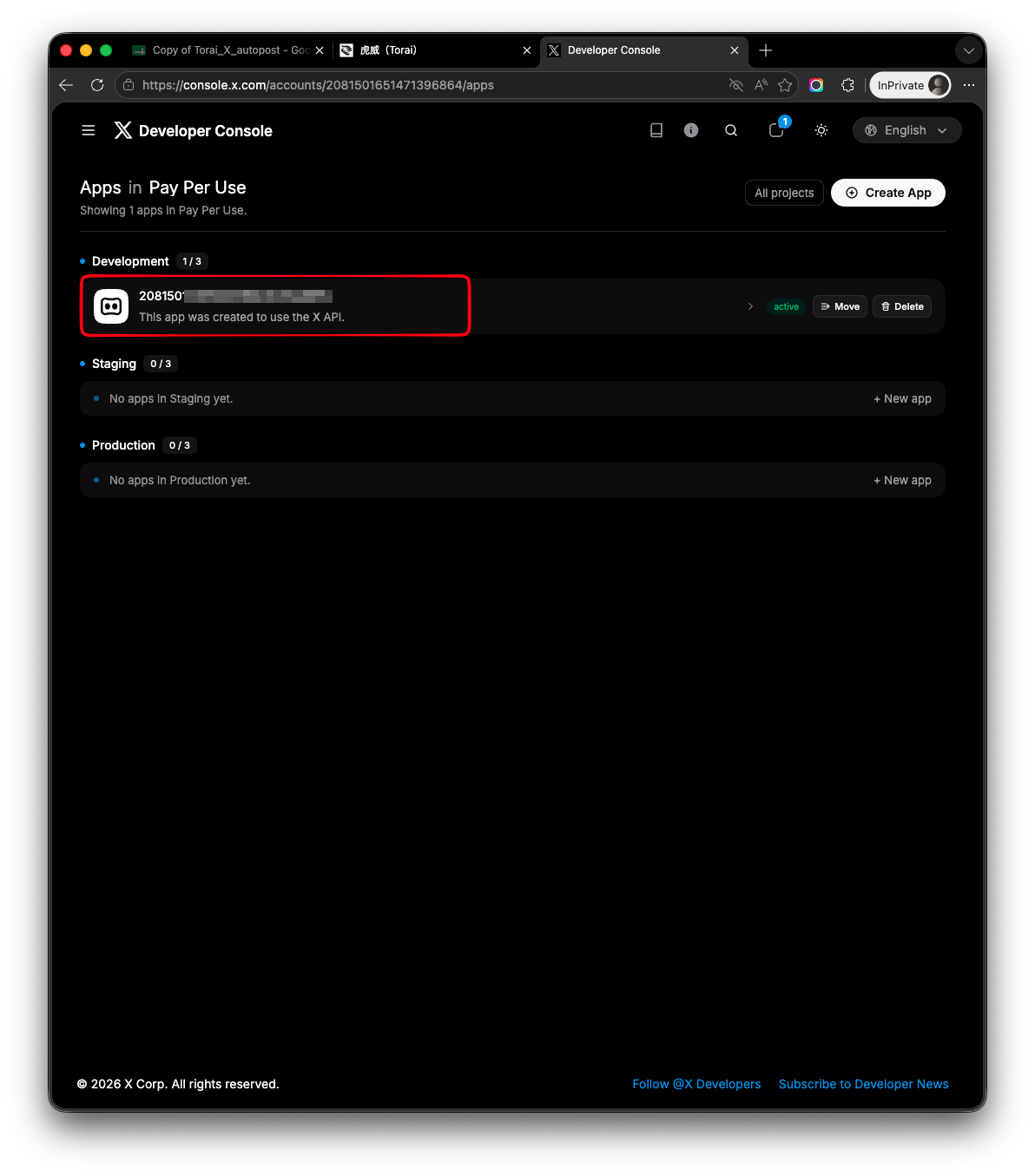
Create a new app
Enter the Project name, App name, description, intended use, and other requested information. Use names that will make the purpose clear later.
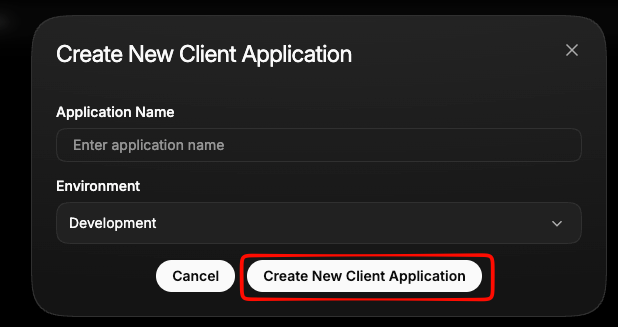
The API Key and API Key Secret may be displayed when you create the App. But you do not need to save them. You will need to regenerate the keys after changing the app permissions later.
Select app you created.
4. Open User Authentication Settings
Open the settings for the App you created and edit User Authentication Settings or Authentication Settings.
Open the App, then click Set up under User authentication settings.
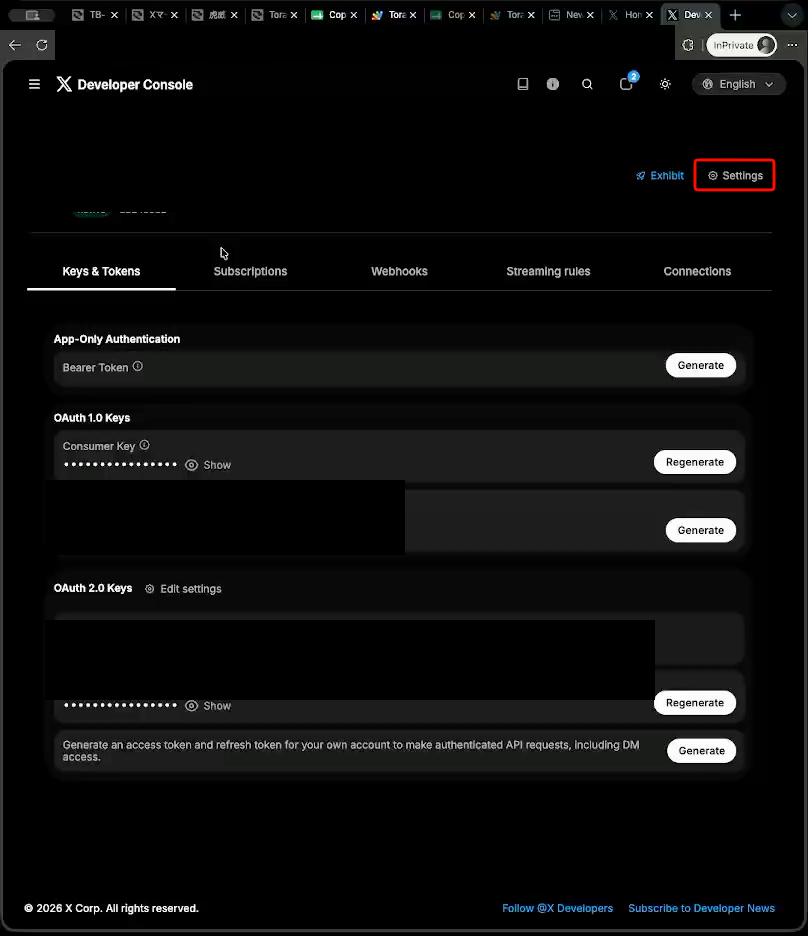
This is where you configure the permissions and application type required to publish from Torai and retrieve your own post information, engagement metrics, and responders.
5. Configure app permissions
Enable OAuth 1.0a and select App permissions.
For Torai, normally select Read and write. Write permission is used for publishing, while read permission is used to verify posts and collect X Marketing data.
Select Read, write, and DMs only if you will also send and receive direct messages.
Read only is not sufficient to publish to X from Torai. It causes a permission error when posting.
For Type of App, select Web App, Automated App, or Bot.
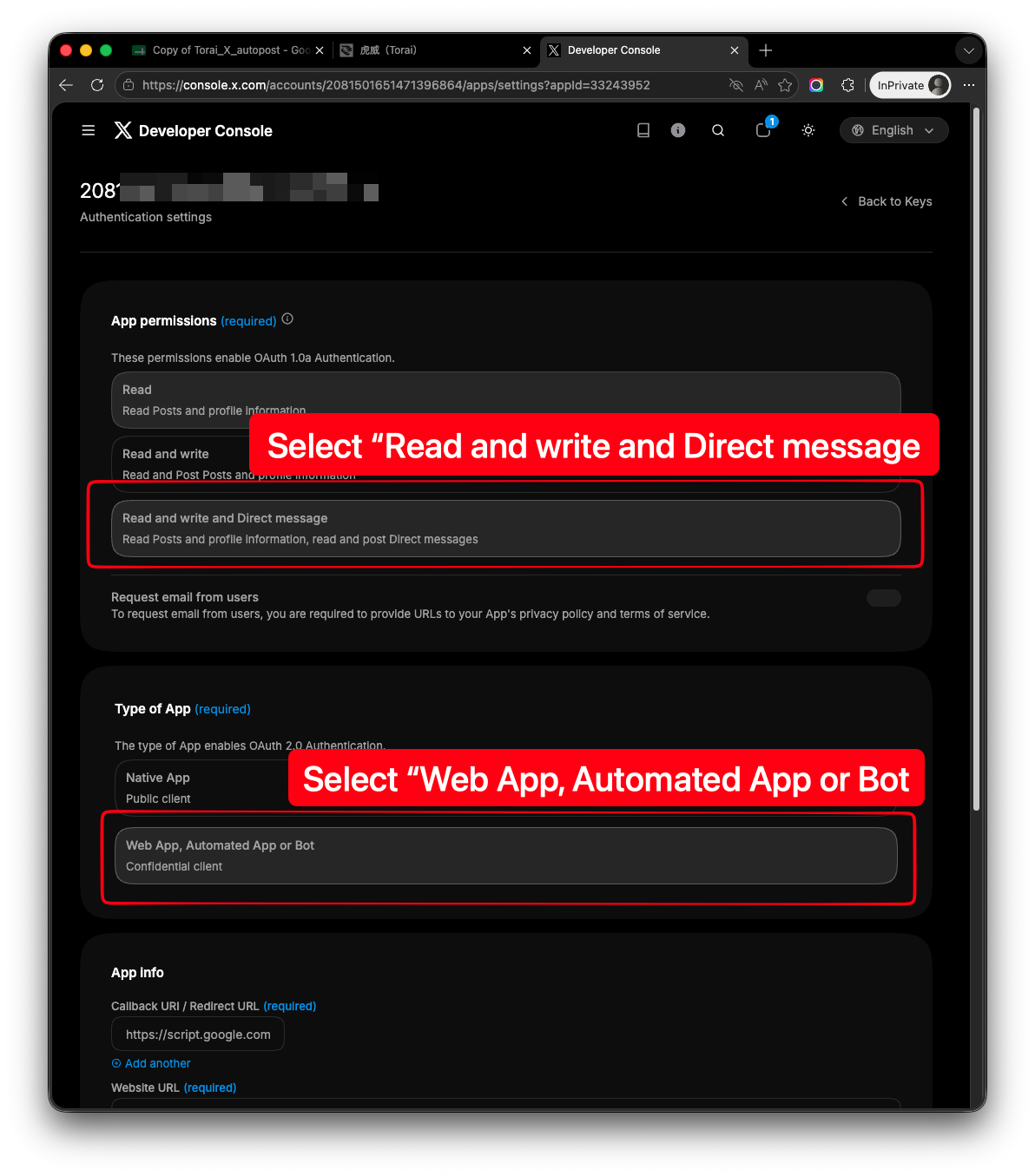
Enter your Apps Script web app URL as the Callback URL / Redirect URL. Enter the Torai website, https://torai.try-try.com, as the Website URL.
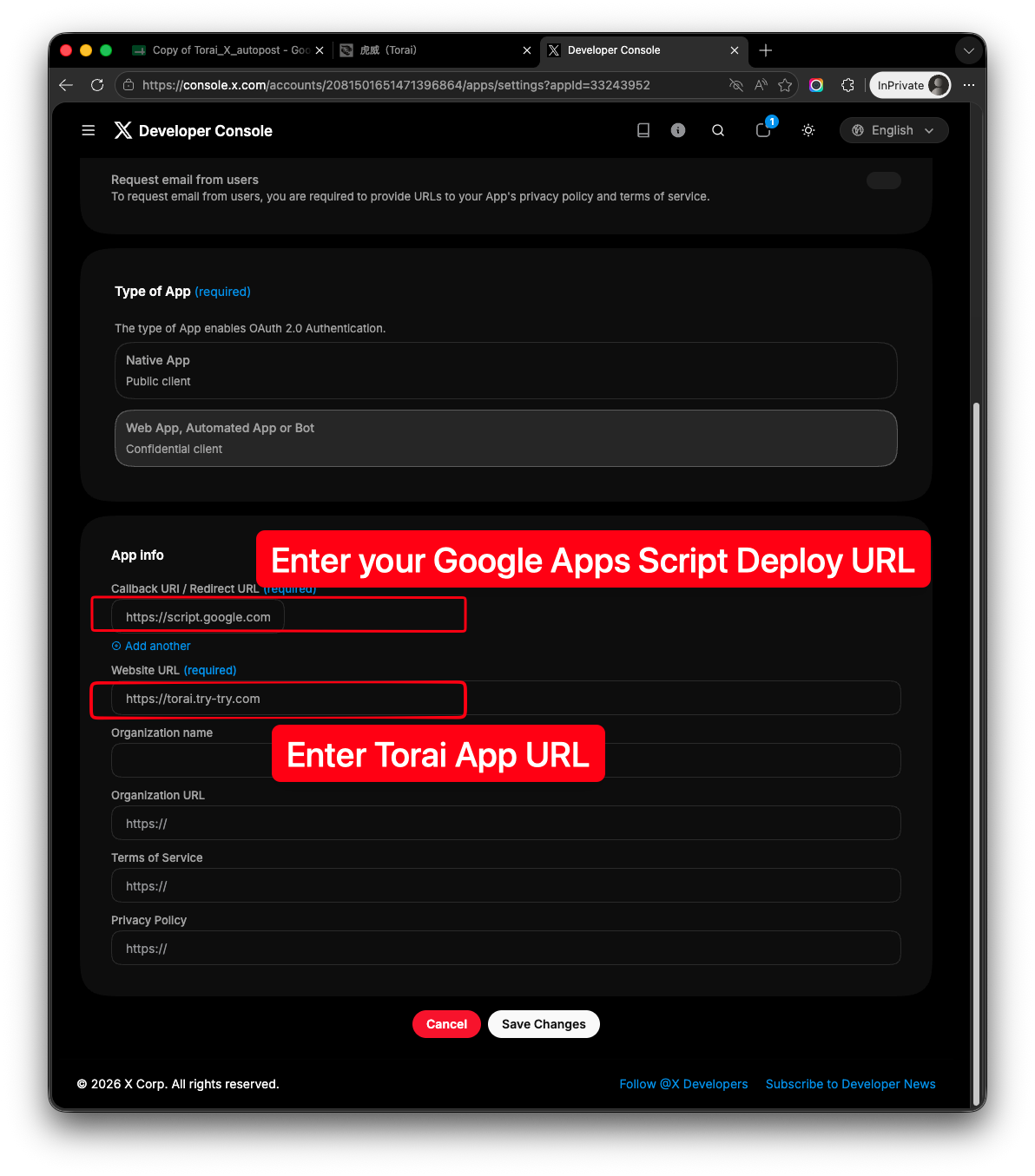
Click Save when you are done.
If you change app permissions, always regenerate the Access Token and Access Token Secret. Existing tokens do not receive the new permissions.
6. Open Keys and Tokens
Open Keys and tokens for the App.
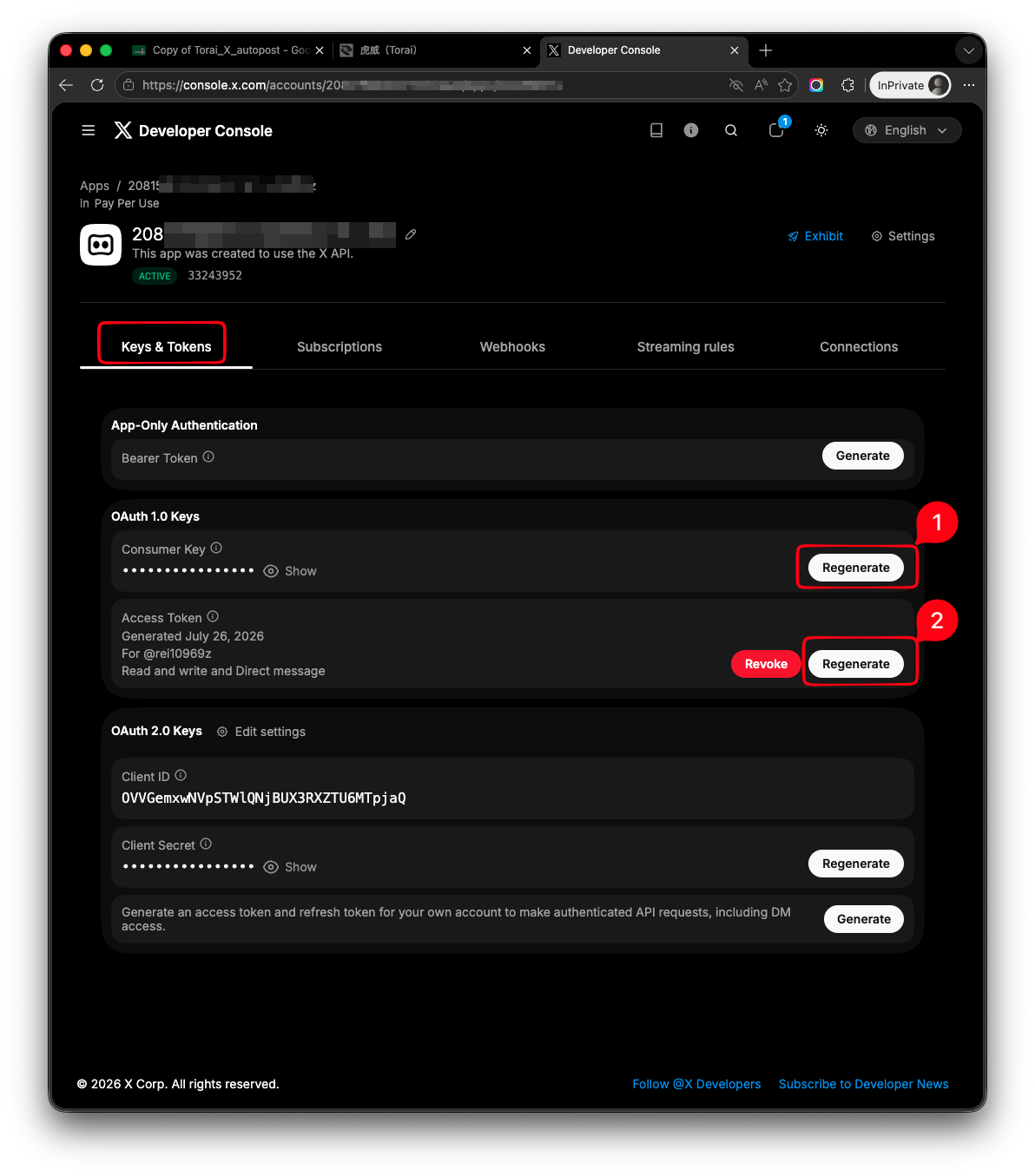
On this page, you can review or regenerate the API Key and API Key Secret, and generate the Access Token and Access Token Secret.
7. Save the API Key and API Key Secret
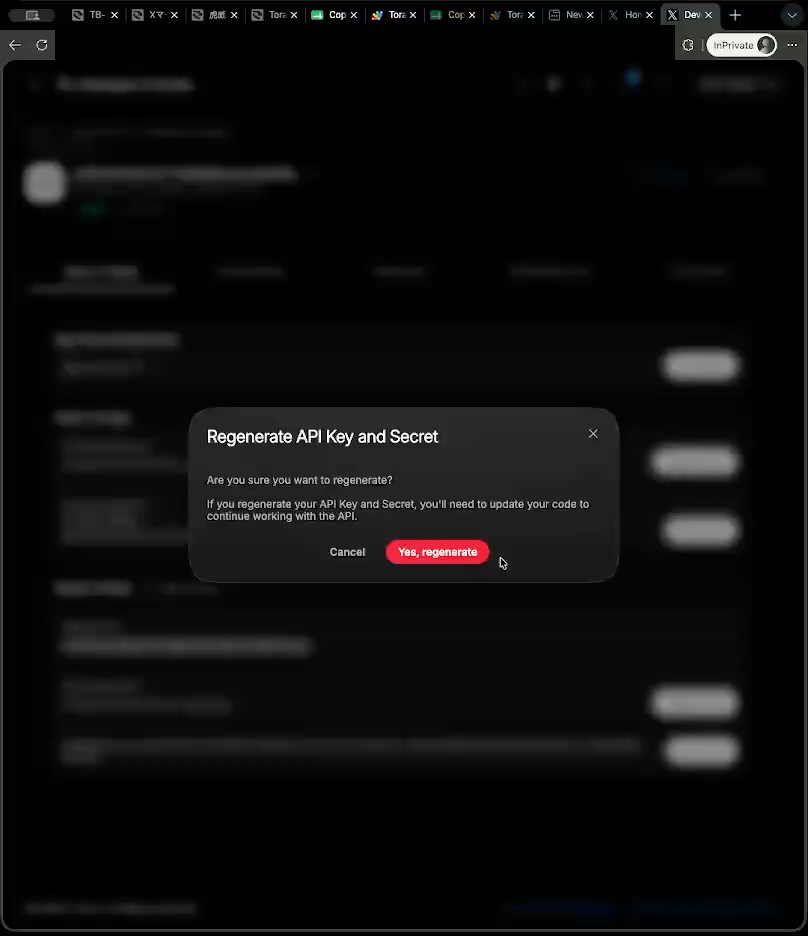
In the Consumer Keys section, display or regenerate the API Key and API Key Secret.
A confirmation page appears when you regenerate them. If an existing integration uses the current keys, it will stop working after regeneration.
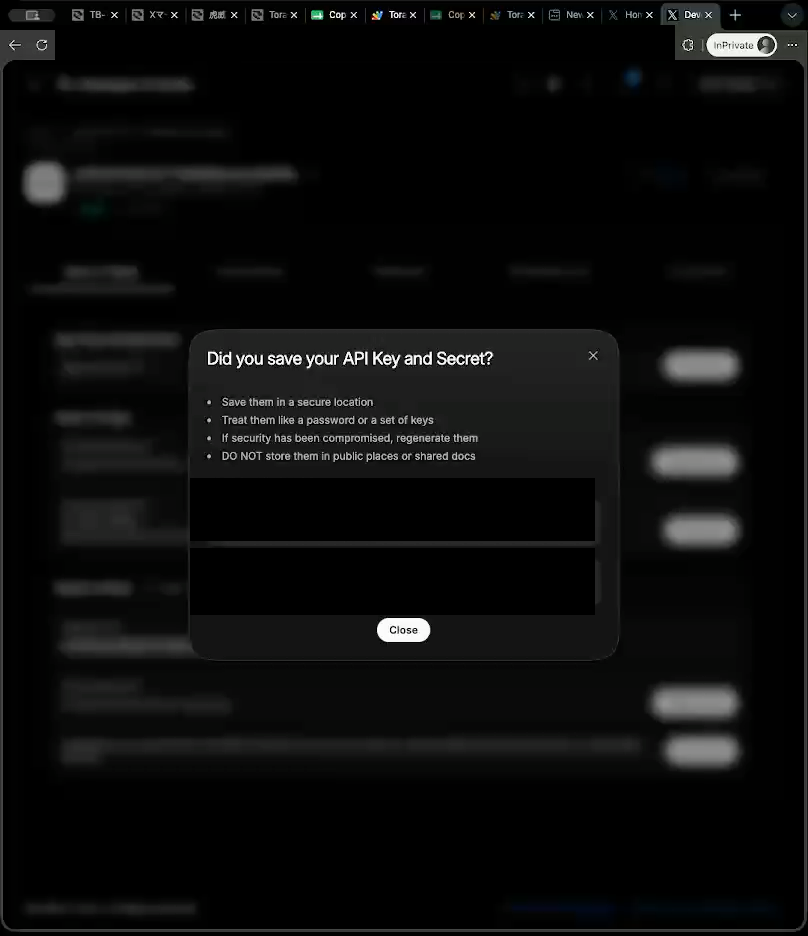
Save the displayed API Key and API Key Secret.
8. Generate the Access Token and Access Token Secret
In the Access Token section, click Generate or Regenerate.
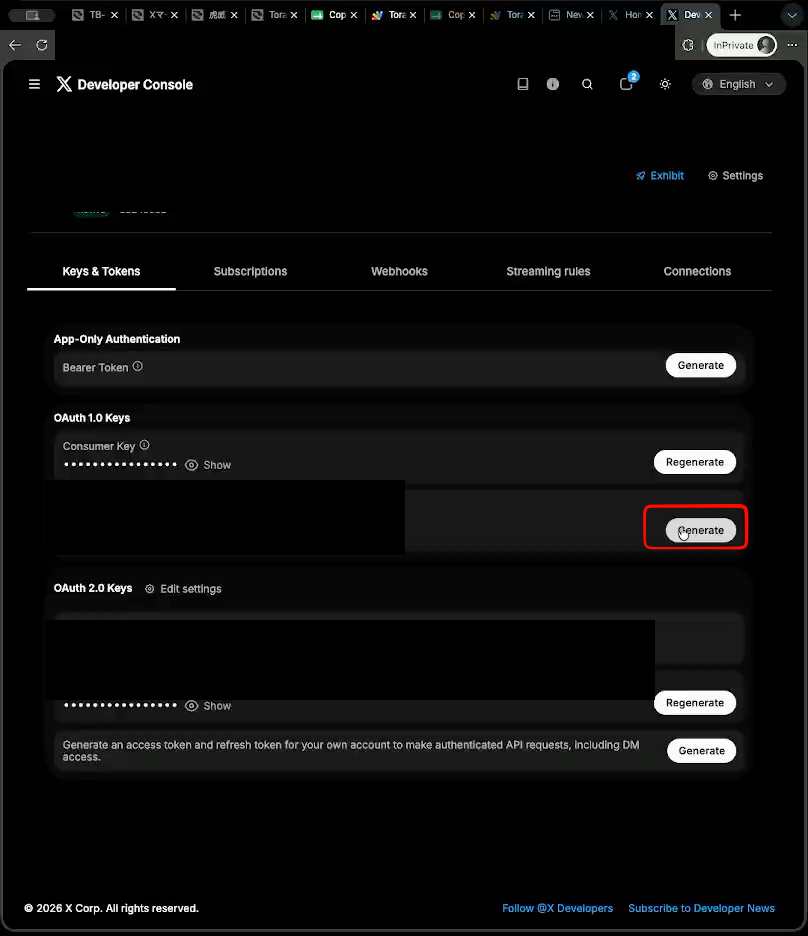
Save the displayed Access Token and Access Token Secret.
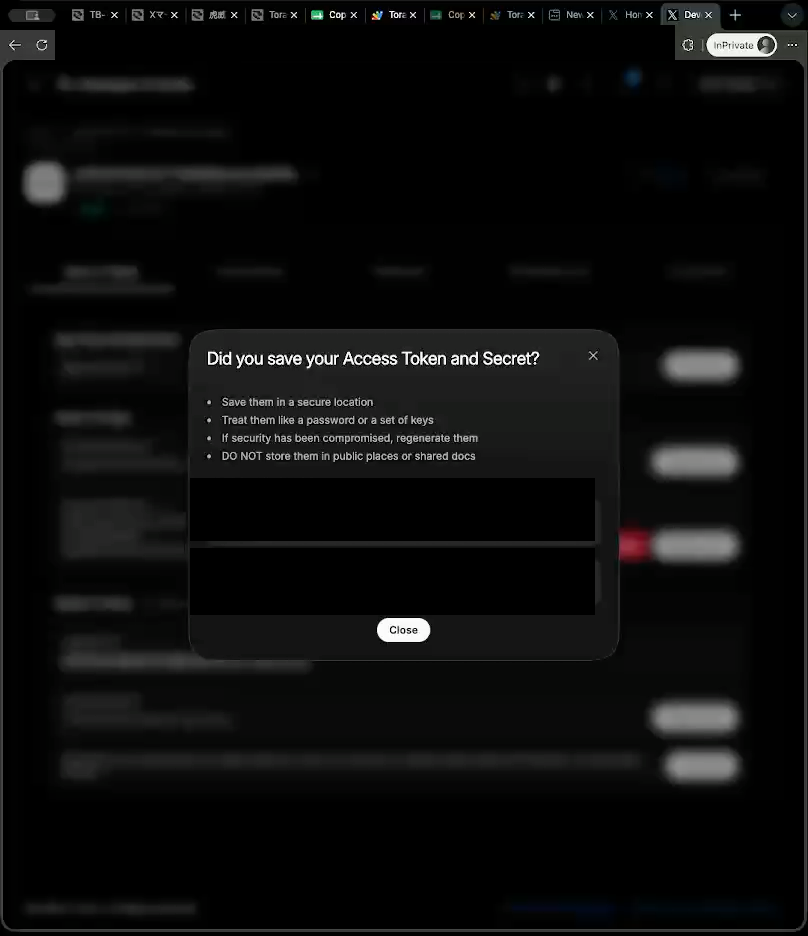
You now have all four credentials required by Torai.
9. Register the credentials in Torai
On Torai's X account management page, register all four credentials for the corresponding X account:
- API Key
- API Key Secret
- Access Token
- Access Token Secret
After registering them, create a test post or a normal post to confirm that publishing works. If you use X Marketing, save its collection settings, click Refresh Now, and confirm that data appears in Post Analytics or the Response Inbox.
Common problems
Posts fail
App permissions may still be set to Read only. Change them to Read and write or higher, then regenerate the Access Token and Access Token Secret.
Permission changes do not take effect
You may be using the old Access Token and Access Token Secret. Regenerate them under Keys and tokens, then register the new values in Torai.
You forgot to save a credential
Regenerate any credential that cannot be displayed again. Regeneration invalidates the old credential, so also update it in Torai.
Posts fail because there is not enough credit
Check your credit balance, billing settings, and Usage on the Developer Console dashboard.
Security notes
- Never share the four credentials with anyone.
- Do not paste them into GitHub, chats, email, or public folders.
- If you suspect unauthorized use, regenerate them immediately.
- Delete or regenerate Apps and credentials you no longer use.