Sign In to Torai and Complete Basic Setup
To start using Torai, sign in and register the web app URL for your Google Apps Script deployment.
This page explains how to connect Torai to Google Apps Script and complete identity verification.
1. Sign in to Torai
Open the Torai sign-in page and sign in with your Google Account.
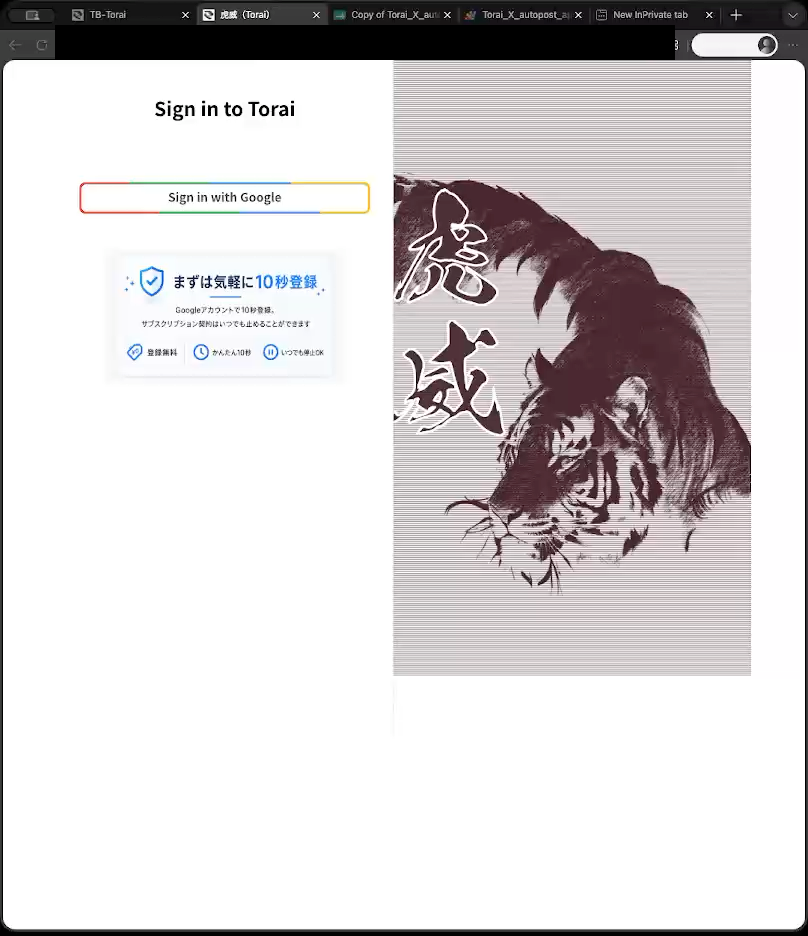
After signing in, open Profile > API Keys from the left menu or Profile menu. If you have not subscribed yet, see Torai Subscription.
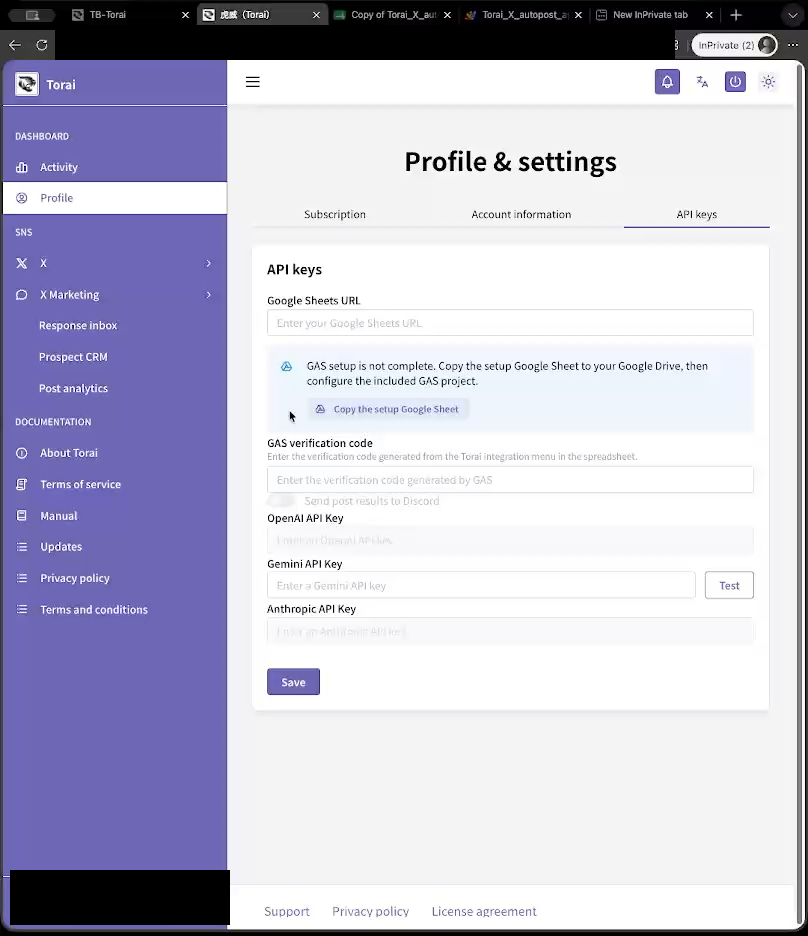
2. Open the API Keys page
Open the API key settings under Profile.
You can register the following information on this page:
- Google Apps Script web app URL
- Gemini API key (if you create post or reply drafts with AI)
- Discord Webhook URL (if you want Discord notifications for automated posts)
Publishing and X Marketing both use the Google Apps Script web app URL. If the GAS URL and identity verification are incomplete, this page displays Copy the Torai Google Sheet.
The button opens the copy page for the distributed spreadsheet, which already includes the Apps Script project. For a new setup, copy this template instead of pasting code into a blank sheet manually.
3. Start changing the Google Sheet URL
On the API Keys page, enter the web app URL in the Google Sheet URL field. If a URL is already registered, click Change.
Paste the web app URL copied from the Apps Script deployment completion page.
Use the Apps Script web app URL that ends in /exec. Do not use the Apps Script editor URL or the Google Sheet URL.
For the complete process of copying the web app URL, reloading Google Sheets, and finding the verification code, see Paste, Deploy, and Connect Apps Script.
4. Generate a verification code
After you enter the Google Sheet URL, Torai asks Apps Script to generate a verification code.
From the spreadsheet menu, click Torai connection - Generate verification code.
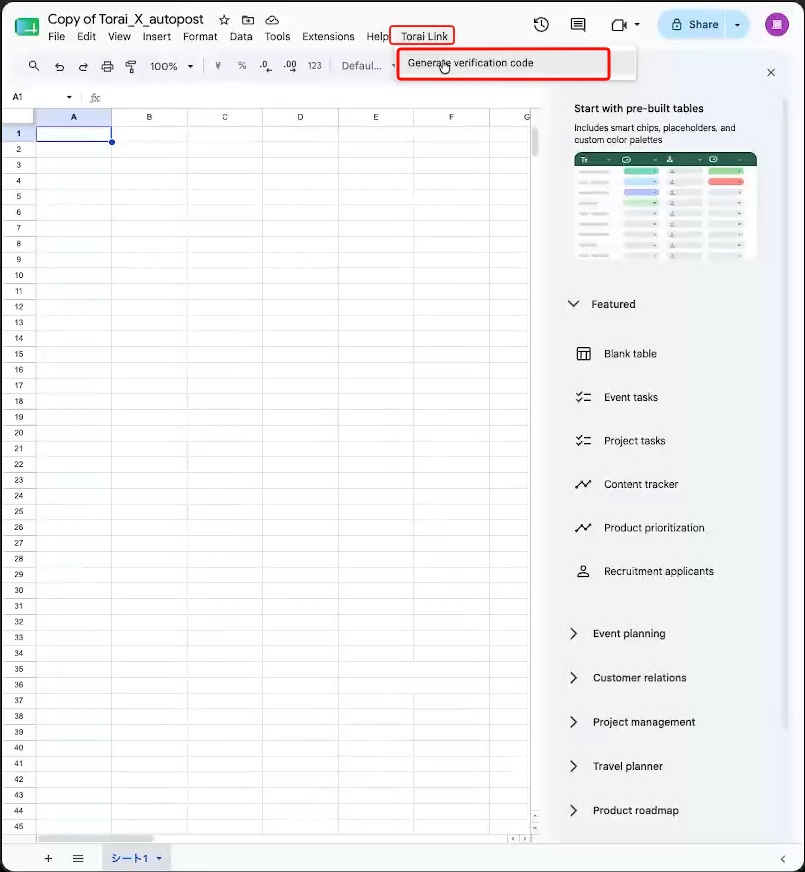
Copy the displayed verification code. It is valid for ten minutes.
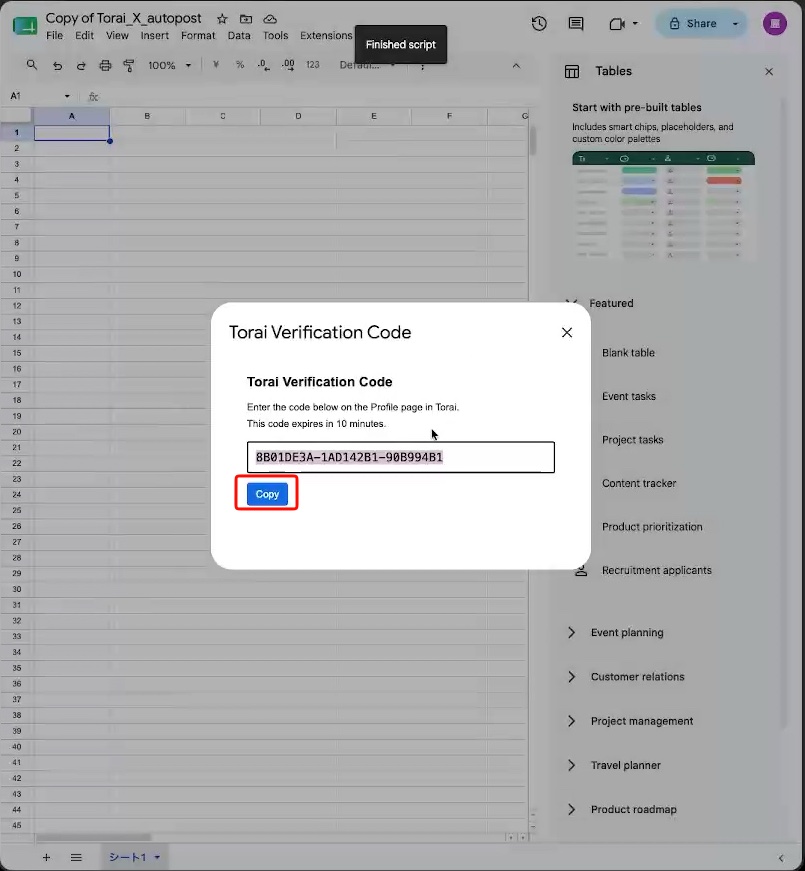
5. Paste the verification code into Torai
Return to the API Keys page in Torai and paste the code into the verification-code field.
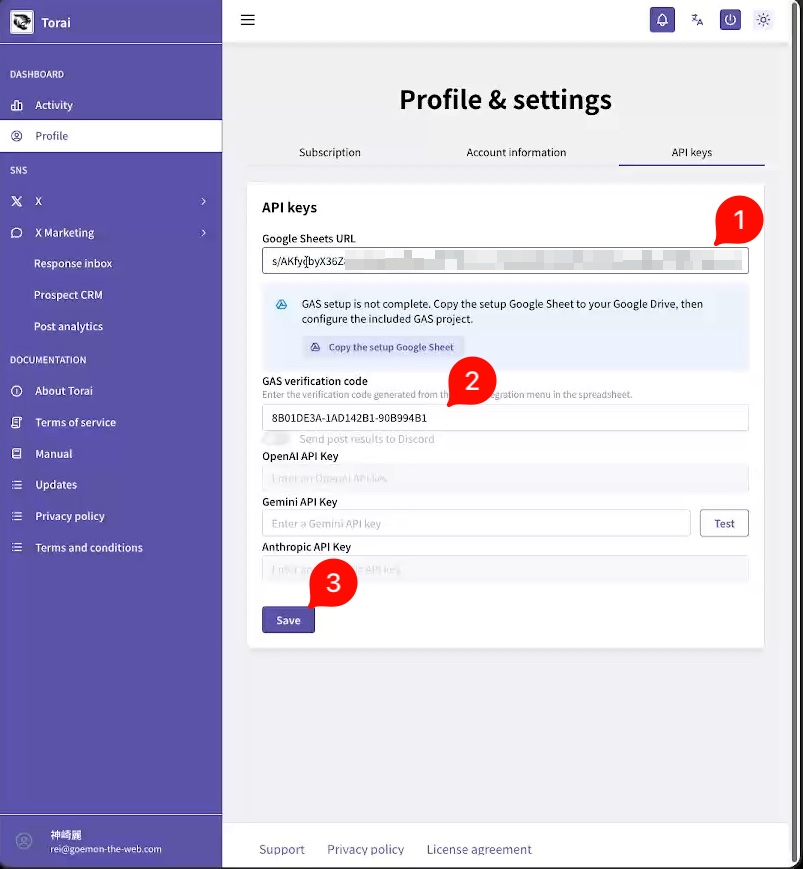
Click Save or Verify.
When verification succeeds, your Torai account and Apps Script are linked.
To prevent account takeover, this connection cannot be transferred to another Torai account. To use a different account, create a new Google Sheet and Apps Script project.
6. Register a Gemini API key
To create post drafts or AI reply drafts in the Response Inbox, register a Gemini API key.
Paste the key into the Gemini API Key field and save it.
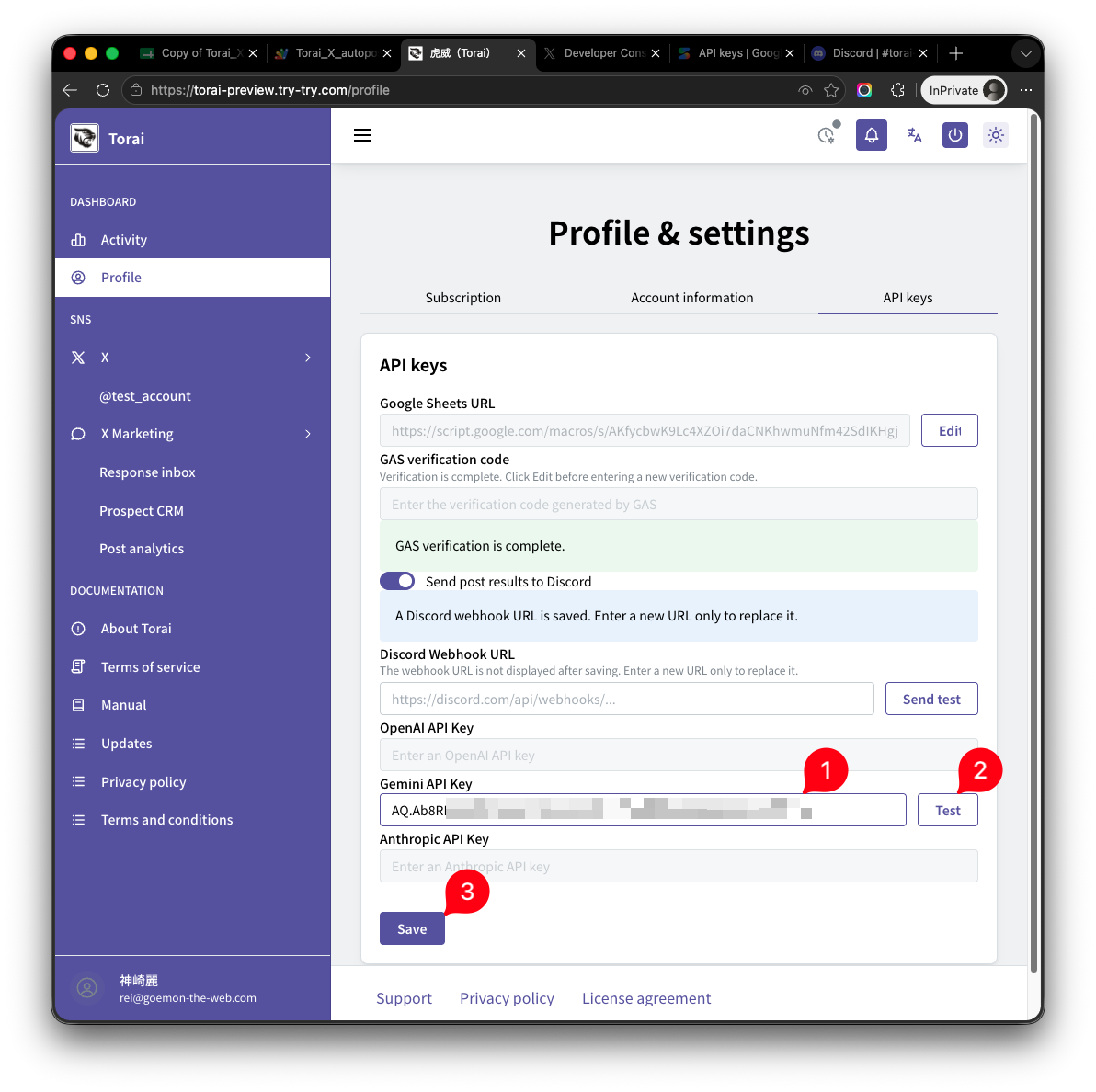
ChatGPT and Anthropic are not currently available because their APIs use pay-per-use pricing.
AI API charges follow each provider's pricing. Check usage and billing settings before generating content in large volumes.
7. Optional: enable Discord notifications
To receive a Discord notification when automated posting to X completes, register a Discord Webhook URL.
How to get a Discord Webhook URL
Turn notifications on, enter the Webhook URL, and save. The URL is not displayed again after it has been saved.
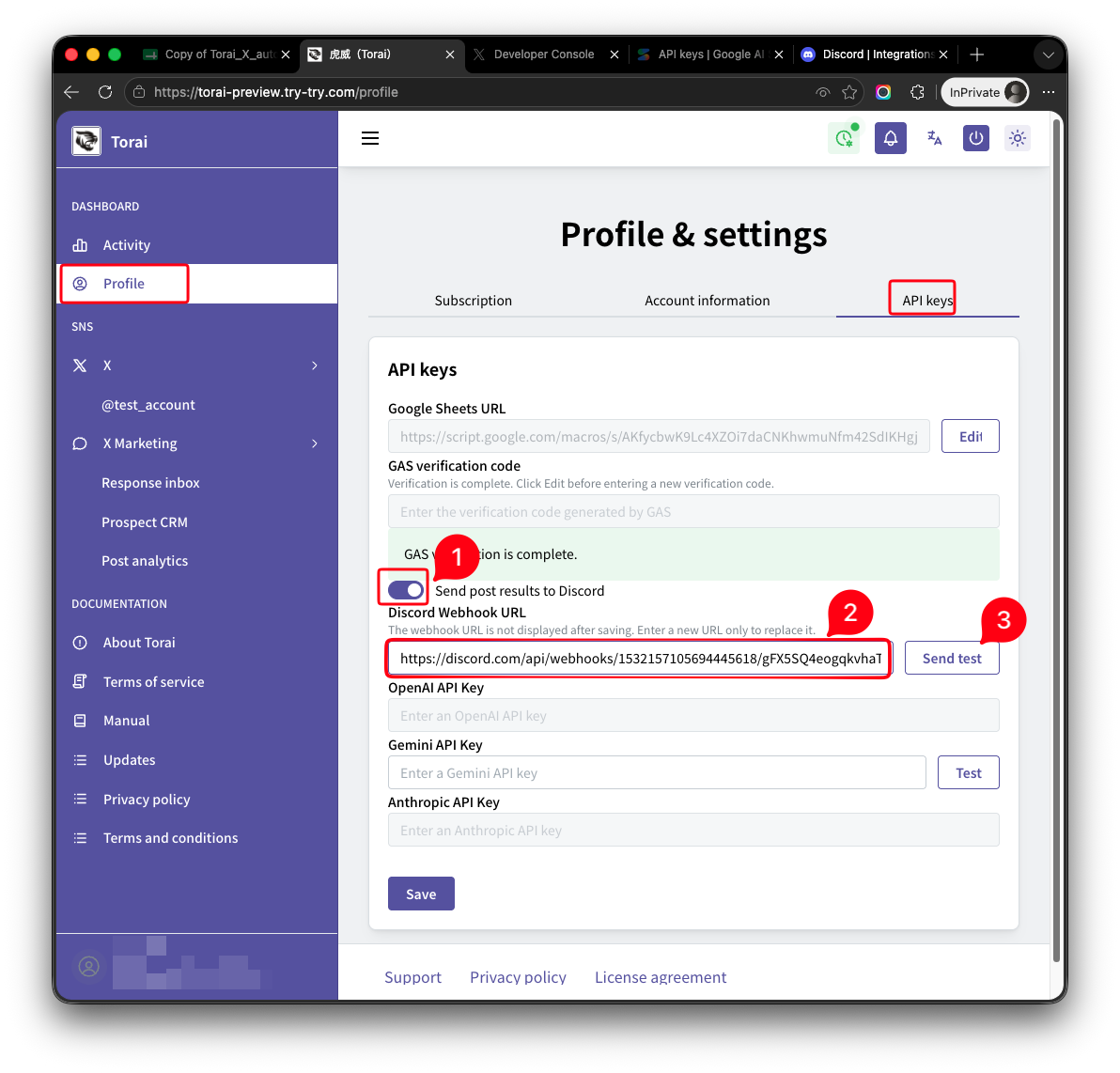
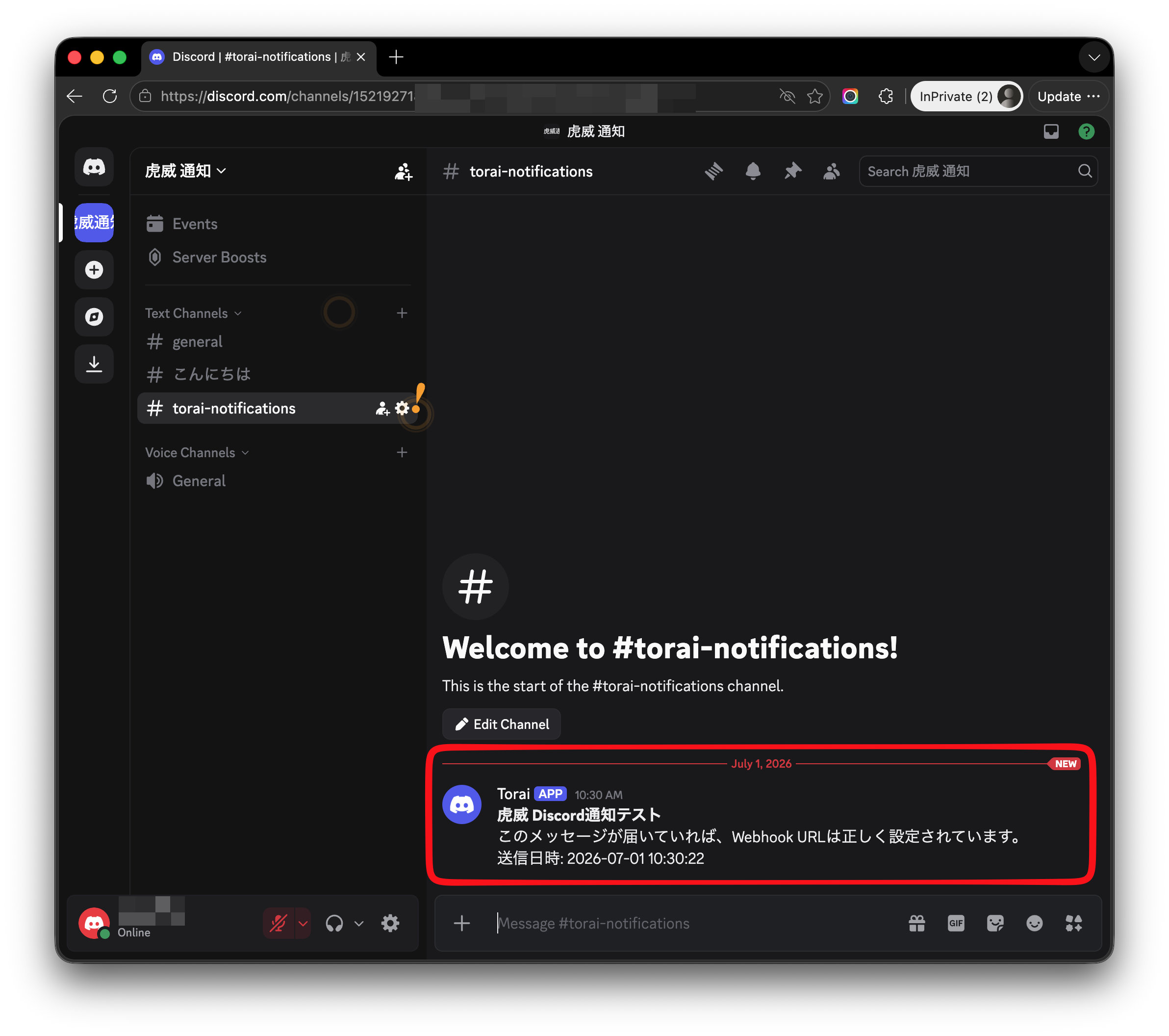
If a Send test button is available, send a test before or after saving and confirm that the message arrives in Discord.
8. Check the connection
After setup is complete, confirm that:
- The GAS URL is saved
- GAS identity verification is complete
- The AI API key you intend to use is saved
- A Discord test succeeds if you enabled notifications
- You have obtained all four X API credentials
- If you use X Marketing, saving collection settings and clicking Refresh Now completes successfully
Next, register the destination X account in Manage X Accounts.
Common problems
“This GAS deployment is linked to another Torai account”
The Apps Script deployment is already linked to another Torai account. For security reasons, it cannot be transferred.
To use a new Torai account, copy only the sheet data you need, then create a new Google Sheet and Apps Script project.
The verification code cannot be found
Confirm that the Google Sheet you opened is the same one from which you created the Apps Script project.
The connection does not work after saving
Confirm that you used the Apps Script web app URL ending in /exec.
The Discord test does not arrive
Confirm that the Webhook URL is correct and that the channel or Webhook has not been deleted in Discord.