Get a Gemini API Key
To use Torai's AI post-draft feature or Create an AI reply draft in the Response Inbox, get a Gemini API key from Google AI Studio.
Gemini, provided by Google, offers limited free access to AI through an API—an interface that applications can call directly.
Gemini usage limits
Torai uses gemini-flash-lite-latest, an alias for Google's latest Flash-Lite model. Google may update the model to which this alias points.
Free-tier availability and rate limits vary by model, project, and usage tier. Check Google AI Studio for the current limits that apply to your project.
Gemini API pricing and free-tier limits may change. Check Google's latest information before using the API.
Get the API key
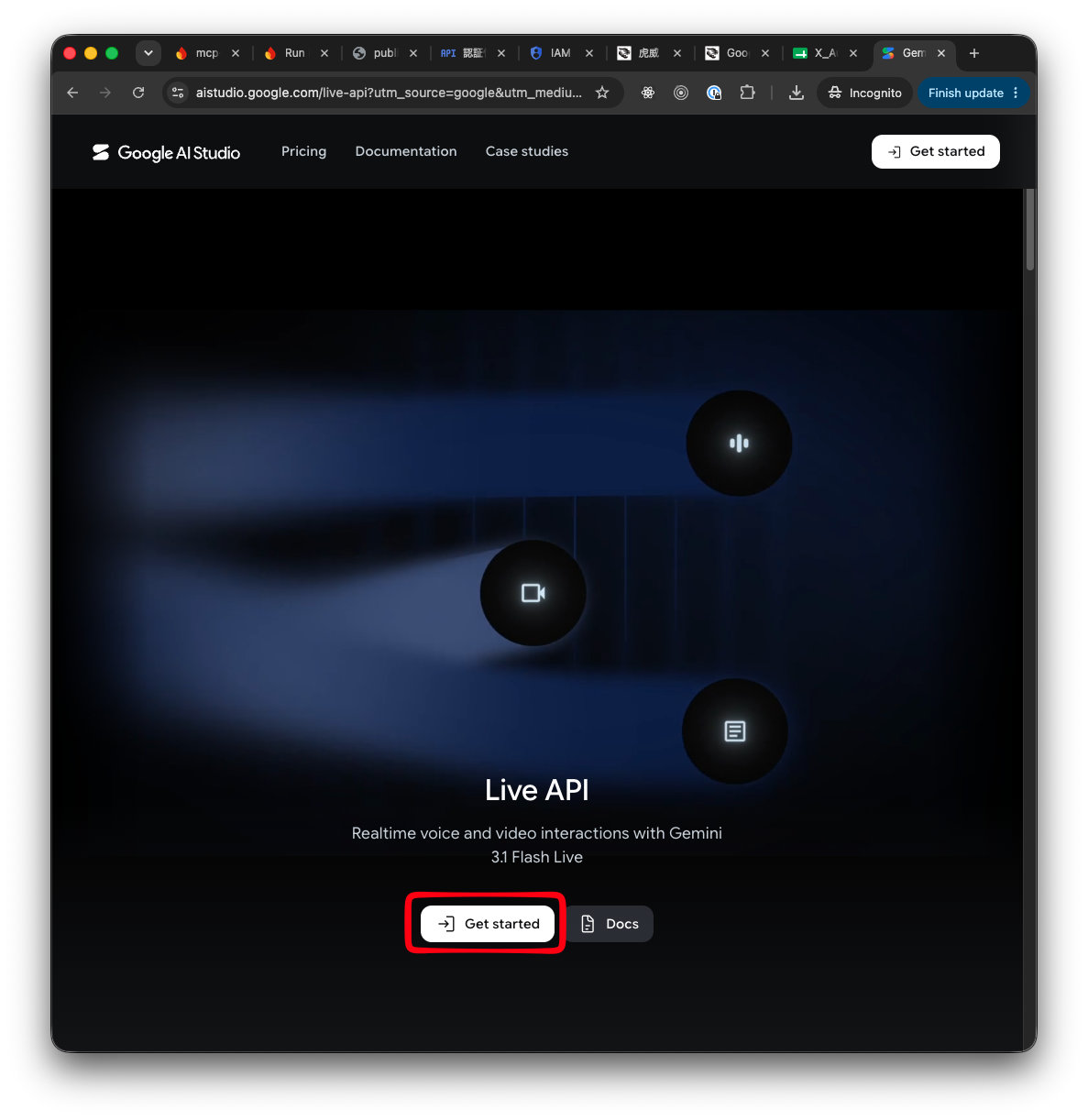
1. Open Google AI Studio
Open Google AI Studio and click Get started. If you are not signed in to Google, you will need to sign in.
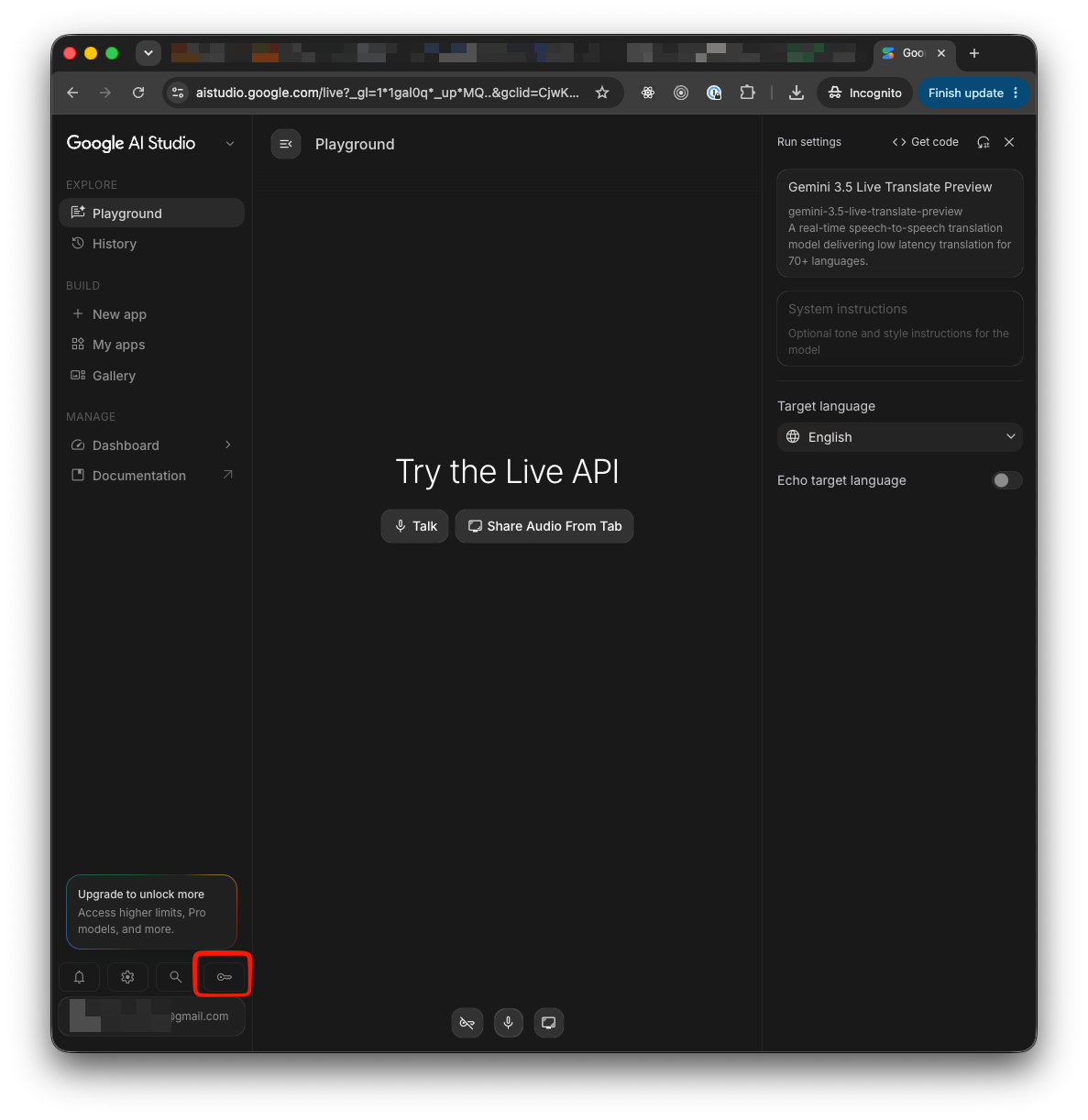
2. Click the key icon
Click the key icon in the lower-left corner.
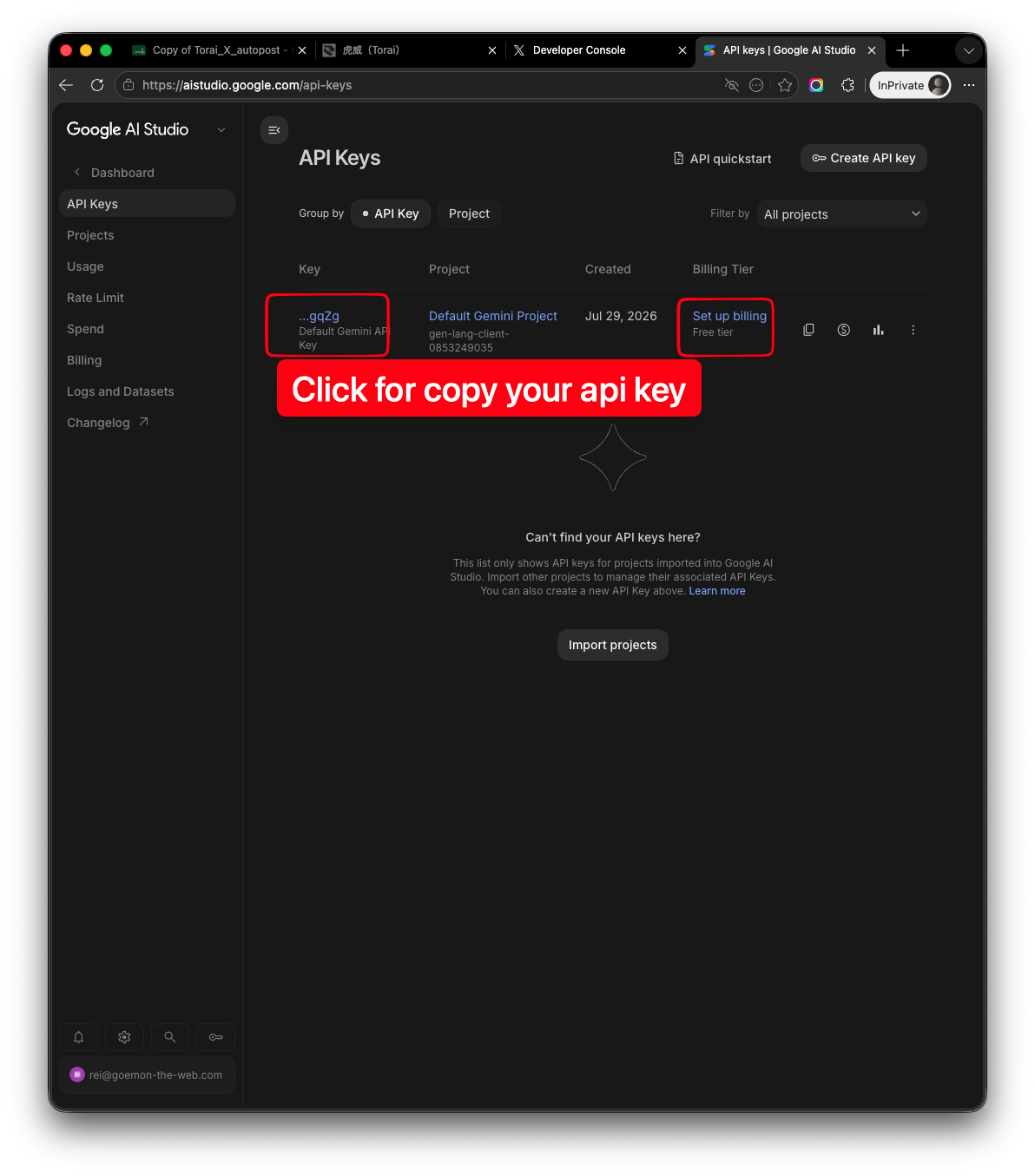
3. Confirm the key
Your key is displayed. Confirm that it belongs to the free tier.
4. Copy the key
Click the key to display its details, then copy it.
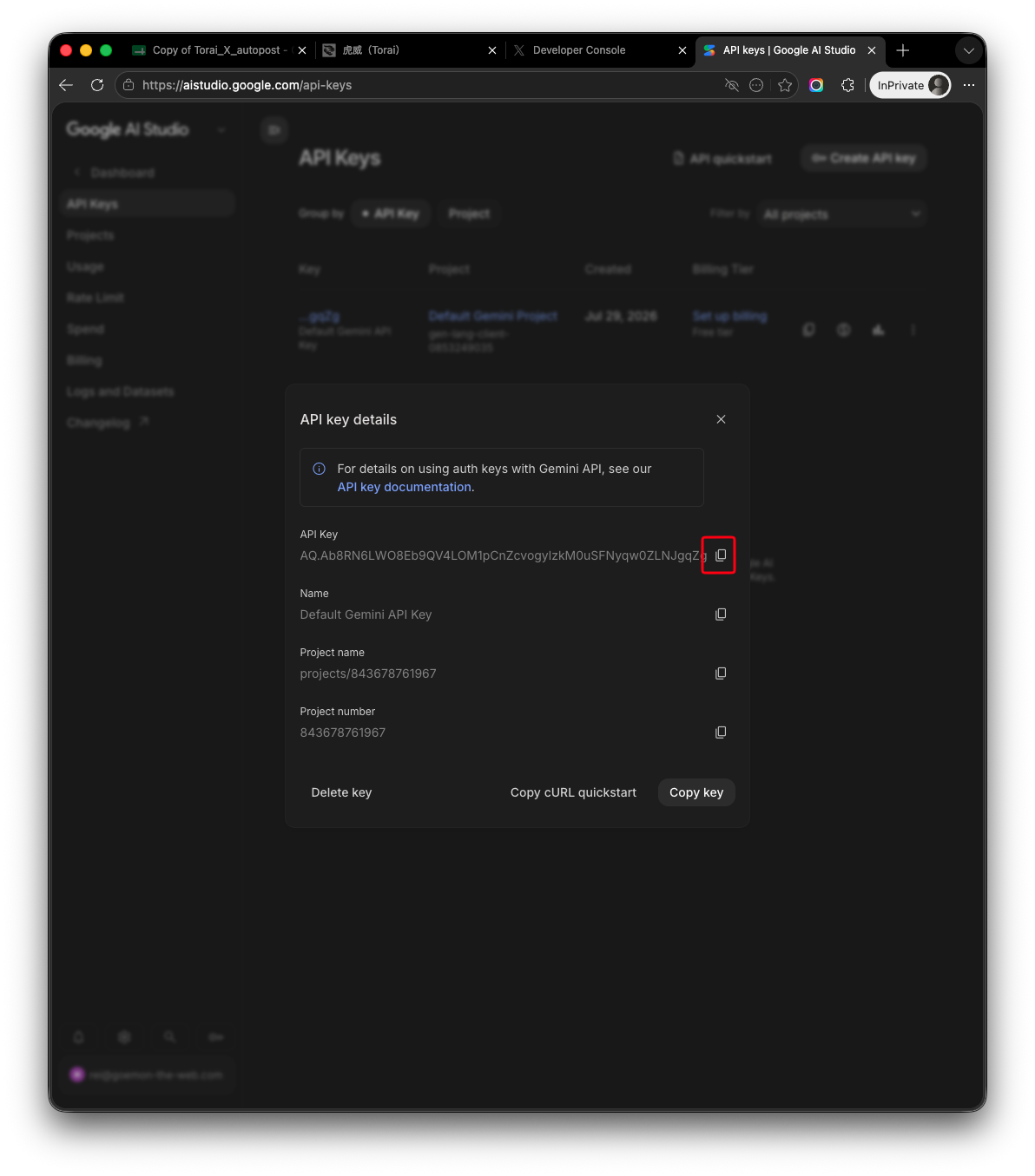
You have now obtained your Gemini API key.
Register the key under Profile > API Keys in Torai and run the key test. If no key is registered, the Response Inbox tells you that a Gemini API key is required when you try to create a reply draft.