Set Up Discord Notifications
This guide explains how to create a Discord account and receive the results of Torai automated X posts in Discord.
For the most reliable setup, use a desktop browser or the Discord desktop app. You can check notifications on a phone, but we recommend creating the Webhook URL on a computer.
What you need
- An email address
- A smartphone
- A desktop browser or the Discord desktop app
- An account that can sign in to Torai
- Completed GAS identity verification under Profile > API Keys in Torai
Process overview
- Create a Discord account
- Create a Discord server for notifications
- Create a notification channel
- Copy a Webhook URL from Discord
- Register the Webhook URL in Torai
- Confirm receipt with a test message
- Check smartphone notifications
1. Create a Discord account
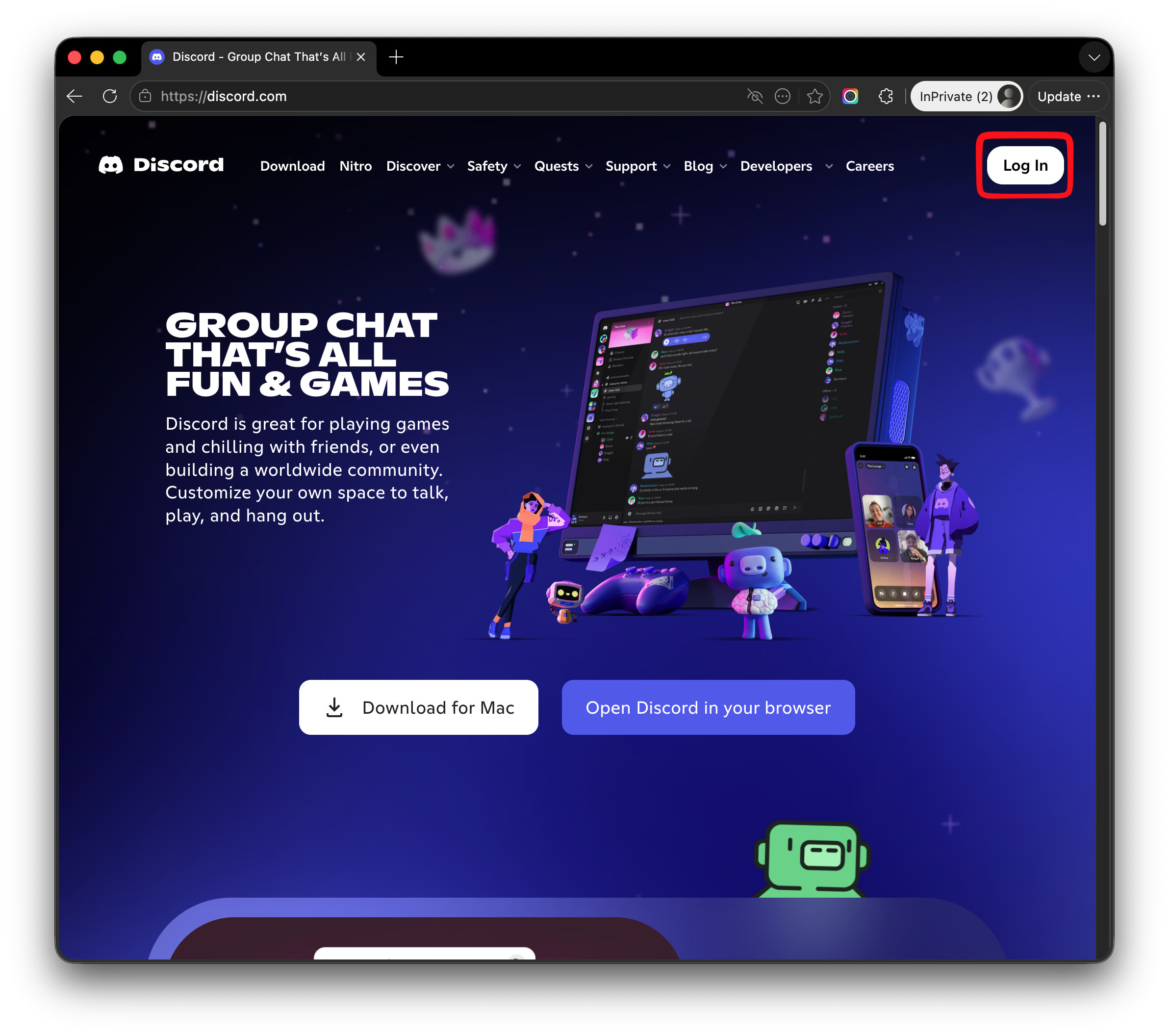
- Open Discord in a browser and click Log In.
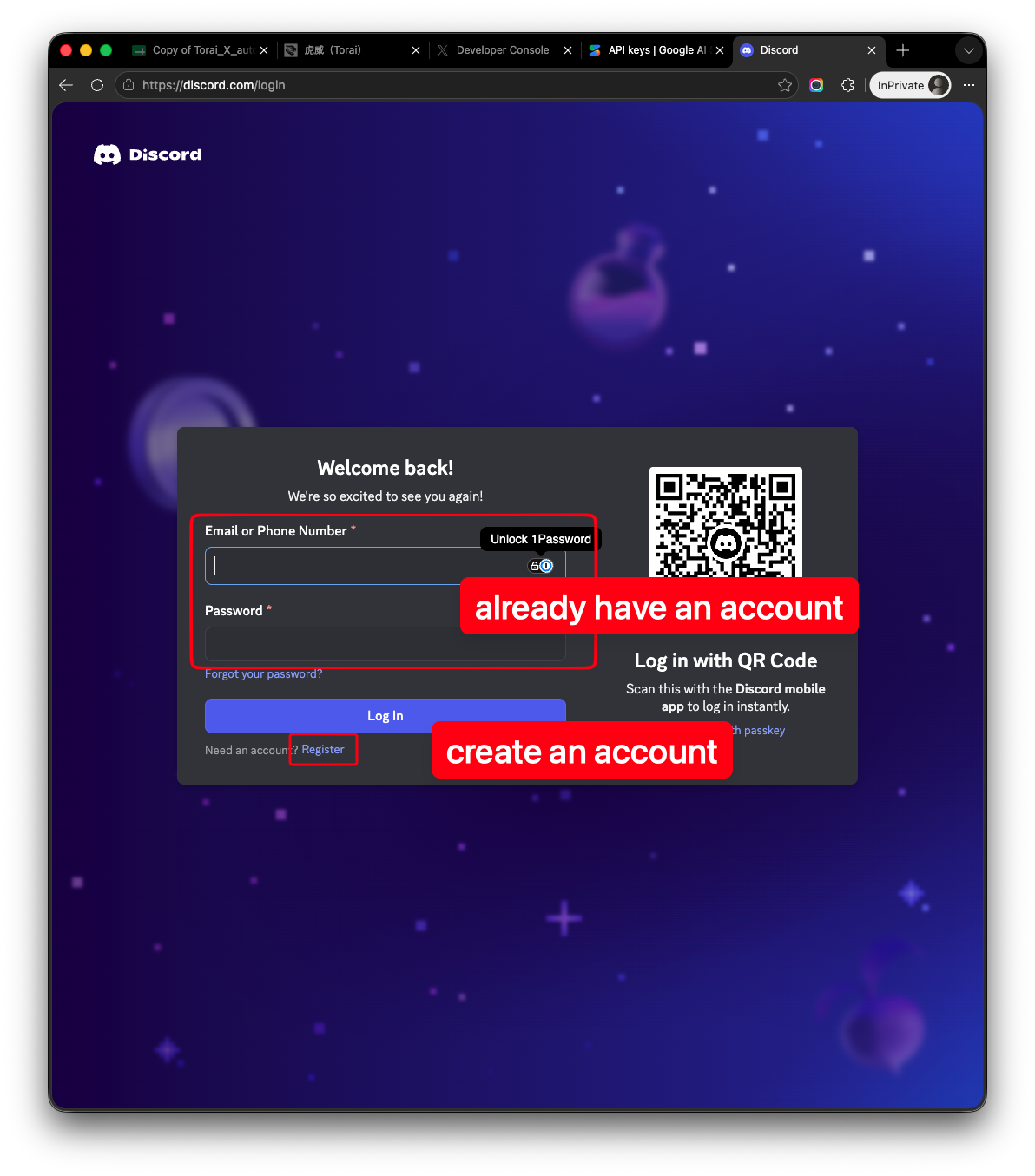
- Sign in if you have an account. Otherwise, choose to create an account.
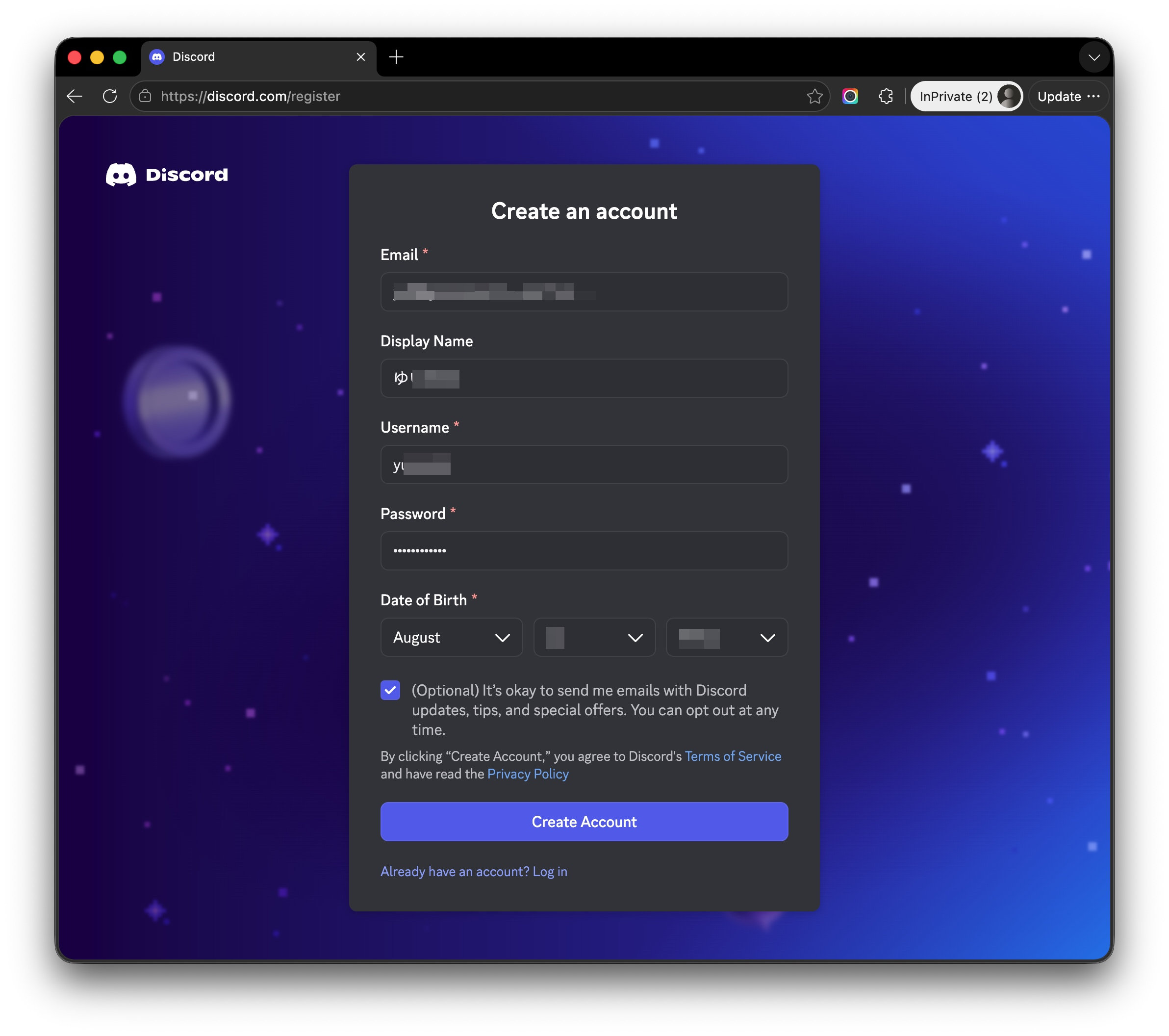
- Enter your email address, display name, username, password, and date of birth.
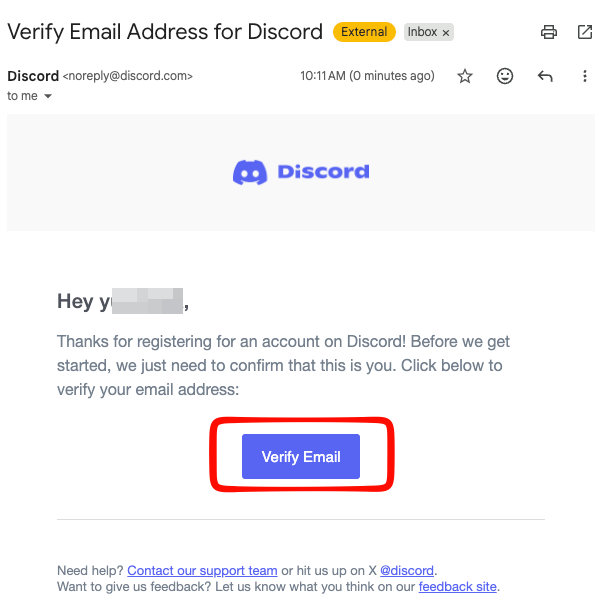
- Open the confirmation email from Discord and verify your email address.
- Confirm that you can sign in to Discord.
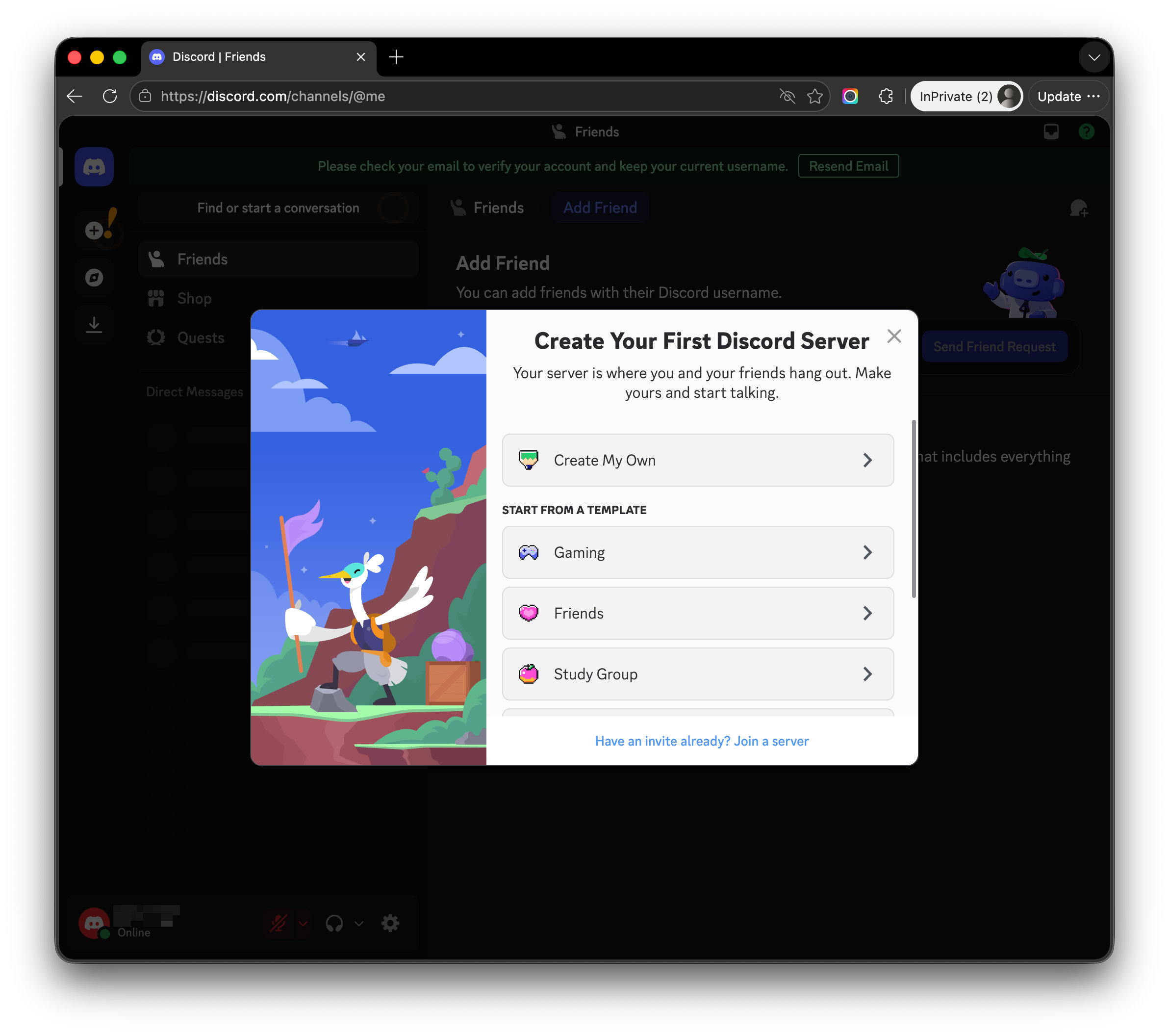
2. Create a server for notifications
-
Click Create My Own or the
+button on the left side of Discord.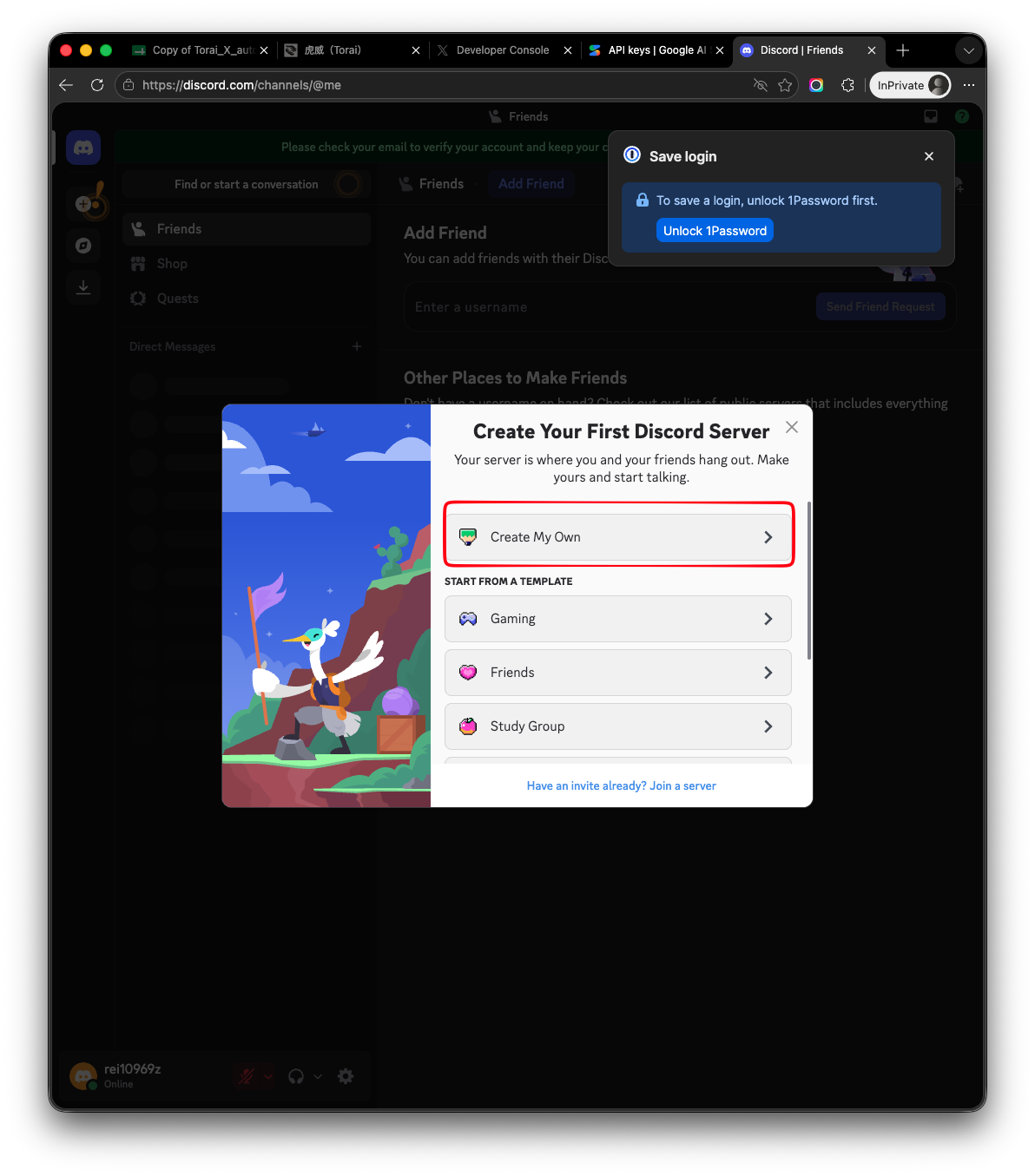
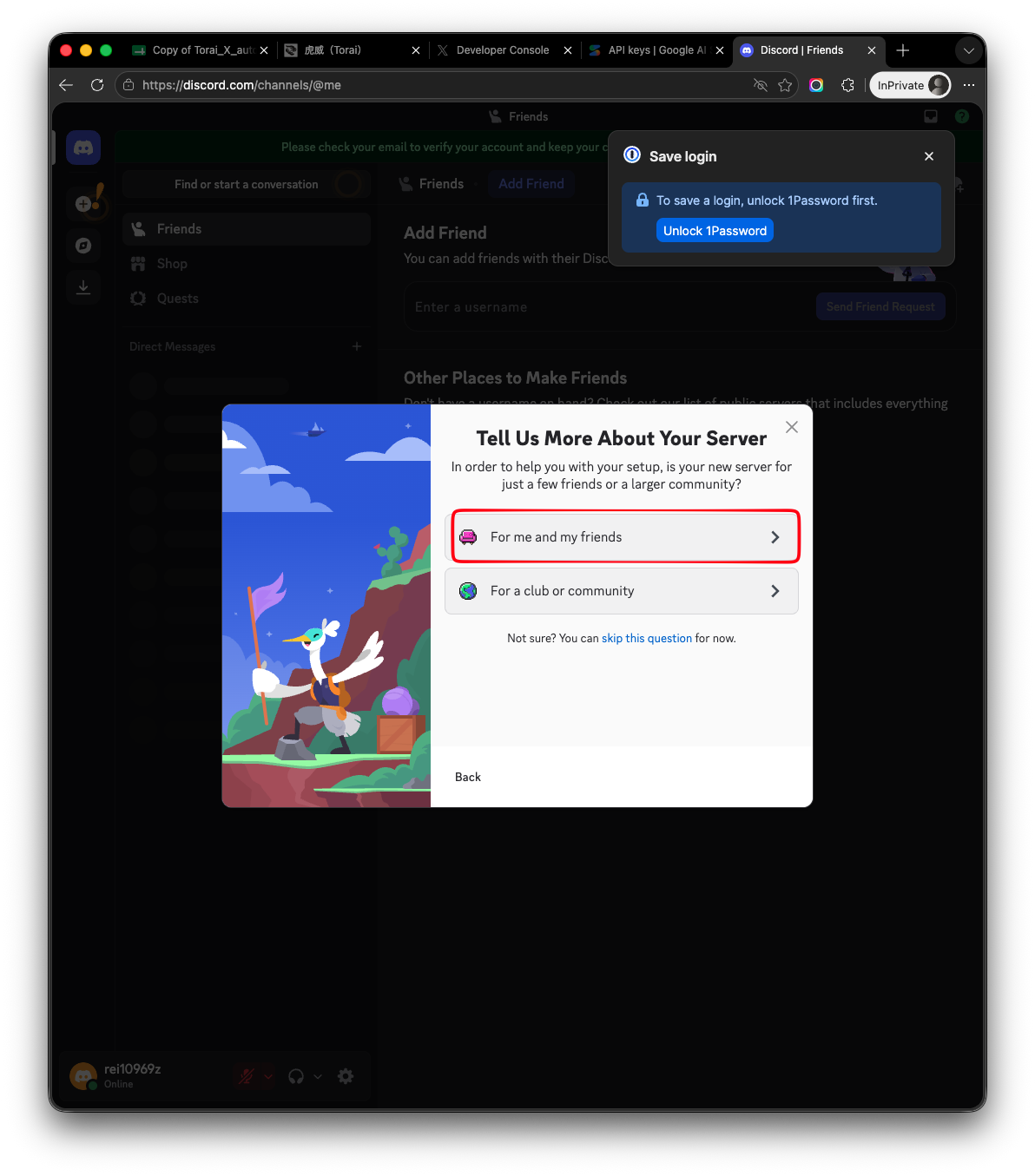
-
Select For me and my friends.
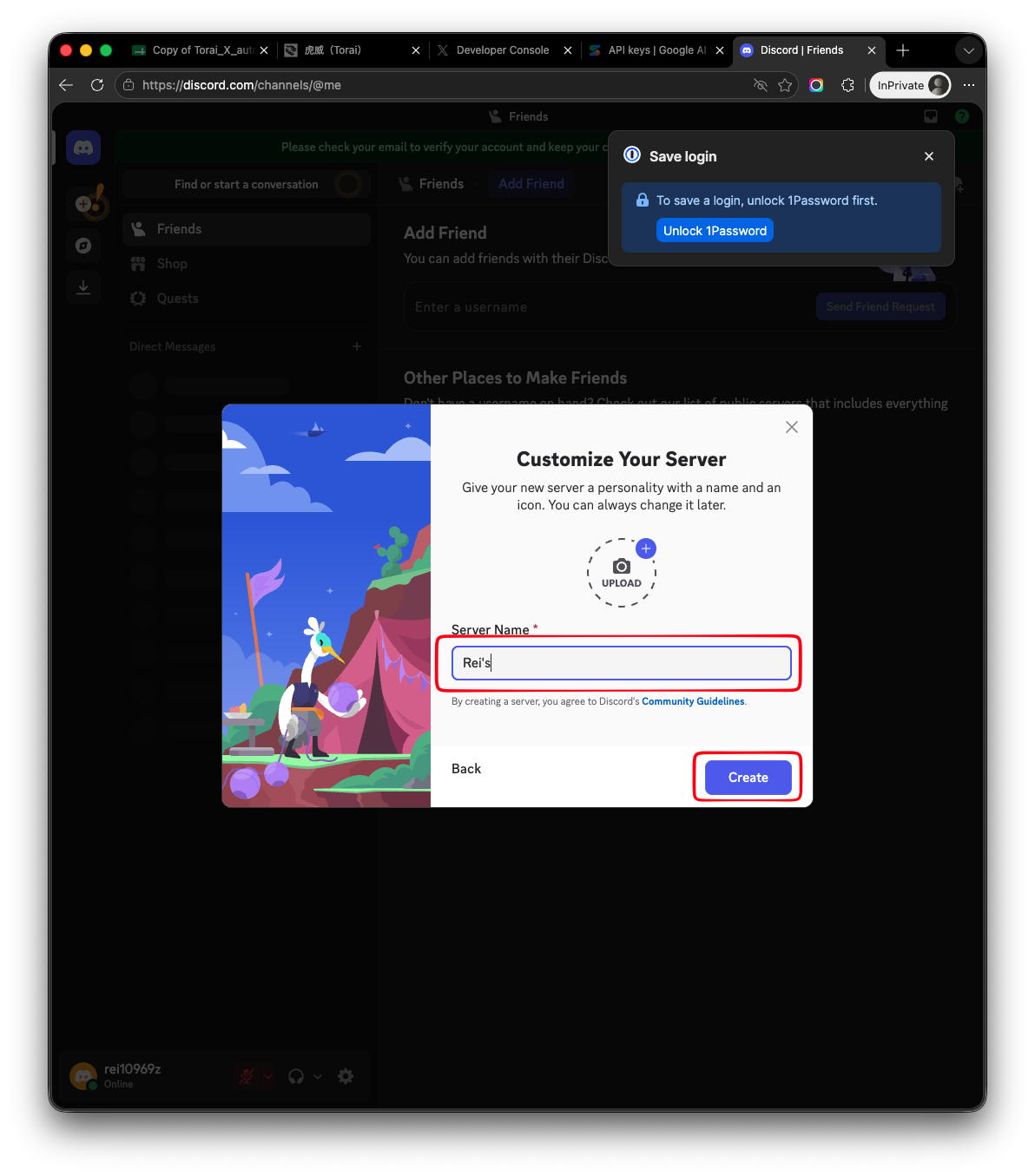
-
Enter your server name.
-
Enter your first message. Then click done.
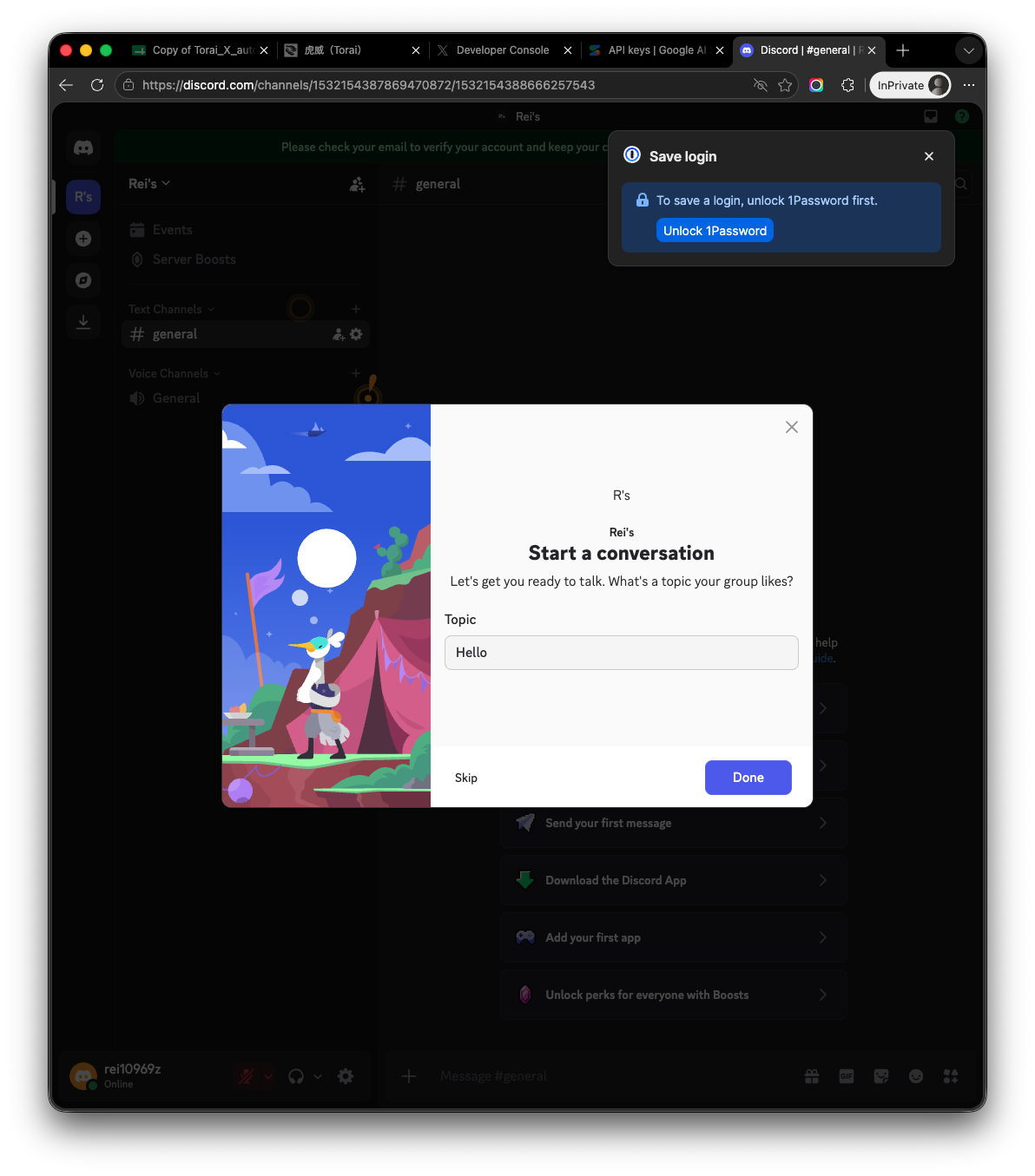
-
Click Take me to my server!
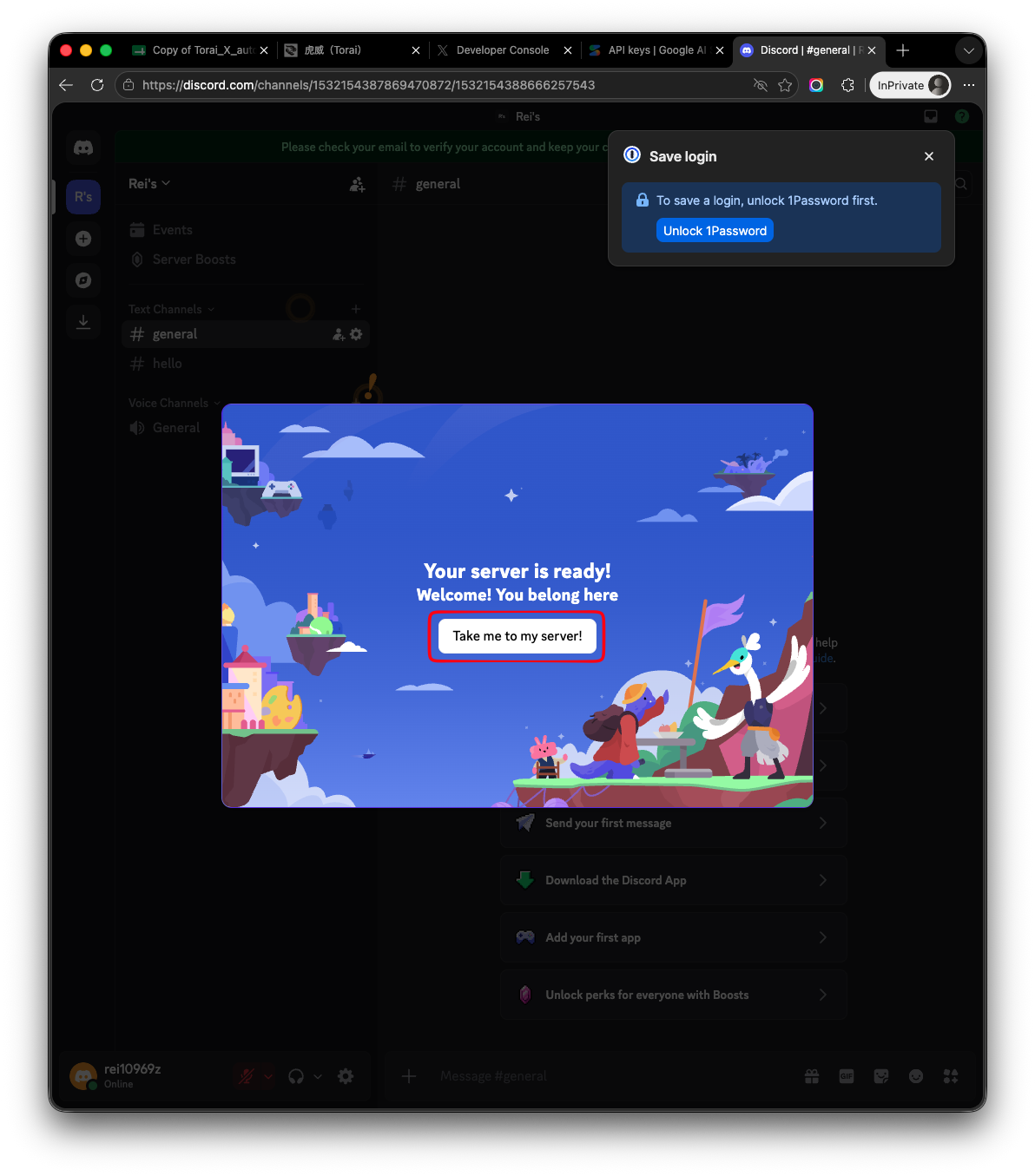
-
Your server is here.
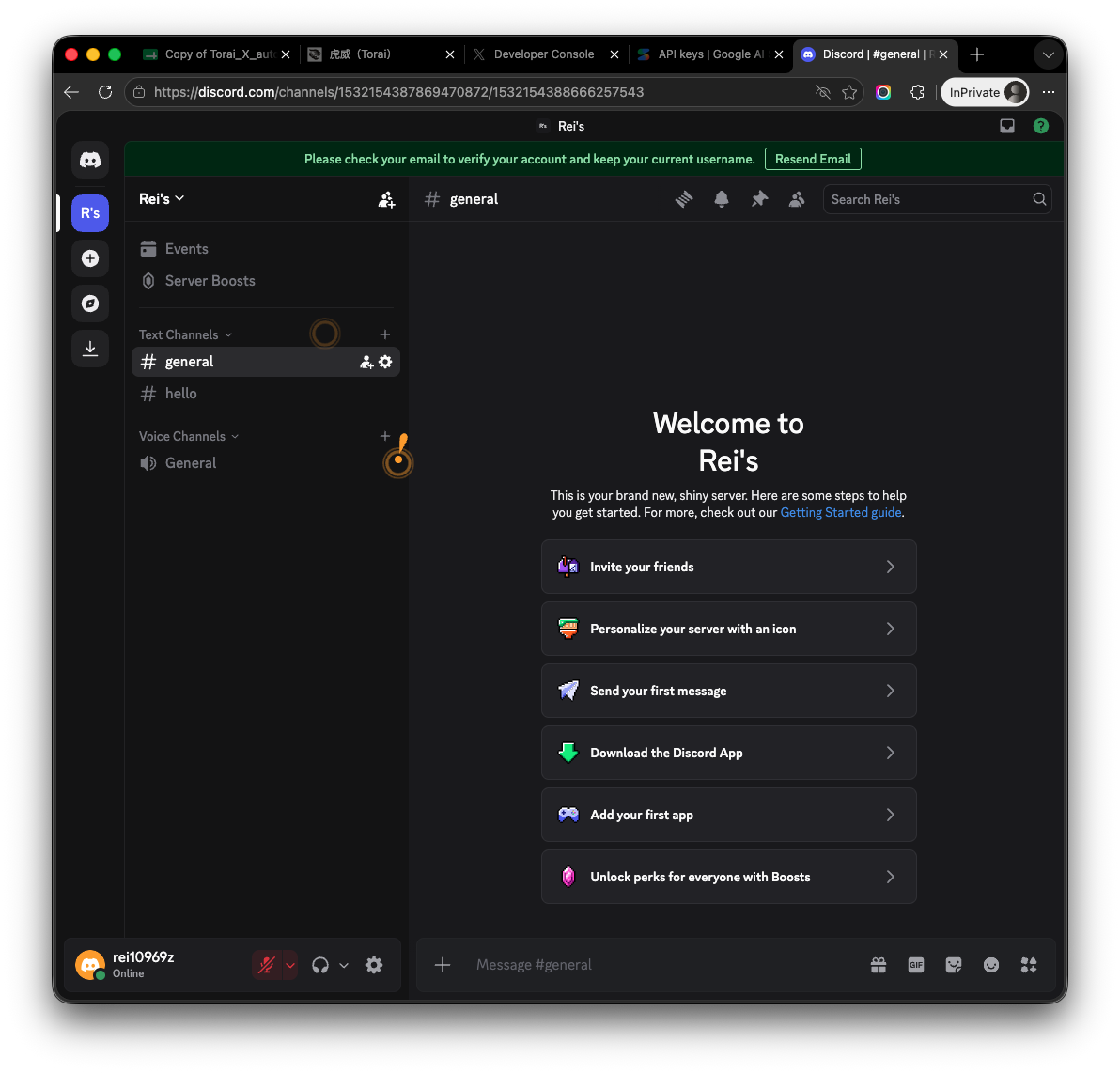
If you already have a private notification server, you may use it instead of creating a new one.
3. Create a notification channel
-
Open the server you created.
-
Click the
+next to the text-channel list.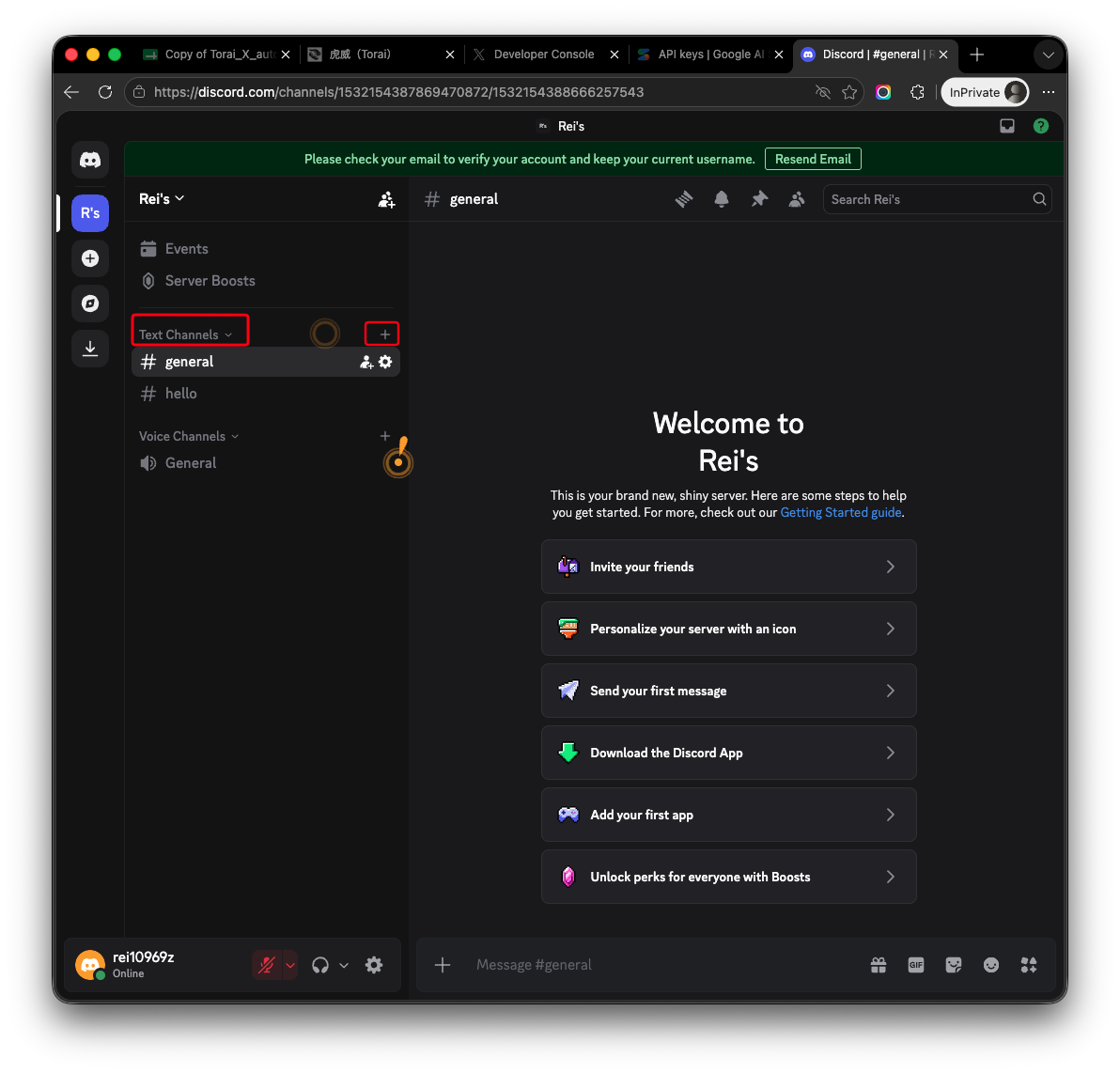
-
Choose Text, enter a channel name, and click Create Channel.
Example:
torai-notifications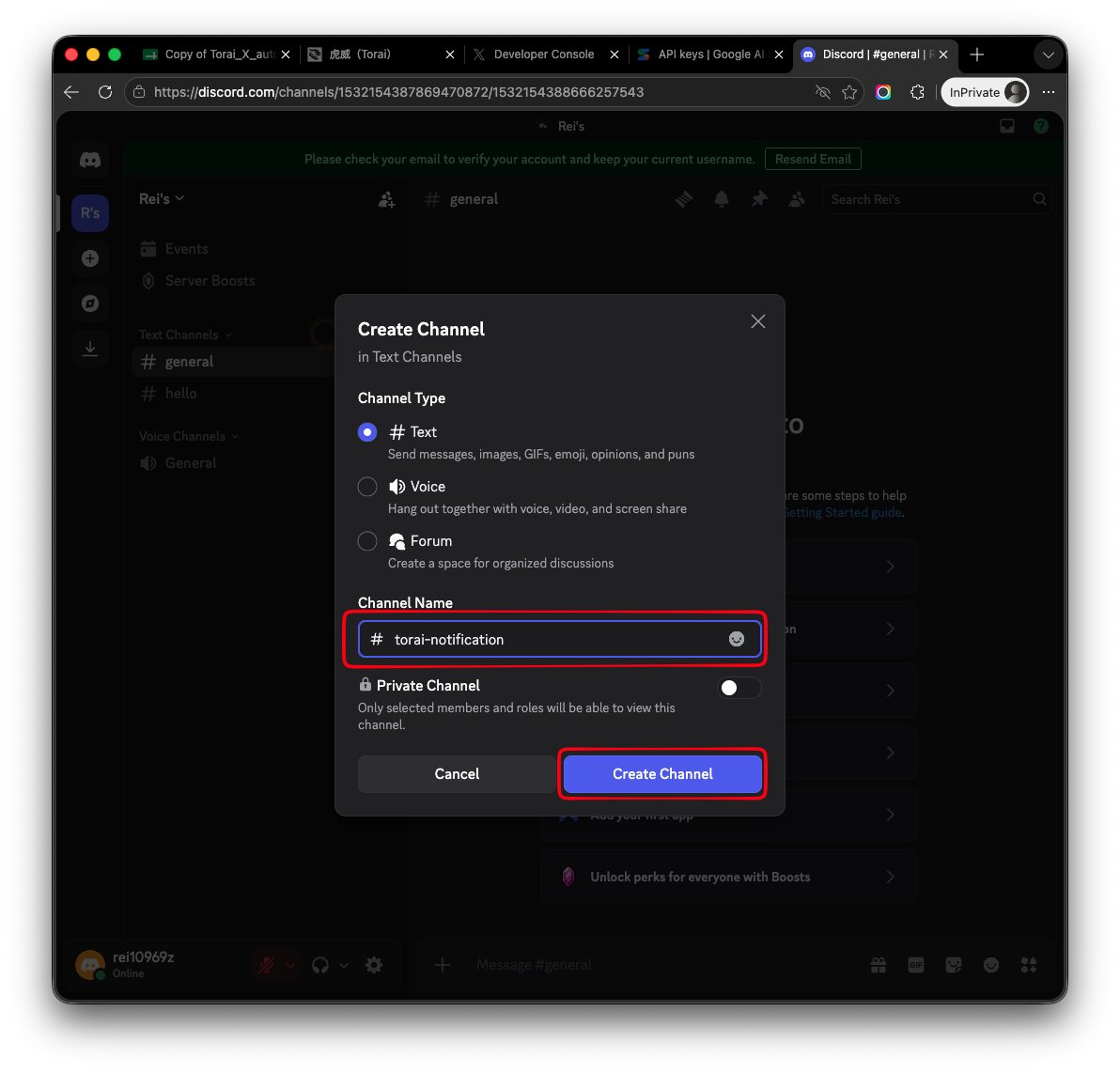
-
The notification channel is added.
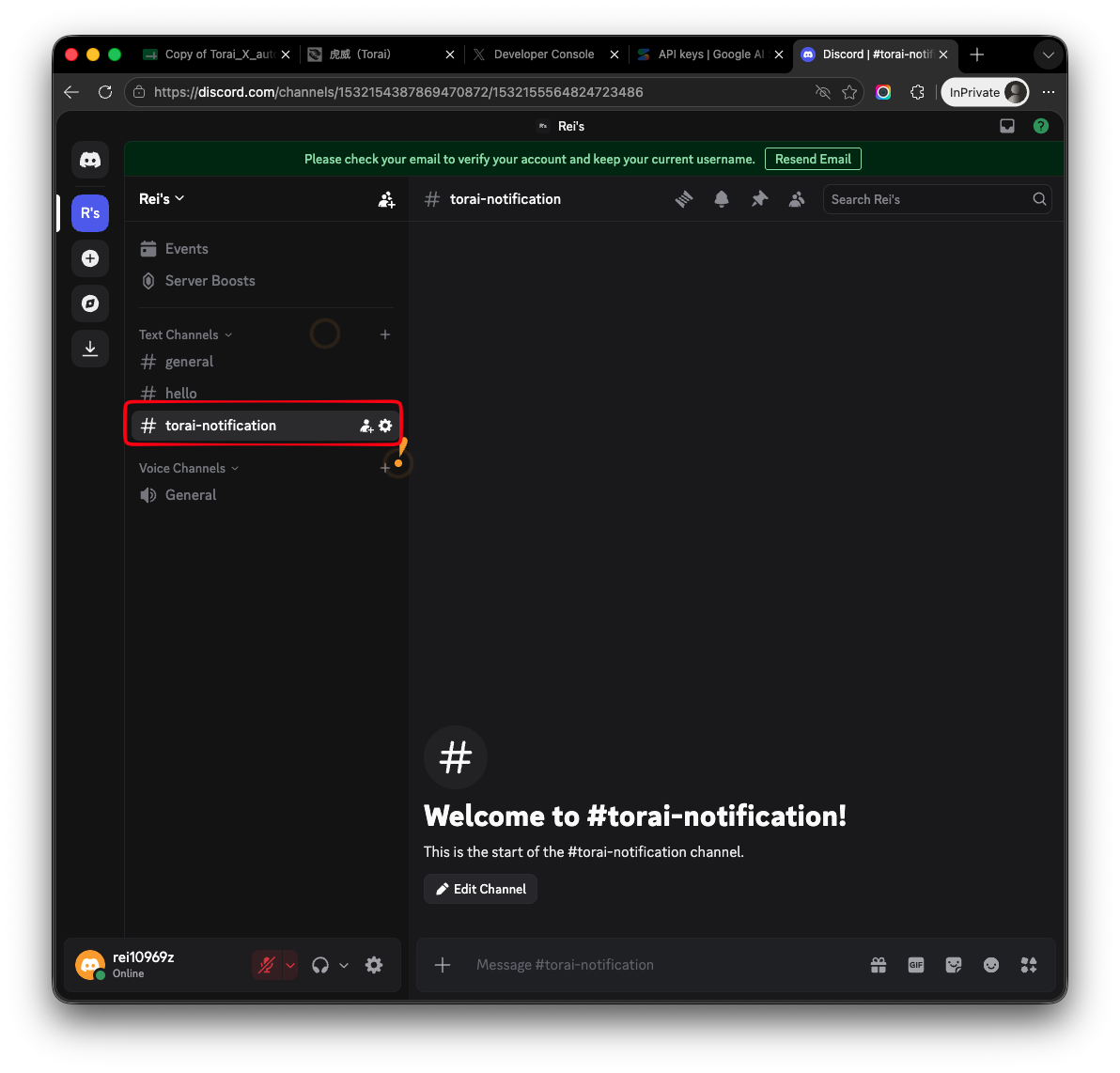
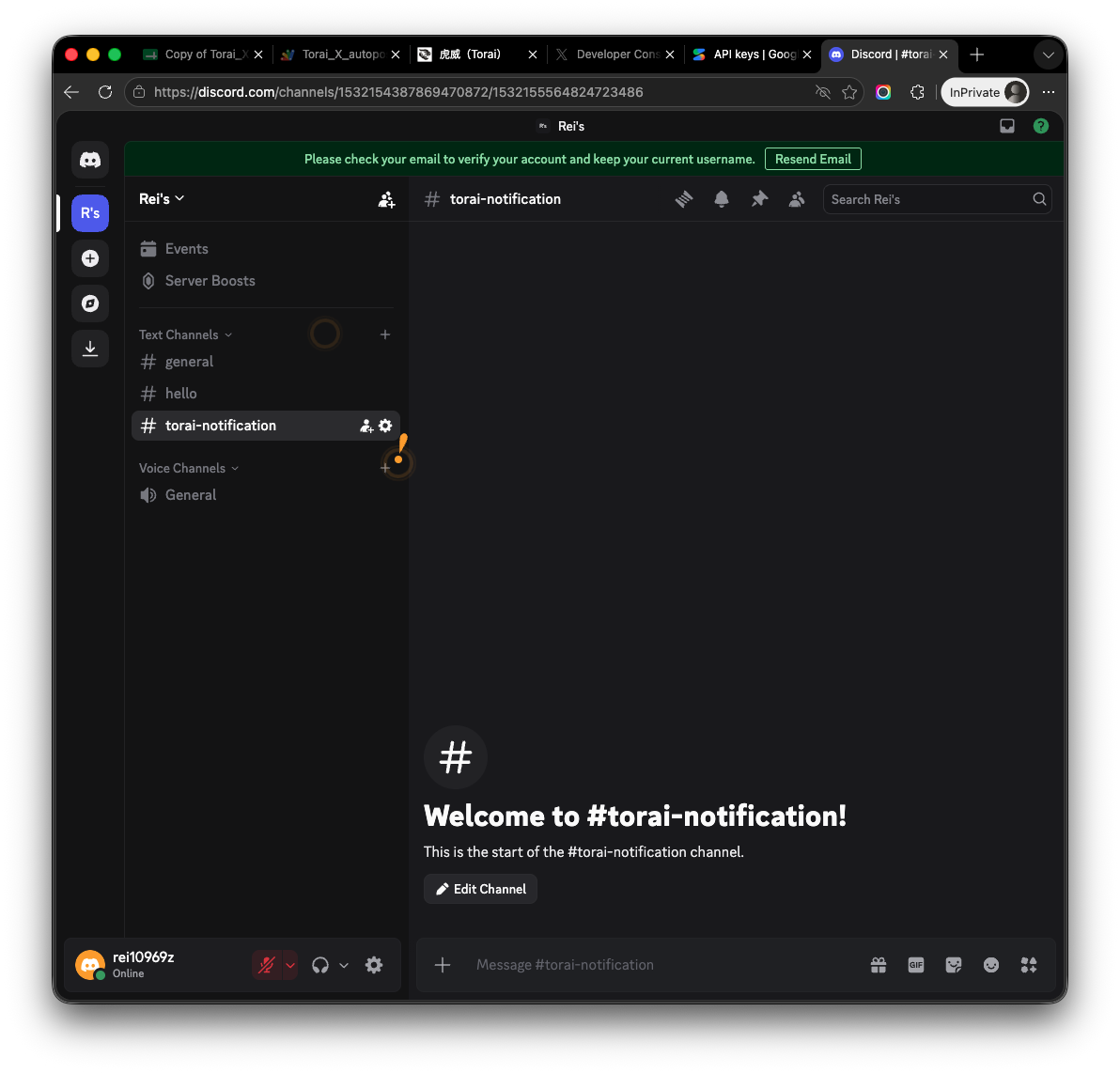
You may use an existing text channel such as general. A dedicated channel is recommended if you want Torai notifications to be easy to identify.
4. Copy a Webhook URL from Discord
- Open the server that will receive notifications.
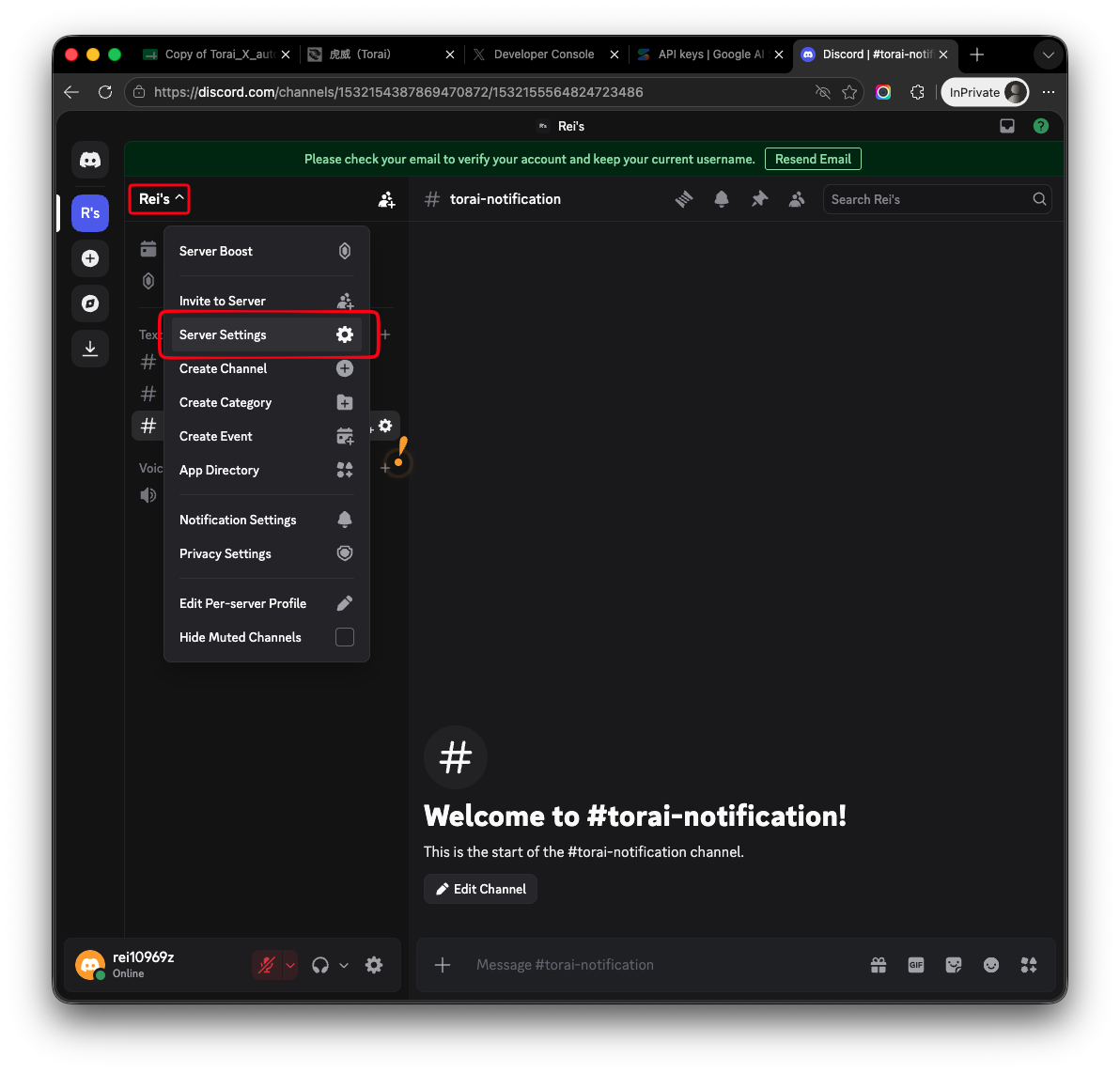
- Open the menu next to the server name and select Server Settings.
- Open Integrations in the left menu.
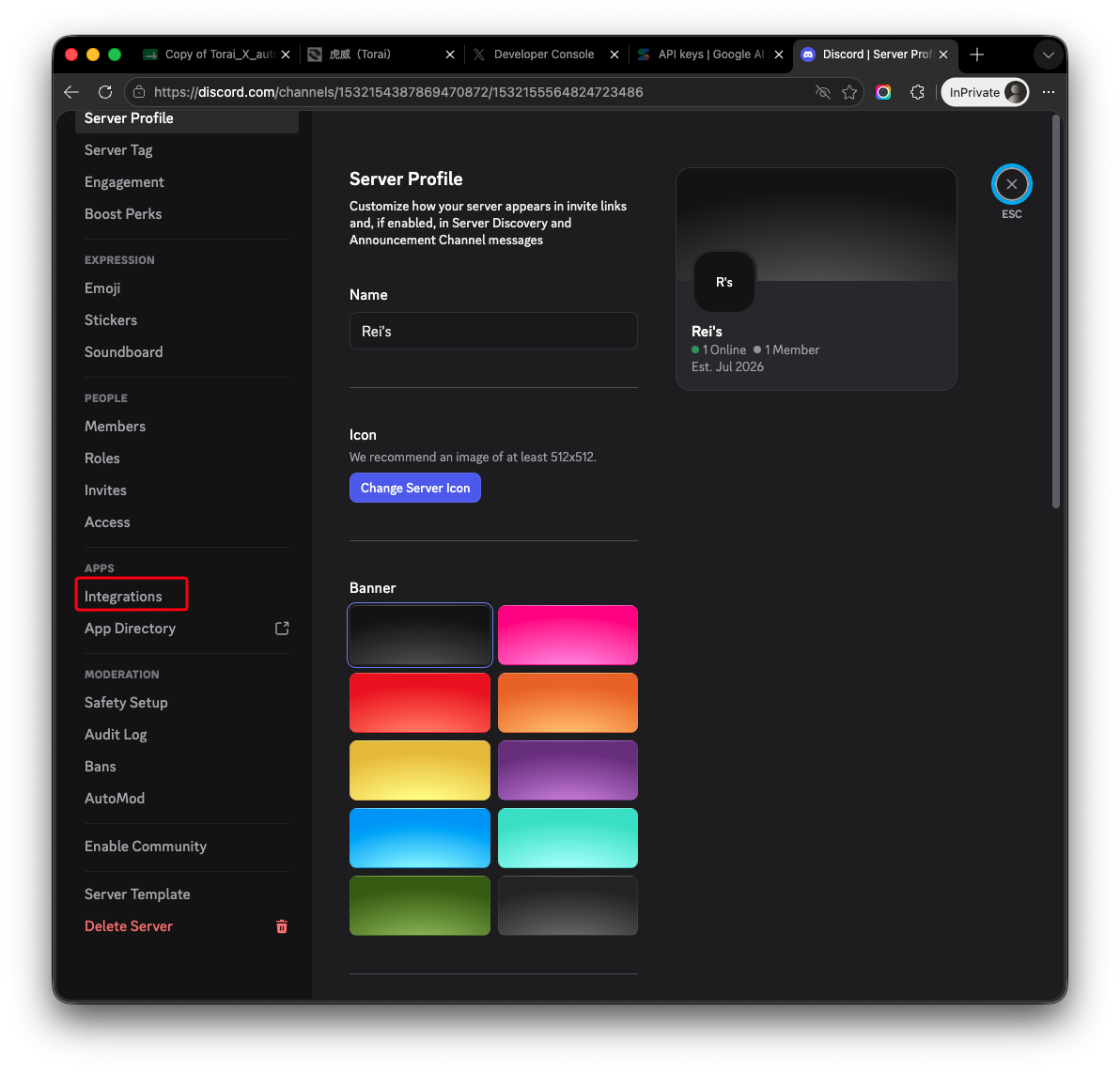
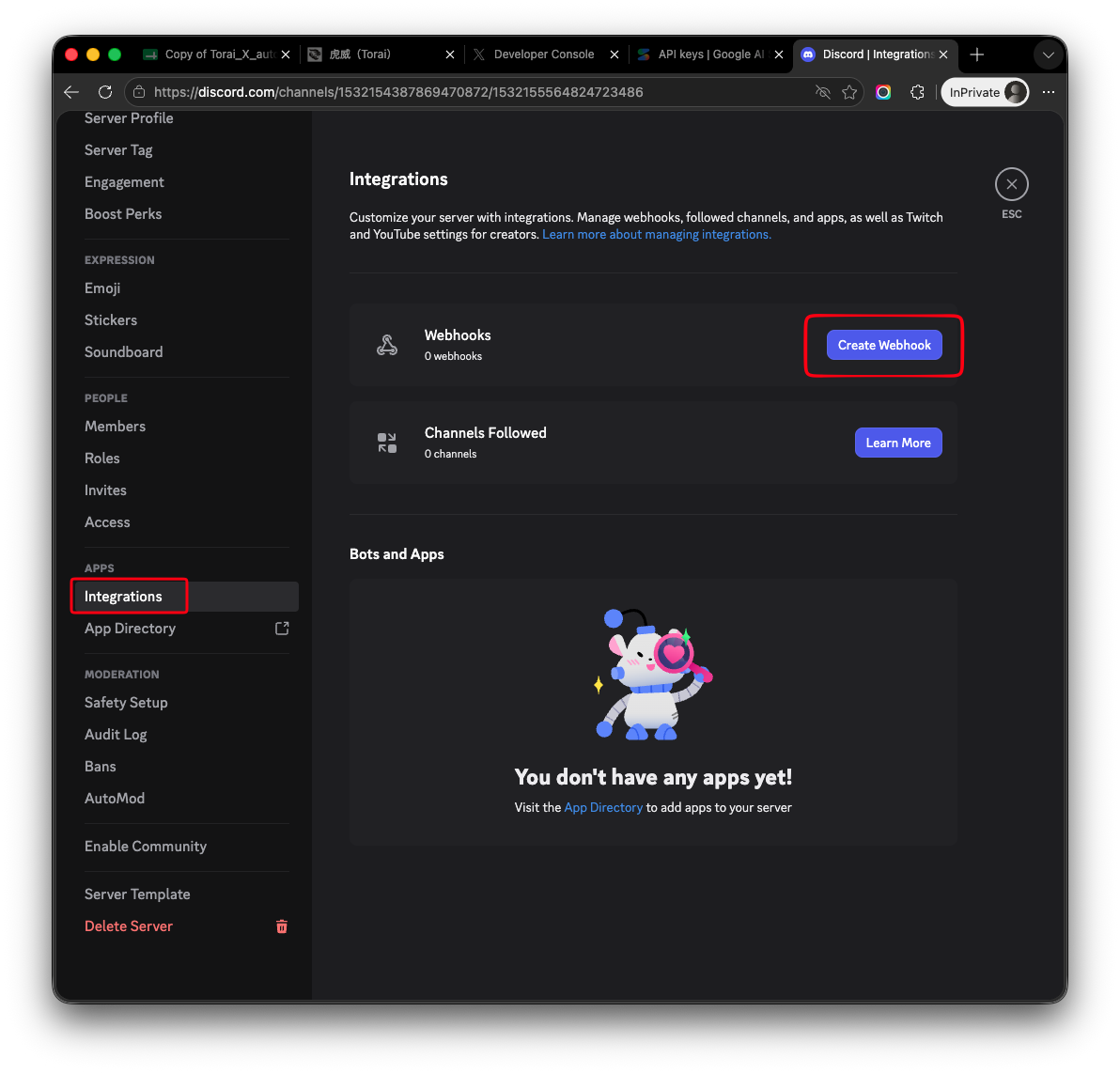
- Select Create Webhook or open Webhooks.
- Enter a name for the Webhook and choose the notification channel from step 3. Click Copy Webhook URL, then Save Changes.
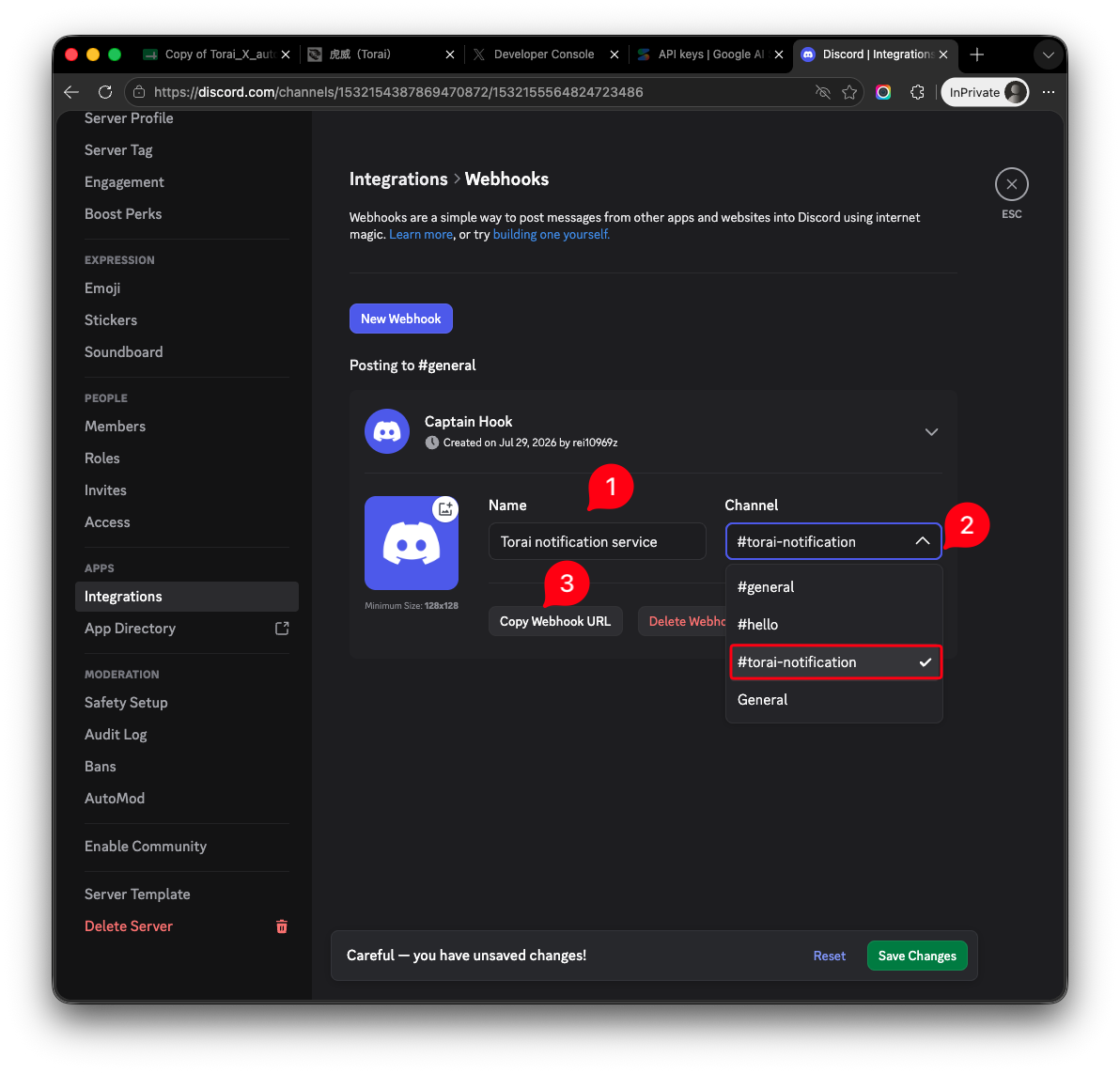
The copied URL looks like this:
https://discord.com/api/webhooks/123456789012345678/xxxxxxxxxxxxxxxxxxxxxxxx
5. Register the Webhook URL in Torai
- Sign in to Torai.
- Open Profile > API Keys.
- Confirm that GAS identity verification is complete is displayed.
- Turn on Send post results to Discord.
- Paste the URL from step 4 into Discord Webhook URL.
- Click Send test.
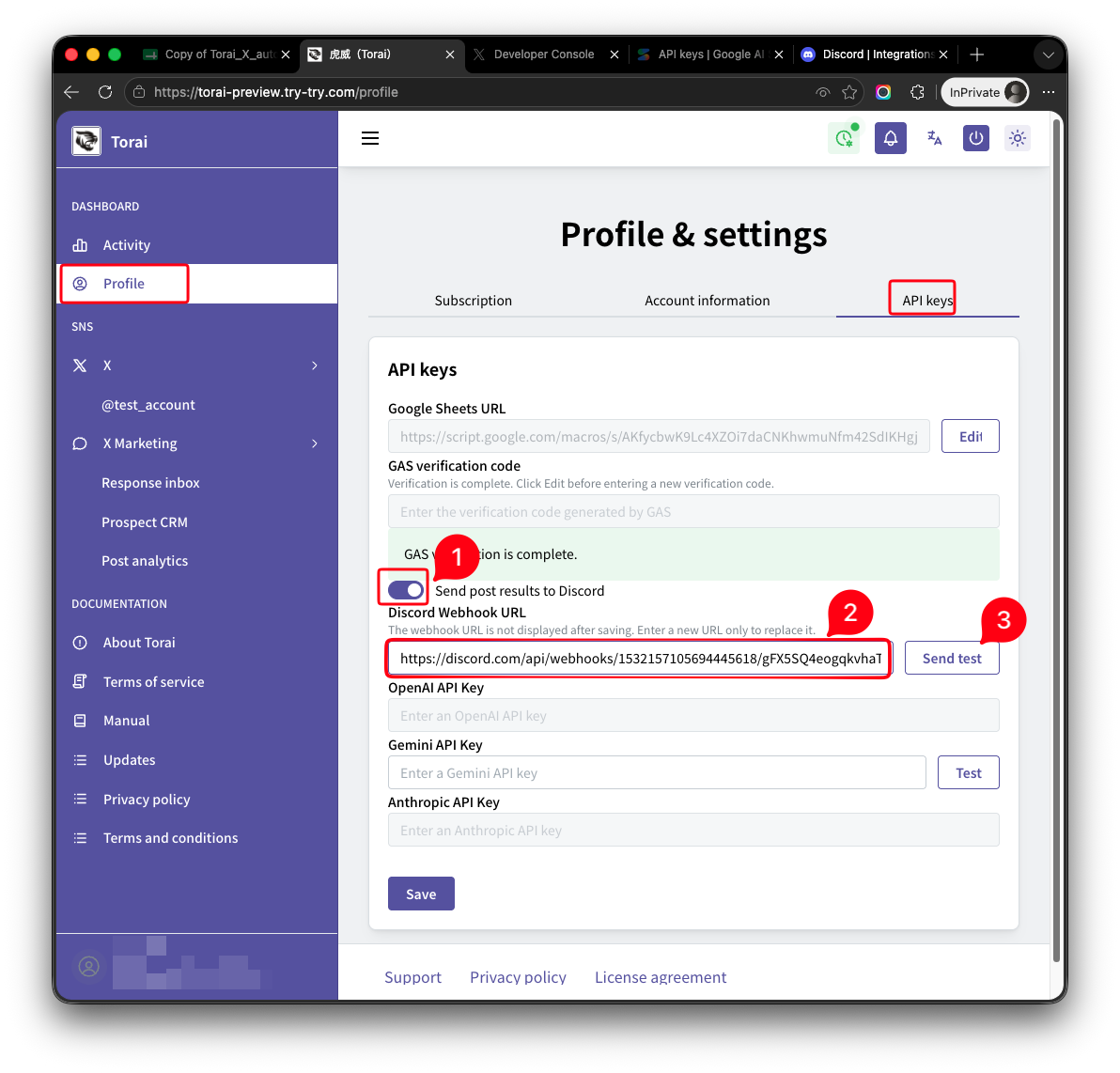
After the test succeeds, check the notification channel in Discord. If the message arrived, click Save in Torai.
The Webhook URL is not displayed again after it is saved. To change it, copy the URL again in Discord and enter the new value in Torai.
6. Confirm the test message in Discord
- Open the notification channel in Discord.
- Confirm that Torai's test message is displayed.
- If it appears, the Webhook URL is working correctly.
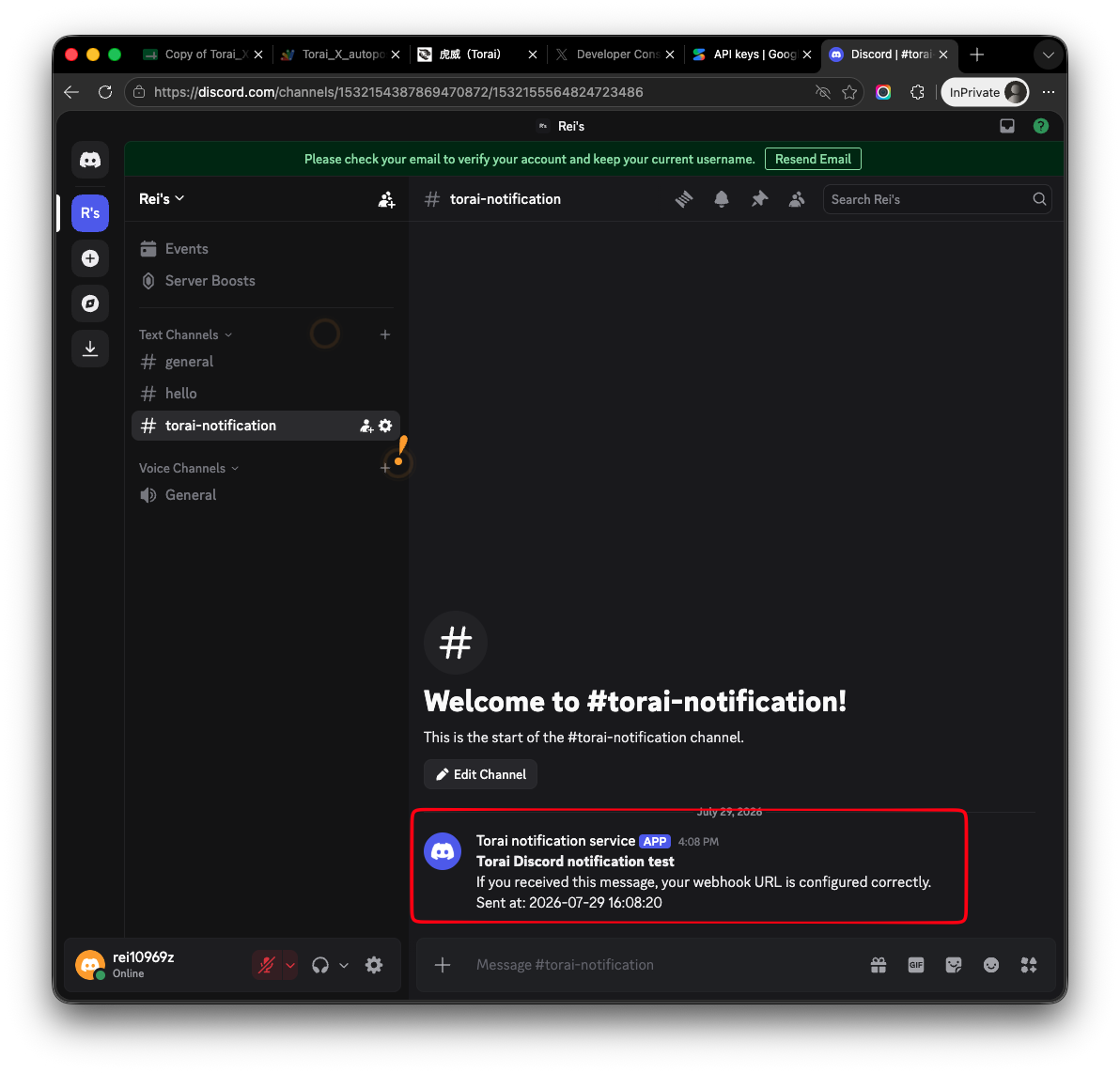
If the message appears in Discord but your phone does not show a push notification, the Webhook itself is configured correctly. Check notification settings on your phone and in Discord.
7. Receive Discord notifications on a smartphone
7.1 Install the Discord app
- Open the App Store on iPhone or Google Play on Android.
- Search for and install Discord.
- Sign in with the Discord account you created in step 1.
7.2 Allow notifications on the phone
On iPhone:
- Open Settings.
- Open Notifications.
- Select Discord.
- Turn on Allow Notifications.
- Enable Lock Screen, Notification Centre, and Banners as needed.
On Android:
- Open Settings.
- Open Notifications or Apps.
- Select Discord.
- Turn notifications on.
- Confirm that battery optimization or power-saving settings are not blocking Discord notifications.

7.3 Check notification settings in Discord
- Open Discord on your phone.
- Open the notification server.
- Open the notification channel.
- Open notification settings for the server or channel.
- Confirm that notifications are not muted.
- To receive Webhook notifications, select All Messages.
Torai notifications arrive as ordinary channel posts. If Discord is configured for mentions only, your phone may not notify you.
8. Test checklist
- Send post results to Discord is on under Profile > API Keys in Torai
- A Discord Webhook URL has been pasted into the field
- Send test completes without an error
- The test message appears in the Discord notification channel
- A push notification arrives on your phone
If the message appears in the channel but not as a push notification, Torai successfully sent it to Discord. Check the phone, Discord app, server, and channel notification settings in that order.
9. If notifications do not arrive
- Check whether Torai's test send displays an error
- Check whether the test message appears in the Discord channel
- Check whether the Webhook URL was deleted or regenerated
- Check whether the Discord server or channel is muted
- Check whether notifications are set to All Messages
- Check whether Discord notifications are allowed on your phone
- Check Focus, Do Not Disturb, and power-saving modes
- Confirm that the Discord app is signed in to the same account
10. Keep the Webhook URL secure
Anyone who knows the Webhook URL can send messages to that Discord channel.
- Do not post the URL on social media or public pages.
- Do not share it with other people.
- When sharing screenshots, make sure the URL is not visible.
- If it may have leaked, delete the Webhook in Discord and create a new one.
- Delete unused Webhooks under Server Settings > Integrations > Webhooks.