Copy, Deploy, and Connect the Torai Google Sheet
This page explains how to copy the distributed Google Sheet, deploy its included Apps Script as a web app, and connect it to Torai. Apps Script handles automated publishing and X Marketing data collection and storage.
Process overview
- Copy the distributed Google Sheet from Torai
- Open Apps Script from the copied Sheet
- Confirm that the Torai code is included
- Deploy it as a web app
- Grant Google permissions
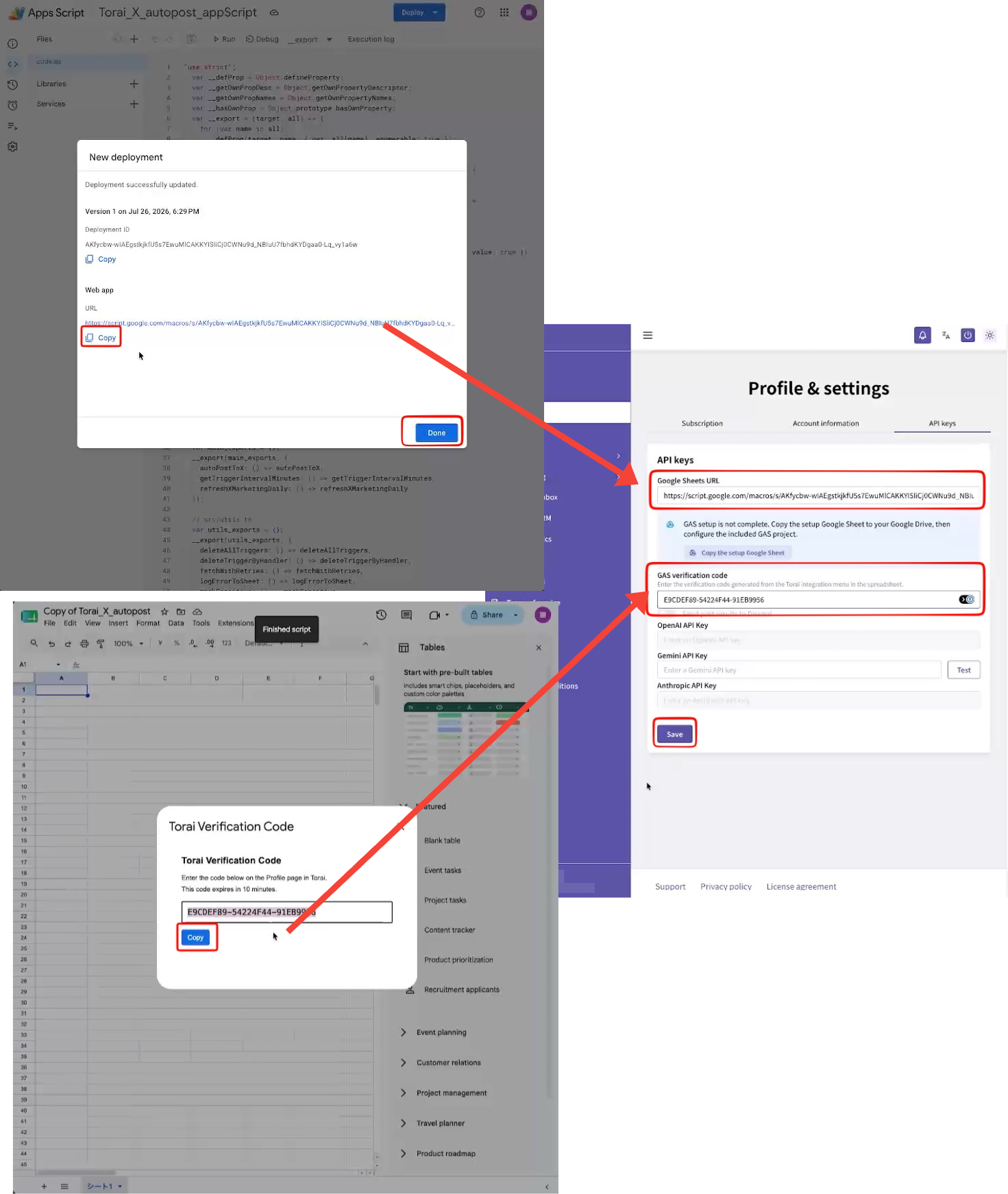
- Copy the web app URL
- Reload Google Sheets
- Register the GAS URL in Torai
- Paste the Google Sheets verification code into Torai
- Confirm that the Sheet is ready for publishing and X Marketing data
To prevent account takeover, the connection between Apps Script and a Torai account cannot be transferred to another account. To use another Torai account, create a new Google Sheet and Apps Script project.
Before you start
- Sign in to Torai with your Google Account
- Sign in to the Google Account that will own the copied Sheet
- Open Profile > API Keys in Torai
1. Copy the distributed Google Sheet
If the GAS URL and identity verification are incomplete, Torai displays Copy the Torai Google Sheet under Profile > API Keys.
Click it, then choose Make a copy on Google's copy page.
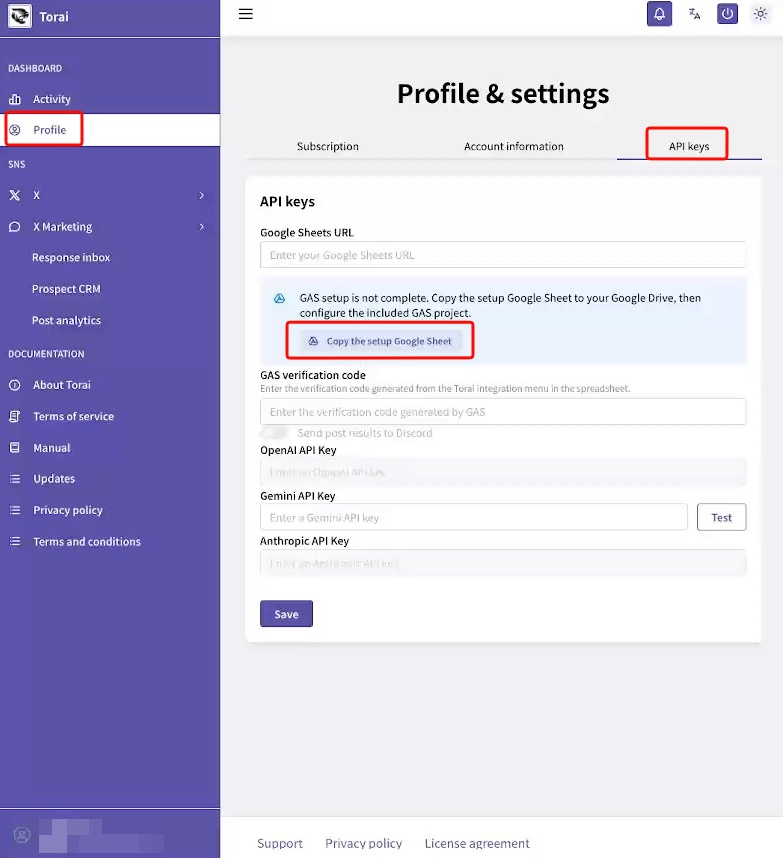
The Google tab for copying the sheet will open. Click the 'Make a copy' button.
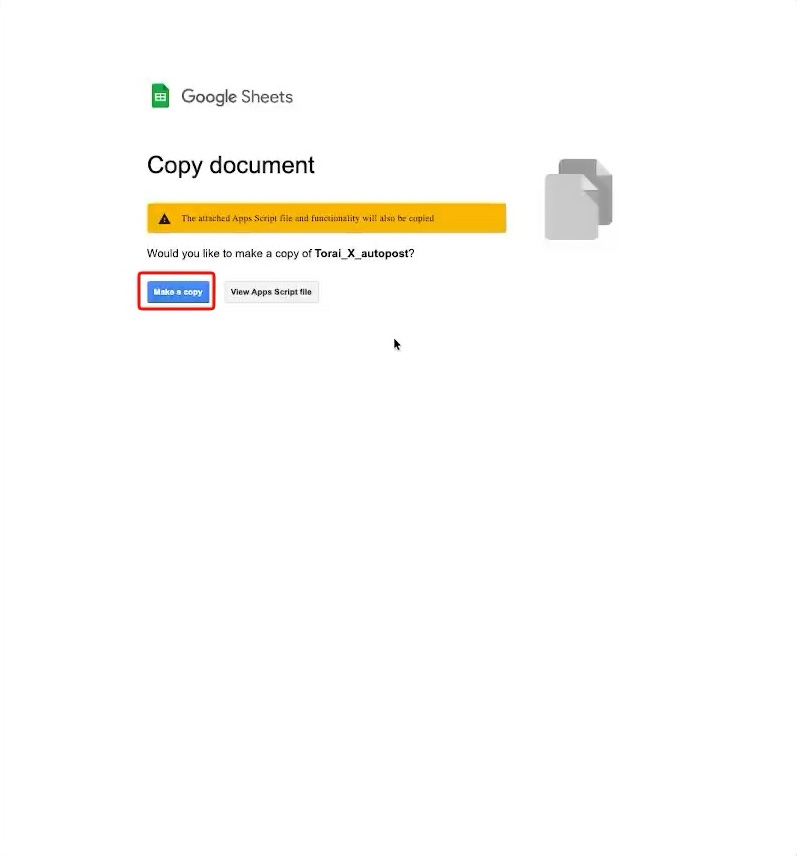 Open the distributed Google Sheet directly
You cannot edit the source spreadsheet. Always make a copy in your own Google Drive.
2. Open Apps Script from the copied Sheet
Open the copied Google Sheet and click Extensions > Apps Script.
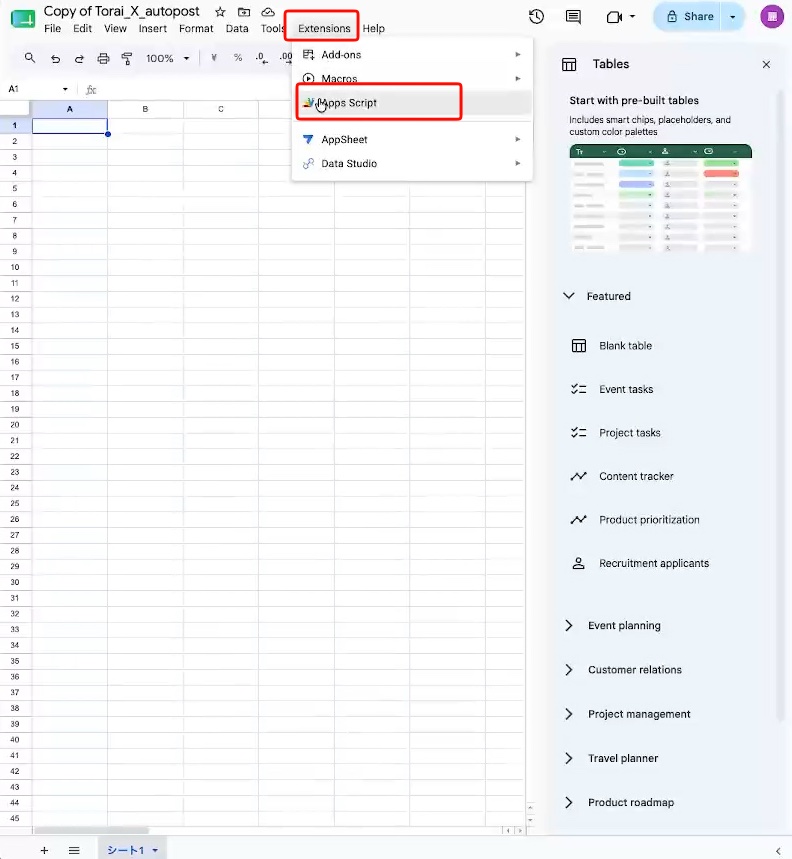
The Apps Script editor opens in another tab.
3. Confirm that the code is included
Open Code or code in the Files pane and confirm that it contains the Torai script. For a new setup, you do not need to delete the code or paste code.js from GitHub.
If the file is empty, confirm that you copied the distributed template rather than opening a blank spreadsheet.
4. Deploy as a web app
Click Deploy in the upper-right corner, then choose New deployment.
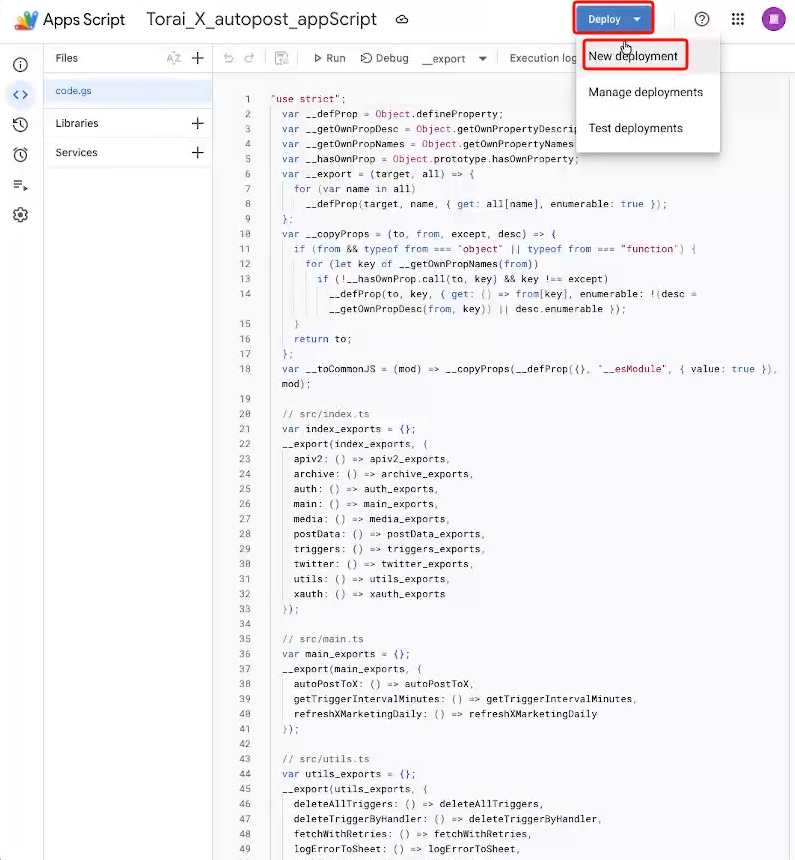
In the New deployment panel, click the settings icon.
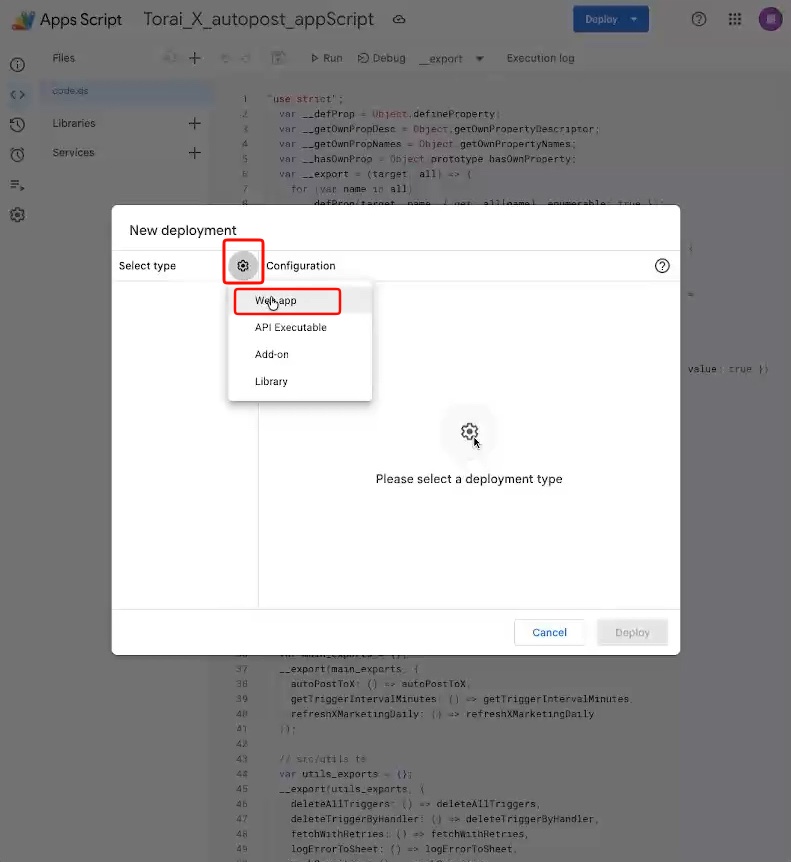
For the deployment type, select Web app.
Use these settings:
| Field | Setting |
|---|---|
| Description | A recognizable name such as Torai publishing and analytics |
| Execute as | Me |
| Who has access | Anyone |
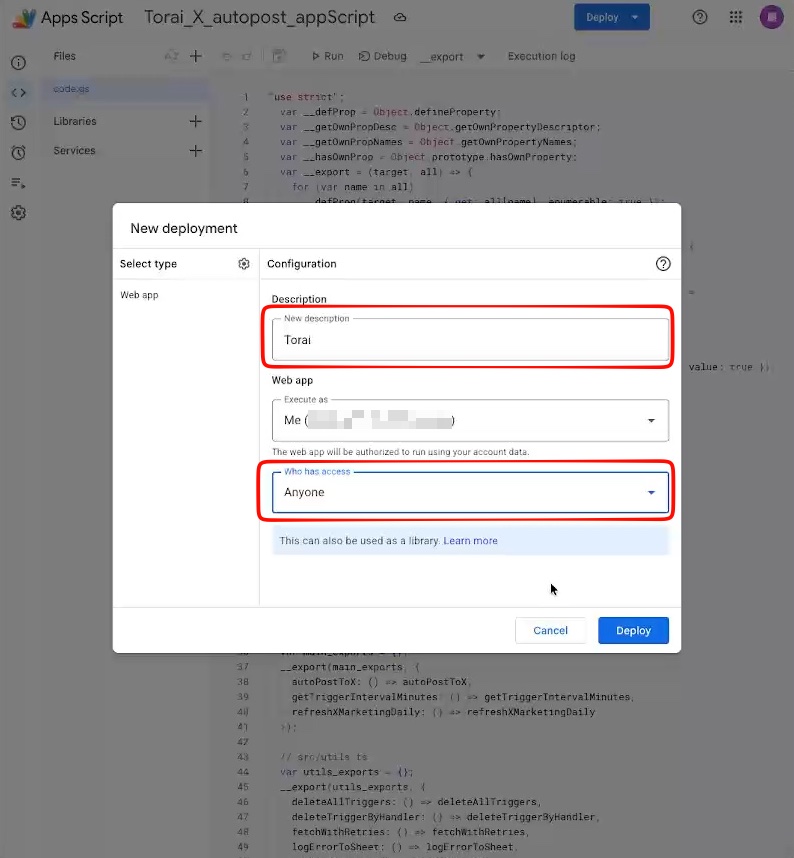
Click Deploy.
5. Grant Google permissions
The first time you deploy, Google asks you to grant permissions.
Click Authorize access.
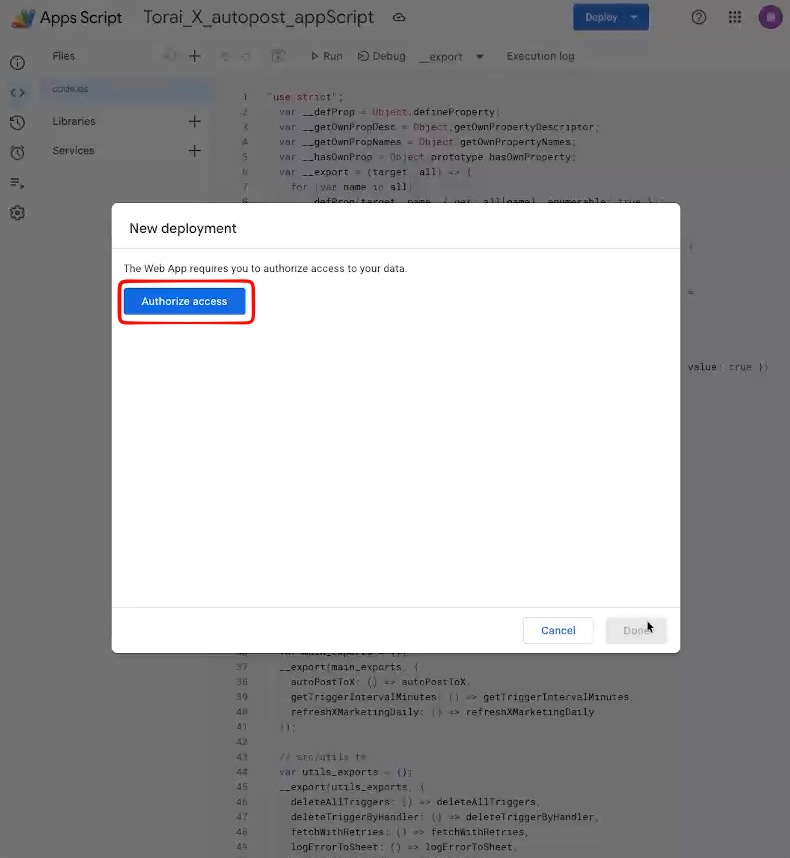
Choose the Google Account that created the Google Sheet and Apps Script project.
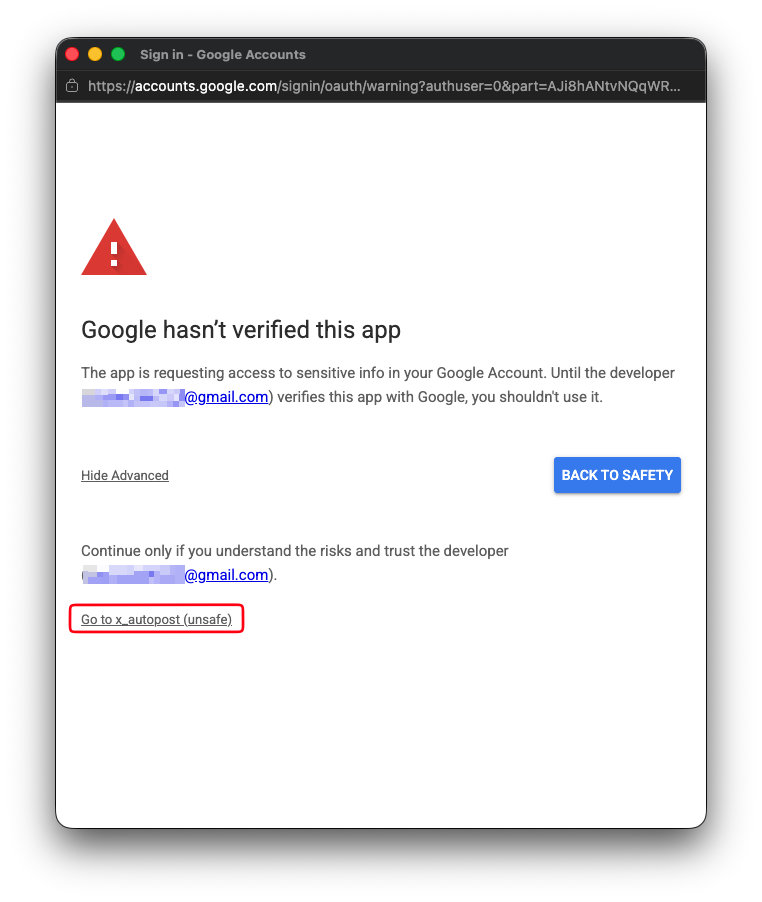
If Google hasn't verified this app appears, open Advanced and continue using the project-name link.
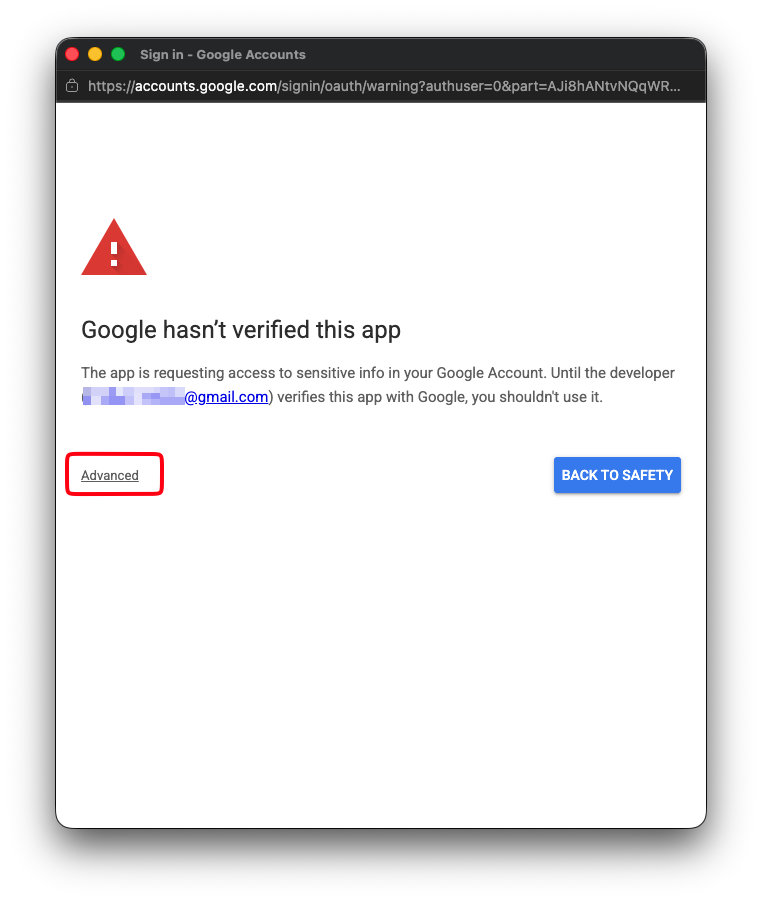
When the page says to continue only if you understand the risks and trust the developer, click the link containing your script name.
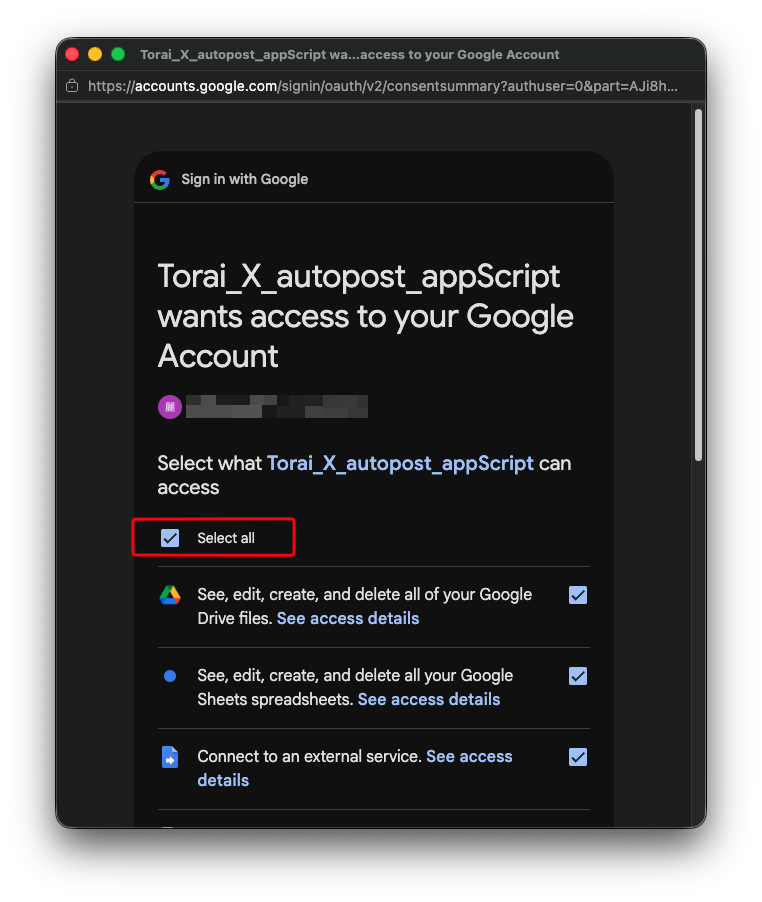
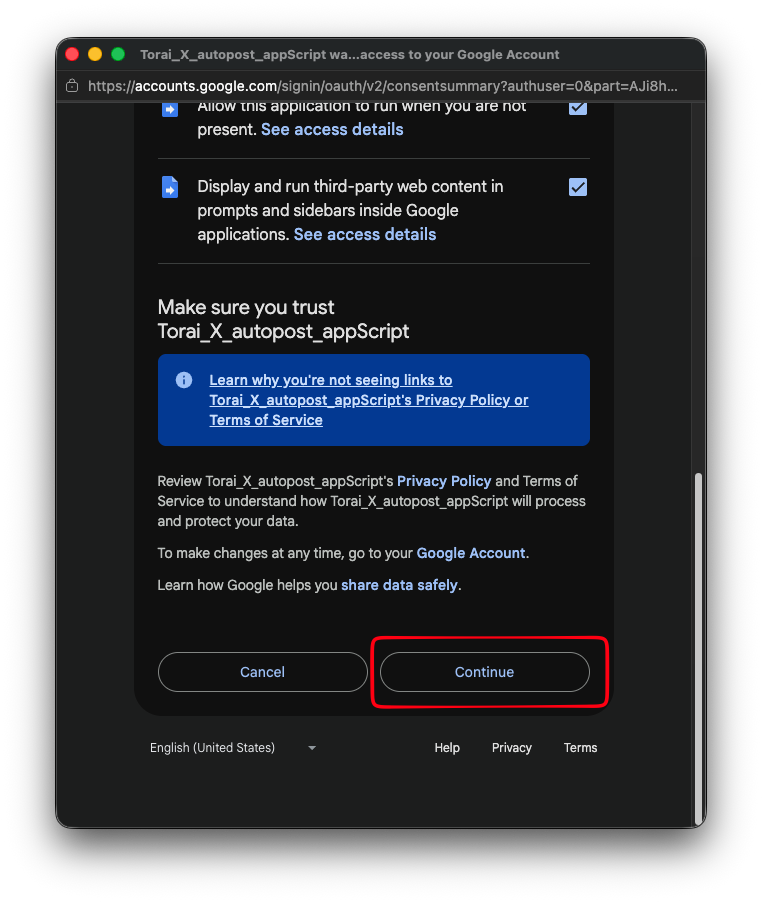
Review the permissions and click Allow.
6. Copy the web app URL
When deployment completes, the web app URL is displayed.
Click Copy.
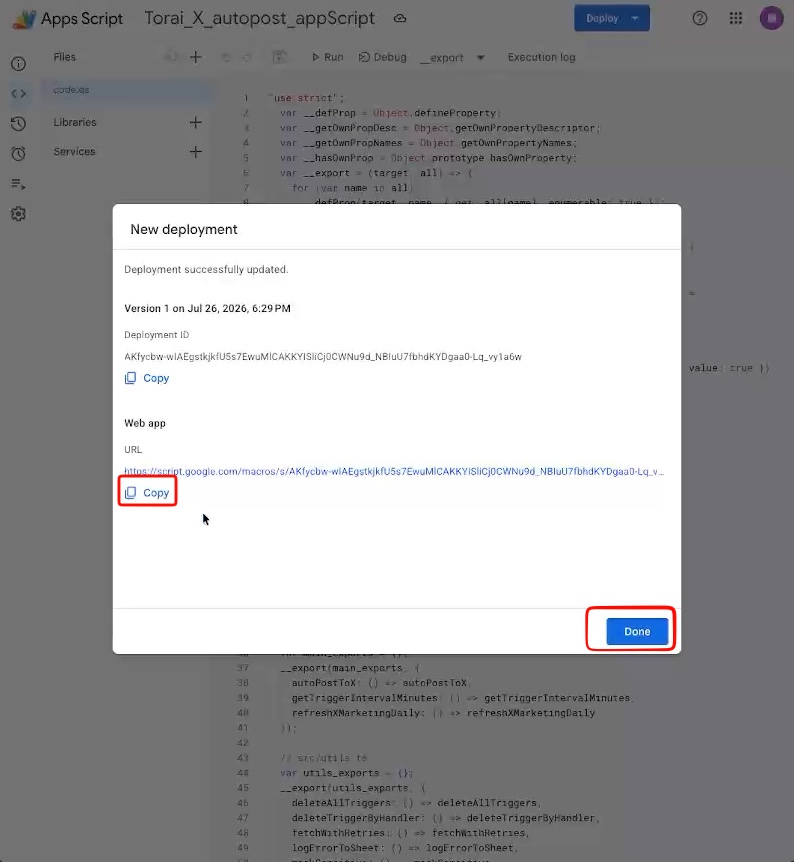
Register the web app URL ending in /exec in Torai. Do not use the Apps Script editor URL, Google Sheet URL, or a URL ending in /dev.
This is the URL required in Torai's settings.
7. Reload Google Sheets
Return to the Google Sheets tab after deploying Apps Script.
Click the browser's reload button.
If a Torai menu or additional sheets appear after reloading, check them.
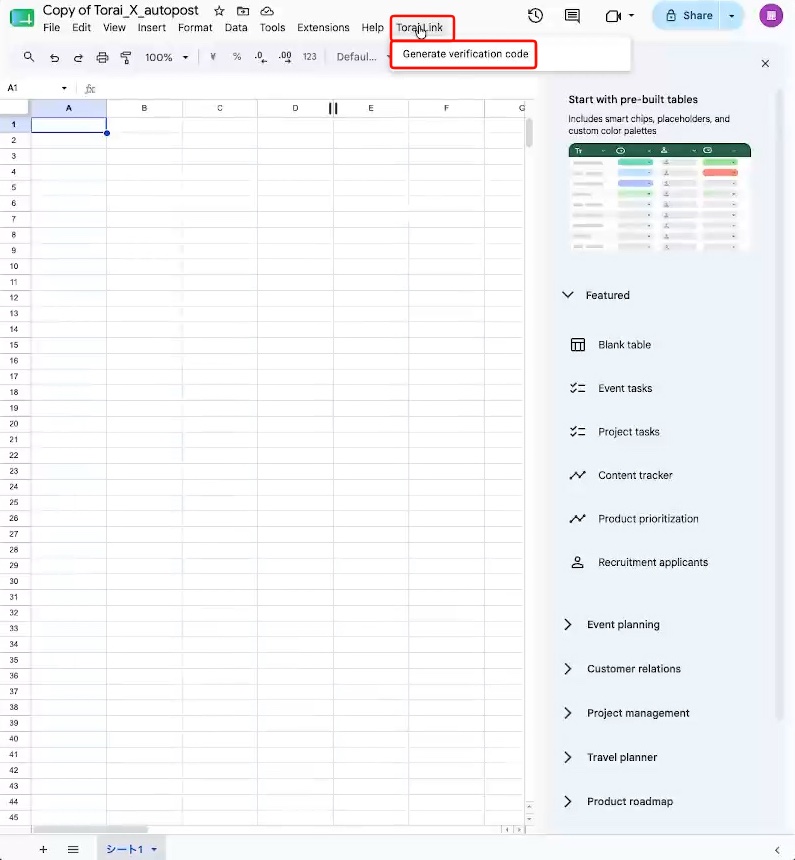
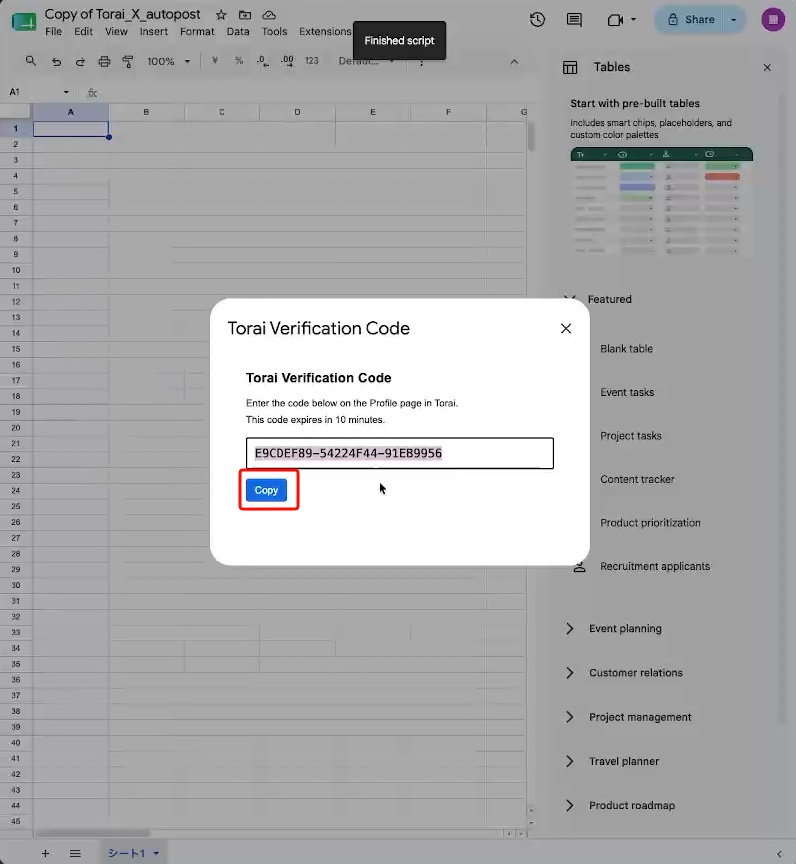
Reloading applies Apps Script changes and updates the custom menu. Even if the display does not change, you can continue to the next step.
8. Register the GAS URL in Torai
Paste the web app URL you copied.
9. Check Google Sheets
After the connection is complete, confirm that the required sheets and columns exist.
Check that:
- A sheet exists for scheduled posts
- A sheet exists for published posts
- A sheet exists for errors
- The verification code is no longer required or the connection is shown as complete
- After the first X Marketing collection,
XMarketingInteractions,XMarketingPosts,XMarketingPostDaily, andXMarketingRunsare created
Sheet and column names may change between Torai versions. After creating or automatically publishing a post, or clicking Refresh Now in X Marketing, confirm that data appears in Google Sheets.
10. Checklist before publishing or collecting data
- All four X API credentials are registered in Torai
- App permissions in the X Developer Console are Read and write or higher
- X API credit and Usage have no issues
- The GAS URL is the web app URL ending in
/exec - Google Sheets has been reloaded
- GAS identity verification is complete
- If you use X Marketing, you reviewed the collection switches and monthly budget setting
Updating the Apps Script code
When Torai announces an Apps Script code update:
- Open the Apps Script editor
- Delete all old code
- Paste the complete new code
- Save
- Deploy a new version from Manage deployments
- Reload Google Sheets
- Test the operation in Torai
If you do not deploy after updating the code, the web app may continue running the old version. Do not stop after saving; redeploy when required.
Common problems
The URL produces an error in Torai
You may not have copied the Apps Script web app URL. Use the URL ending in /exec.
No verification code appears in Google Sheets
Check that:
- Web app access is set to Anyone
- You opened the Google Sheet used to create the Apps Script project
- The GAS URL pasted into Torai is correct
- You granted the required Apps Script permissions
“This GAS deployment is linked to another Torai account”
The Apps Script deployment is already linked to another Torai account and cannot be transferred.
To use another account, copy only the sheet data you need, then create a new Google Sheet and Apps Script project.
Nothing changes after replacing the code
Apps Script may need to be redeployed. In Manage deployments, create a new version and update the web app deployment.
The menu does not appear after reloading Google Sheets
Some Torai versions may not display a custom menu. Check whether GAS identity verification and post creation work in Torai.